
10 Hacks Every Nintendo Switch (or Switch 2) Owner Should Know
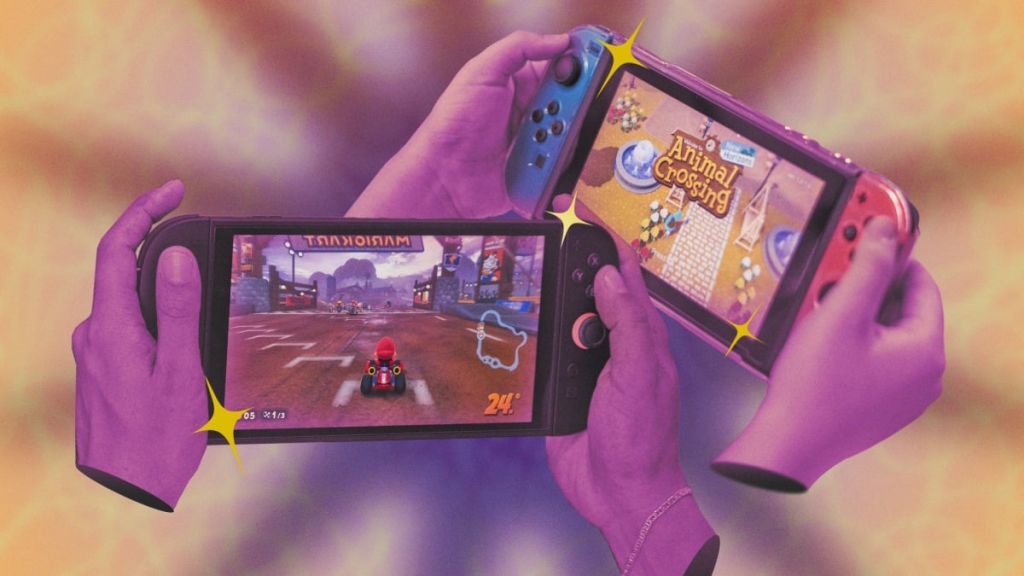
Nintendo Switch and Switch 2 Tips and Tricks: Master Your Console Like a Pro
The Nintendo Switch and its successor, the Switch 2, are beloved for their portability and user-friendly design. However, beneath their simple exteriors lie a treasure trove of features and customization options that many gamers overlook. Whether you’re a seasoned Switch owner or a proud new Switch 2 user, these tips, tricks, and hacks will help you unlock the full potential of your console.
Turn on Dark Mode for a Sleek Look
Nintendo’s bright and colorful aesthetic is iconic, but sometimes you might prefer a darker, more subdued interface. Both the original Switch and Switch 2 offer a dark mode option. To enable it, navigate to System Settings (the cog icon on the home screen), scroll down to Themes, and select Basic Dark. This will transform your home screen and menus into a sleek black design, which can even help save battery life on the Switch OLED model. Note that games themselves will remain unaffected.
Remap Your Buttons for Ultimate Control
Whether you’re looking for accessibility options or just want to customize your controls, both the Switch and Switch 2 allow you to remap your buttons. The process differs slightly between the two systems:
Original Switch:
- Go to System Settings > Controllers and Sensors > Change Button Mapping.
- Select your controller (Joy-Con, Pro Controller, or third-party options) and start reassigning buttons. For example, you can make the B button act as the right trigger or invert the up and down controls.
Switch 2:
- Navigate to System Settings > Accessibility > Button Mapping.
- You can remap Joy-Con 2 controllers, the Pro Controller, and Joy-Con 2 charging grips. Some third-party controllers may also work.
- Additionally, you can enable Button Mapping in Quick Settings by holding down the physical Home button and selecting Edit Mapping.
- Under System Settings > Controllers & Accessories, you can customize GL/GR buttons, toggle Joy-Con 2 mouse controls, and even swap the A and B buttons for Xbox-style layouts.
Share Games Locally and Online with GameShare and GameChat
One of the most exciting features of the Switch 2 is its ability to share games with friends, both locally and online. Here’s how it works:
GameShare (Local):
- Available on both the Switch and Switch 2, GameShare allows you to share a game with nearby players for local multiplayer.
- To use it, start a game that supports GameShare (like Super Mario Odyssey), and select GameShare + Local Play.
- Others can join by selecting GameShare from the main menu and choosing Join GameShare.
GameChat (Online):
- Exclusive to the Switch 2, GameChat lets you share games online with friends in your chat session.
- Start a GameChat session by pressing the physical C button or selecting the C icon from the main menu.
- Open your game and share it with others in your chat. They can join instantly without needing to navigate separate menus.
Note: GameChat is free until March 31, 2026, after which it will require a Nintendo Switch Online membership.
Save Storage Space by Archiving Games
Both the Switch and Switch 2 have limited storage, but you can free up space by archiving games you don’t play often. Archiving removes the game from your console while keeping your save data intact.
Original Switch:
- Hover over the game on the home screen, press the + button, and select Manage Software > Archive Software.
- Alternatively, use System Settings > Data Management > Quick Archive to see which games take up the most space.
Switch 2:
- The process is similar, but the option is now called Delete Software by default, with an option to keep the home menu icon.
- To move games to a microSD card, go to System Settings > Data Management > Move Data Between System / microSD Card.
Send Screenshots and Videos to Your Phone
The Switch and Switch 2 make it easy to capture gameplay moments, but sharing them online requires a few extra steps.
Original Switch:
- Go to the Album from the home screen, select a screenshot or video, and choose Send to Smartphone.
Switch 2:
- You can upload screenshots and videos manually or automatically. For manual uploads, select Album > Upload to Smart Device. For automatic uploads, enable Automatic Uploads in the Album settings.
- View your uploads in the Nintendo Switch App on your phone and share them to social media.
Transfer Game Data Between Systems
Upgrading to a Switch 2? You can transfer your games and save data seamlessly.
System Transfer:
- During Switch 2 setup, select Begin System Transfer and keep both consoles nearby.
- This transfers your games and saves while keeping them installed on your original Switch.
Manual Transfer:
- For physical games, simply move them between consoles.
- For digital games, use Virtual Game Cards to load them on another system.
- For save data, use System Settings > Data Management > Transfer Your Save Data or cloud saves with a Nintendo Switch Online membership.
Create Miis on Your Switch
Miis are still alive and well on the Switch! To create one, go to System Settings > Mii > Create/Edit a Mii. On the Switch 2, you can start from a preset or use an amiibo. Customize your Mii with a wide range of options, including any hair color you like. Some games, like Super Smash Bros. Ultimate, even let you play as your Mii.
Hide Your Online Status
Want to game without your friends knowing? You can hide your online status on both the Switch and Switch 2.
- Go to your profile icon > User Settings > Friend Settings.
- On the Switch 1, select No One under Display online status to:. On the Switch 2, choose No One under Online-Status Display.
- To hide your recently played games, go to Play Activity Settings and select No One.
Master Mouse Mode on the Switch 2
The Switch 2’s mouse controls are a game-changer, allowing you to use a Joy-Con 2 like a mouse for precise navigation and gameplay. You can even plug in a USB-C mouse for added comfort. Some games, like Cyberpunk 2077, support mouse controls for aiming, making them feel like PC games.
Find Your Lost Controllers
Lost your Joy-Con or Pro Controller? The Switch can help you find it by making it vibrate.
- Go to Controllers from the home screen, select Find Controllers (Switch 1) or Search for Controllers (Switch 2), and choose the controller to make it vibrate.
Tags: Nintendo Switch, Switch 2, dark mode, button mapping, GameShare, GameChat, archiving games, microSD card, screenshots, save data transfer, Miis, online status, mouse controls, USB-C mouse, controller finder
Viral Phrases:
- “Unlock the full potential of your Nintendo Switch!”
- “Master your console like a pro with these hidden features!”
- “GameShare and GameChat: Share the fun with friends!”
- “Dark mode on Switch: Sleek, stylish, and battery-saving!”
- “Mouse controls on Switch 2: A game-changer for precision!”
- “Find your lost controllers in seconds with this trick!”
- “Create your own Mii and bring it to life in games!”
- “Transfer your game data effortlessly between systems!”
- “Archive games to save space without losing progress!”
- “Share your epic gameplay moments with the Nintendo Switch App!”
,


Leave a Reply
Want to join the discussion?Feel free to contribute!