
18 Hidden iOS 26 Tricks That Make Your iPhone Smarter
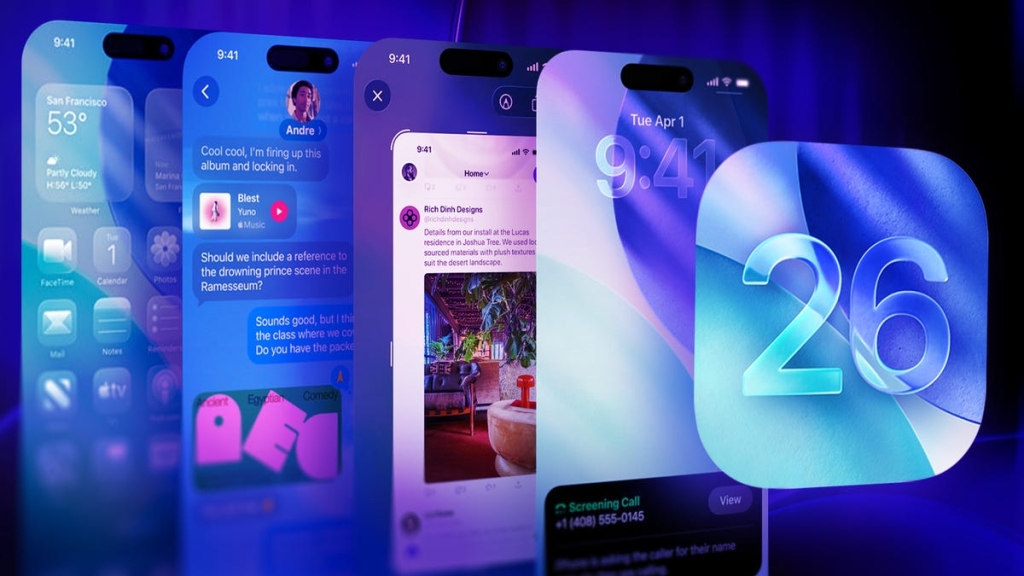
iOS 26: The Hidden Features That Will Change How You Use Your iPhone
When Apple unveiled iOS 26, the flashy Liquid Glass redesign and AI-powered enhancements dominated headlines. But after weeks of living with the new software, I’ve discovered that the most transformative changes aren’t the ones Apple spent keynote time showcasing—they’re the subtle, buried features that quietly revolutionize your daily iPhone experience.
Beyond the Surface: Why These Hidden Features Matter
The out-of-the-box iOS 26 experience is designed for the masses, but power users know that true productivity lies in the settings menu. These aren’t cosmetic tweaks or wallpaper changes—they’re functional improvements that address real frustrations iPhone users have complained about for years.
What makes these features particularly compelling is how they demonstrate Apple’s shift toward anticipatory computing. Instead of just responding to your commands, iOS 26 increasingly predicts your needs and adapts accordingly. It’s the difference between a phone that waits for instructions and one that understands context.
1. The End of 9-Minute Snooze Tyranny
For decades, iPhone users have been trapped in the arbitrary 9-minute snooze cycle—a relic from mechanical alarm clock engineering that persisted into the digital age despite making no logical sense. iOS 26 finally liberates us from this digital anachronism.
How to access it: Open the Clock app, tap any alarm, then select “Snooze Duration” at the bottom. You can now set intervals from 1 to 15 minutes, customized per alarm.
Why it matters: The 9-minute default has been scientifically linked to increased grogginess and disrupted sleep cycles. Studies show that 10-15 minute intervals align better with natural sleep rhythms, making this seemingly small change potentially transformative for your morning routine.
Pro tip: Create multiple alarms with different snooze durations for different days—longer on weekends, shorter on workdays when you need that extra push.
2. Custom Ringtones Without the GarageBand Hassle
Remember when creating a custom ringtone required a Mac, GarageBand expertise, and a 30-minute tutorial? Those days are officially over. iOS 26 introduces native ringtone creation that works entirely on your iPhone.
How to access it: In Files, tap any MP3 or M4A under 30 seconds, hit the Share button, and select “Use as Ringtone.” The file appears instantly in Settings > Sounds & Haptics > Ringtone.
Why it matters: Personalization has always been a pain point for iPhone users compared to Android’s flexibility. This feature bridges that gap without compromising Apple’s ecosystem integrity.
Pro tip: Use Voice Memos for even more creative possibilities—record your own sounds, your child’s laughter, or a memorable quote to use as a ringtone.
3. Selective Text Copying: The Feature We’ve Been Waiting For
How many times have you wanted to copy just one line from a long text message, only to be forced to grab the entire bubble? iOS 26 introduces granular text selection within Messages, a feature that seems obvious in retrospect but represents a significant usability improvement.
How to access it: Press and hold any message, select “Select,” then use the handles to highlight only the portion you want to copy.
Why it matters: This addresses a fundamental friction point in mobile communication. Whether you’re copying passwords, addresses, or important information buried in longer messages, this feature saves time and reduces frustration.
Pro tip: This works retroactively on old messages too, so you can finally extract that Wi-Fi password from a conversation six months ago.
4. Your Personal Location Memory Bank
Apple Maps now maintains a private, local record of everywhere you’ve been, complete with dates and details. It’s like having a personal travel journal that writes itself.
How to access it: Open Maps, tap your profile icon, select “Places,” then “Visited Places.”
Why it matters: In an age of information overload, our memories often fail us. This feature serves as a digital memory aid, helping you recall restaurants you loved on vacation or routes you took on memorable trips.
Privacy note: All data stays on your device. Apple doesn’t see it, and it’s not backed up to iCloud by default. You maintain complete control over this personal history.
5. Battery Charge Time Estimates: No More Guessing Games
One of iOS 26’s most practical additions is the lock screen’s battery charge time estimates. Instead of wondering whether that 15-minute charge will get you through your meeting, you’ll see precise estimates like “13m to 80%” or “1h 8m to 100%.”
How to access it: Look above the time on your lock screen when charging, or check Settings > Battery.
Why it matters: This seemingly simple feature eliminates decision paralysis around charging. It helps you make informed choices about whether to grab a quick top-up or wait until you have more time.
Pro tip: Use this information to optimize your charging habits—short bursts when you see quick gains, longer sessions when you need maximum capacity.
6. Adaptive Power Mode: AI Battery Management
For iPhone 15 Pro models and later, iOS 26 introduces Adaptive Power Mode, which replaces the binary Low Power/Standard choice with intelligent, context-aware power management.
How to access it: Settings > Battery > Power Mode, then select “Adaptive.”
How it works: The system analyzes your usage patterns in real-time. If you’re streaming music at home, it conserves power. If you’re gaming or recording video, it prioritizes performance. The transition is seamless and invisible.
Why it matters: This represents a fundamental shift in how we think about battery management. Instead of manual toggling or accepting reduced performance, your iPhone now makes intelligent decisions based on actual usage context.
7. 3D Spatial Scenes: Photos That Come Alive
Photos in iOS 26 can now transform into immersive 3D-like views with subtle motion that responds to how you hold your device. It’s not quite virtual reality, but it adds a new dimension to photo viewing.
How to access it: Open any photo in the Photos app and look for the “Spatial” toggle in the top-right corner.
Why it matters: This feature bridges the gap between static photography and the dynamic way we experience memories. It adds emotional depth to photos by creating a sense of presence and dimensionality.
Pro tip: This works particularly well with landscape photos and scenes with depth, like mountain ranges or architectural shots.
8. Visual Intelligence for Screenshots: AI That Sees What You See
iOS 26’s Visual Intelligence feature activates the moment you take a screenshot, offering AI-powered analysis and actions without requiring you to leave the screenshot editor.
How to access it: Take a screenshot, tap the thumbnail, and you’ll see “Ask” (ChatGPT integration) and “Image Search” (Google integration) buttons. You can also circle specific areas with your finger for targeted analysis.
Why it matters: This eliminates the friction of copying information from screenshots. Whether it’s adding calendar events, shopping for products, or getting explanations, the AI works directly on your screenshot content.
Privacy note: Detection happens on-device, but using “Ask” or “Image Search” shares the image with external services. Skip these for sensitive screenshots.
9. Apple Music Lyric Translations: Breaking Language Barriers
For music lovers who explore international artists, Apple Music now offers real-time lyric translations that sync perfectly with the music.
How to access it: In any song with lyrics, tap the Lyrics view, then hit “Translate These Lyrics” on the bottom left.
Why it matters: Music is a universal language, but understanding lyrics adds emotional depth and cultural context. This feature makes global music more accessible without losing the rhythm and flow of the original.
Pro tip: This works best with major languages and popular songs, though coverage continues to expand.
10. Live Call Screening: Finally Catching Up to Android
The Phone app now features live call screening that transcribes unknown callers in real-time, letting you decide whether to answer without picking up.
How to access it: When an unknown number calls, tap “Screen Call” instead of answering.
Why it matters: Spam calls have become a universal frustration. This feature gives you control without the awkwardness of letting calls go to voicemail or answering just to hang up.
Pro tip: You can customize how aggressively the system screens calls in Settings > Phone > Silence Unknown Callers.
11. AirPods as Camera Shutter: The Group Photo Solution
Your AirPods can now double as a remote shutter button for the Camera app, solving the age-old problem of taking group photos without a timer.
How to access it: With the Camera app open, double-tap either AirPod to take a photo.
Why it matters: This eliminates the need for Bluetooth remotes or timer juggling. It’s particularly useful for group shots, tripod photography, or any situation where you’re not holding the phone.
Pro tip: This works with all AirPods that support double-tap functionality, including older models.
12. Custom Message Backgrounds: Setting the Mood
iOS 26 lets you customize individual conversation backgrounds in Messages, adding personality to your chats.
How to access it: Open any chat, tap the name/title at the top, choose “Backgrounds,” and select from colors, gradients, photos, or AI-generated images.
Why it matters: This adds emotional context to conversations. A calming background for a friend going through a tough time, or a festive one for holiday chats, adds a layer of expression that text alone can’t convey.
Pro tip: Use this feature to organize your mental map of conversations—different backgrounds for work, family, and friends.
13. Native PDF Editing with Preview
The Preview app, long a macOS staple, is now fully integrated into iOS for PDF editing without requiring third-party apps.
How to access it: Open any PDF in Files or Mail, tap “Markup,” and you’ll have access to highlighting, notes, signatures, and page rearrangement tools.
Why it matters: This eliminates the need for multiple PDF apps and subscriptions. Apple’s implementation is surprisingly robust, handling most common PDF tasks with ease.
Pro tip: The signature tool is particularly useful for contracts and forms—you only need to create your signature once.
14. Middle-Screen Back Gesture: Navigation Revolution
Apple has finally acknowledged that edge-swipe gestures aren’t always practical, especially on larger iPhones. The new middle-screen back gesture works anywhere in the app window.
How to use it: Swipe left-to-right from anywhere in the app window to go back.
Why it matters: This is particularly useful for one-handed use on larger iPhones where reaching the left edge is awkward or impossible.
Pro tip: This works in Safari, Settings, Mail, and most stock apps. Third-party apps are gradually adopting this gesture.
15. Satellite Weather: Connectivity Independence
iOS 26 brings satellite connectivity to the Weather app, allowing you to check conditions even when you’re completely off the grid.
How to access it: Open Weather anywhere—if you’re offline, you’ll see a satellite icon indicating satellite-based data.
Why it matters: This is a game-changer for outdoor enthusiasts, travelers in remote areas, or anyone who’s ever been caught in bad weather without service.
Pro tip: Satellite weather is limited to basic forecasts and severe weather alerts—don’t expect detailed hourly predictions.
16. Dirty Lens Detection: The Photographer’s Assistant
The Camera app now detects when your lens is dirty and gently reminds you to clean it before taking photos.
How to use it: Just use your camera normally—if the system detects lens issues, you’ll see an on-screen alert.
Why it matters: How many blurry photos have you taken only to realize later that your lens was smudged? This feature prevents those disappointing moments.
Pro tip: The detection is intelligent enough to distinguish between actual lens issues and artistic effects like intentional blur.
17. HDR Screenshots: Visual Fidelity Preserved
Screenshots now capture in HDR on iOS 26, preserving the same vivid highlights and contrast you see on your display.
How to use it: Take screenshots normally—HDR capture happens automatically on supported content.
Why it matters: This ensures that what you save looks exactly like what you see, particularly important for photos, design work, or anything where color accuracy matters.
Pro tip: This works best with content that’s already in HDR—standard content will still capture in standard dynamic range.
18. Digital Passports in Wallet: The Future of Travel
Wallet will soon support digital passports in some regions, potentially revolutionizing international travel.
How to access it: Wallet > + > Add Passport (when available in your region).
Why it matters: This could eliminate the need to fumble for physical passports at airports and checkpoints, representing a significant step toward digital identity management.
Pro tip: Keep your physical passport as a backup—digital passport adoption will be gradual and region-specific.
19. Enhanced Privacy Controls
iOS 26 introduces more granular privacy controls, allowing you to grant apps temporary permissions that automatically revoke after use.
How to access it: When an app requests permission, look for the new “Allow Once” option alongside the traditional “Allow While Using” and “Don’t Allow.”
Why it matters: This gives you more control over your data without the all-or-nothing approach of previous versions. Apps get what they need for the moment, then lose access.
Pro tip: Use this for apps that need location data for specific tasks but don’t need constant tracking.
20. Smarter Siri with On-Device Processing
Siri’s responses are now processed entirely on-device for supported requests, making the assistant faster and more private.
How to use it: Ask Siri questions as normal—many responses will be generated locally without cloud processing.
Why it matters: This improves response times and ensures your data never leaves your device for supported queries, addressing privacy concerns while improving performance.
Pro tip: Siri works better offline now, handling many tasks without requiring an internet connection.
Tags
iOS 26 features, iPhone hidden settings, Apple iOS tips, iOS 26 tricks, iPhone customization, Apple updates 2025, iOS hidden features, iPhone productivity tips, Apple software update, iOS 26 review
Viral Sentences
“iOS 26 just made your iPhone 10x smarter with these hidden features”
“Apple finally fixed the 9-minute snooze problem that’s been driving us crazy for years”
“Your AirPods can now take photos—here’s how to set it up”
“iOS 26’s AI screenshot analysis is straight out of a sci-fi movie”
“Apple just made PDF editing native on iPhone—no more third-party apps needed”
“The middle-screen back gesture in iOS 26 is a game-changer for one-handed use”
“iOS 26’s satellite weather feature means you’ll never be caught in a storm unprepared”
“Your iPhone now tells you when your camera lens is dirty—genius or creepy?”
“iOS 26’s Adaptive Power Mode learns your habits better than you do”
“Apple finally added live call screening—Android users have had this for years”
“iOS 26 turns your photos into 3D Spatial Scenes that feel like magic”
“The new ‘Allow Once’ privacy feature in iOS 26 gives you total control”
“iOS 26’s custom ringtone feature eliminates the need for GarageBand forever”
“Your iPhone now remembers everywhere you’ve been—creepy or convenient?”
“iOS 26’s Visual Intelligence can read text from screenshots and do things with it”
“Apple Music’s new lyric translations break down language barriers in music”
“iOS 26’s HDR screenshots finally match what you see on your screen”
“The digital passport feature in iOS 26 could revolutionize international travel”
“iOS 26’s granular text selection in Messages is the feature we’ve all been waiting for”
“Apple’s Adaptive Power Mode in iOS 26 is AI battery management at its finest”
,


Leave a Reply
Want to join the discussion?Feel free to contribute!