
5 Apple Watch settings you should change right now for more accurate heart rate tracking
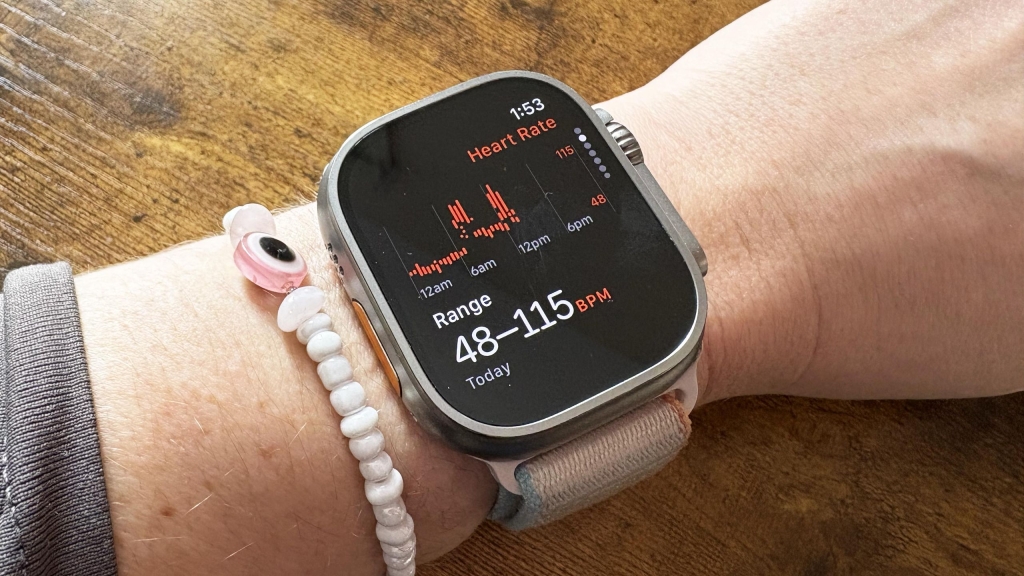
Unlock the Secrets to Flawless Heart Rate Tracking on Your Apple Watch!
Your Apple Watch is a powerhouse of health insights, but are you truly getting the most accurate heart rate readings? Whether you’re a fitness fanatic, a casual walker, or just someone who loves tracking their health, these five game-changing settings will transform how your Apple Watch monitors your heart rate. Let’s dive in!
5 Settings You Should Check or Change Right Now for More Accurate Heart Rate Monitoring on Your Apple Watch
1. Check That Your Personal Information Is Accurate
Your Apple Watch relies on your personal data to calculate heart rate zones, calorie burn, and more. If your weight, age, or other details are outdated, your heart rate readings could be off. For example, weight significantly impacts resting heart rate—heavier individuals often have higher resting heart rates, which decrease as they lose weight and get fitter.
Pro Tip: Invest in one of the best smart scales that syncs with your Apple Watch to keep your data up-to-date effortlessly. If you don’t have a smart scale, manually update your info in the Health app on your iPhone.
2. Make Sure Wrist Detection Is Turned On
This might seem obvious, but Wrist Detection is crucial for accurate heart rate tracking. If it’s disabled, your Apple Watch won’t measure your background, resting, or active heart rate. Double-check this setting in the Watch app on your iPhone to ensure it’s enabled.
3. Double-Check the Fit of Your Watch (and Give It a Clean)
Your Apple Watch uses an optical heart rate sensor that shines light into your skin to measure your pulse. For this to work accurately, your watch needs to fit snugly—not too tight, but not too loose either. A dirty sensor or improper fit can lead to inaccurate readings.
Pro Tip: If you have tattoos on your wrist, they might interfere with the sensor. Try wearing your watch on the other wrist or use an external chest strap for more precise readings during workouts.
4. Check Your Privacy Settings
If your Apple Watch isn’t recording your heart rate, your privacy settings might be the culprit. Open the Watch app on your iPhone, go to Privacy, and ensure Heart Rate is enabled. This is also essential if you’re sharing heart rate data with third-party apps.
5. Use Proper Workout Types
Your Apple Watch is smart, but it needs your help to provide accurate readings. For example, if you’re walking while holding a dog’s leash or pushing a stroller, manually select Outdoor Walk mode to ensure better accuracy. This is especially important for activities with irregular movements.
Pro Tip: You can always check your heart rate instantly by opening the Heart Rate app on your Apple Watch.
Why Accurate Heart Rate Tracking Matters
Accurate heart rate monitoring isn’t just about numbers—it’s about understanding your body. Whether you’re training for a marathon, managing stress, or simply staying healthy, your Apple Watch can be your ultimate health companion. By tweaking these settings, you’ll unlock its full potential and gain deeper insights into your fitness journey.
Follow Tom’s Guide on Google News and add us as a preferred source to get the latest tech news, reviews, and tips delivered straight to your feed!
Tags & Viral Phrases
- Apple Watch hacks
- Heart rate tracking tips
- Fitness tech secrets
- Apple Watch accuracy tips
- Smartwatch health insights
- Tech tips for Apple Watch users
- How to get accurate heart rate readings
- Apple Watch settings you need to know
- Fitness tracking made easy
- Tech tips for a healthier you
Ready to take your Apple Watch to the next level? Try these settings today and see the difference!
,
Leave a Reply
Want to join the discussion?Feel free to contribute!