
5 Useful Samsung TV Features You Need To Start Using
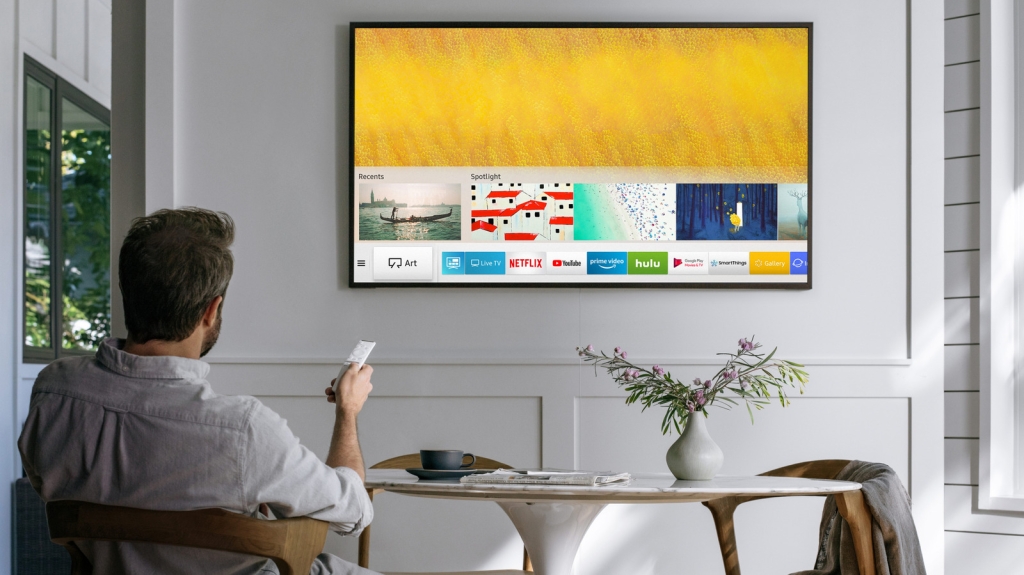
5 Hidden Samsung TV Features You Didn’t Know Existed
Samsung has cemented itself as a leader in the smart TV market, and for good reason. Their TVs deliver stunning picture quality, durable build, and a host of innovative features that go beyond simple streaming. While most users are familiar with the basics—like Bixby voice assistant, app ecosystems, and gaming hubs—there’s a treasure trove of lesser-known functionalities that can transform your viewing experience.
Whether you’re looking to streamline your daily routine, boost productivity, or simply impress your friends with some high-tech wizardry, these five Samsung TV features are worth exploring.
Find Your Lost Phone Using Your TV
Misplacing your phone at home is a universal frustration. Usually, you’d call it from another device—but if you own a Samsung TV, you can skip the extra steps and ring your phone directly from the big screen.
This magic is powered by SmartThings, Samsung’s smart home ecosystem. Once your TV is connected to SmartThings, you can trigger your phone to ring—even if it’s on silent or disconnected from Wi-Fi, as long as it has mobile data.
How to set it up:
- Turn on your Samsung TV.
- Open the SmartThings app on your phone.
- Tap the Devices tab → plus icon → Add device.
- Choose TV and select your model.
- Enter the PIN code shown on your TV screen.
- Confirm the setup.
To locate your phone:
- On your TV, go to Connected Devices → SmartThings.
- Select the Life tab.
- Tap “Ring my phone” and choose your device.
Your phone will ring loudly, making it easy to track down—even from under the couch cushions.
Share Your Mobile Remote Without Sharing Your Phone
Using your phone as a TV remote is convenient, but passing it around in a group setting? Not so much. Samsung solves this with Mobile Remote Sharing, letting others control your TV without ever touching your device.
Requirements:
- 2025 Samsung TV
- Android 11+ or iOS 16+
How to share:
- Install SmartThings on both phones.
- Add your TV to your SmartThings account.
- Open the Remote control in the app.
- Tap the share icon → Use a QR code.
- Have the other person scan the code.
Instantly, they’ll have full remote control—no awkward phone handoffs required.
Access Microsoft 365 Without a Laptop
Forget HDMI cables and laptops—Samsung TVs now let you access Microsoft 365 directly through the Workspace app. It’s perfect for office presentations, document editing, or quick spreadsheet updates.
Note: This runs Microsoft 365 in a browser, so it’s not a full desktop experience, but it’s more than enough for most tasks.
How to get started:
- Press the Home button on your remote.
- Go to Daily+ → Workspace → Microsoft 365.
- Log in with your Microsoft credentials.
With a keyboard and mouse connected, you can create, edit, and present files just like on a computer.
Turn Your Phone Into a Desktop with Samsung DeX
Samsung DeX transforms your Galaxy phone into a desktop-like interface on your TV. It’s a game-changer for productivity, letting you run apps, multitask, and even give presentations—all without a computer.
Wired setup:
- Connect your phone to the TV via USB.
- On the TV, go to Connected Devices → Daily+ → Workspace → Samsung DeX.
- On your phone, open Quick Settings → DeX → Start now.
Wireless setup:
- Connect both devices to the same Wi-Fi.
- On your phone, go to Settings → Connected devices → Samsung DeX.
- Select your TV and start DeX.
For the best experience, pair a Bluetooth keyboard and mouse. To exit, just hit the Start menu and select “Exit DeX.”
Control Your TV with Hand Gestures
Forget remotes and phones—Samsung’s Universal Gestures let you control your TV with simple hand movements, thanks to integration with select Galaxy Watches.
Requirements:
- 2025 Samsung TV or 2023/2024 U7000 with 2025 OS update
- Galaxy Watch 4 or newer with Wear OS 5
How to set it up:
- Install SmartThings on your phone and watch.
- Register your TV to SmartThings.
- On your watch, open SmartThings → select your TV.
- Pair via Bluetooth when prompted.
Gestures to master:
- Move wrist back and forth → Move cursor
- Pinch index finger and thumb → Select
- Make a fist → Go back/cancel
- Pull hand toward you → Pause
- Flick hand outward → Play
- Clench fist twice → Go to home screen
To stop, just cover your watch screen.
Tags
Samsung TV tips, hidden features, SmartThings, find my phone, mobile remote sharing, Microsoft 365 on TV, Samsung DeX, gesture control, Galaxy Watch, smart home, TV productivity, wireless DeX, TV hacks, Samsung secrets, viral tech, must-know features, tech tricks, smart TV guide, 2025 TV features, Samsung innovations
Viral Sentences
You’re using your Samsung TV wrong—here’s how to unlock its hidden superpowers!
This Samsung TV feature just replaced my laptop—no joke.
Stop losing your phone—your TV can find it for you now.
Control your TV with hand gestures? Samsung just made it possible.
Microsoft 365 on your TV? Yes, and it’s easier than you think.
Share your remote without sharing your phone—Samsung’s genius move.
Turn your Galaxy phone into a desktop with one cable.
The future of TV is here, and it’s hiding in your settings.
These Samsung tricks will make you feel like a tech wizard.
Your TV just got a serious upgrade—no new hardware needed.
,

Leave a Reply
Want to join the discussion?Feel free to contribute!