
You Can Get Back 15 GB of Gmail Storage for Free, but Do It ASAP
Gmail’s Secret Weapon: The Ultimate Inbox Zero Hack
Are you drowning in a decade’s worth of digital clutter? Tired of that “storage full” warning haunting your inbox like a ghost from your email past? Well, tech-savvy readers, rejoice! We’ve uncovered Gmail’s best-kept secret that’ll give you the fresh start you’ve been craving—without deleting a single precious message.
The Digital Storage Crisis
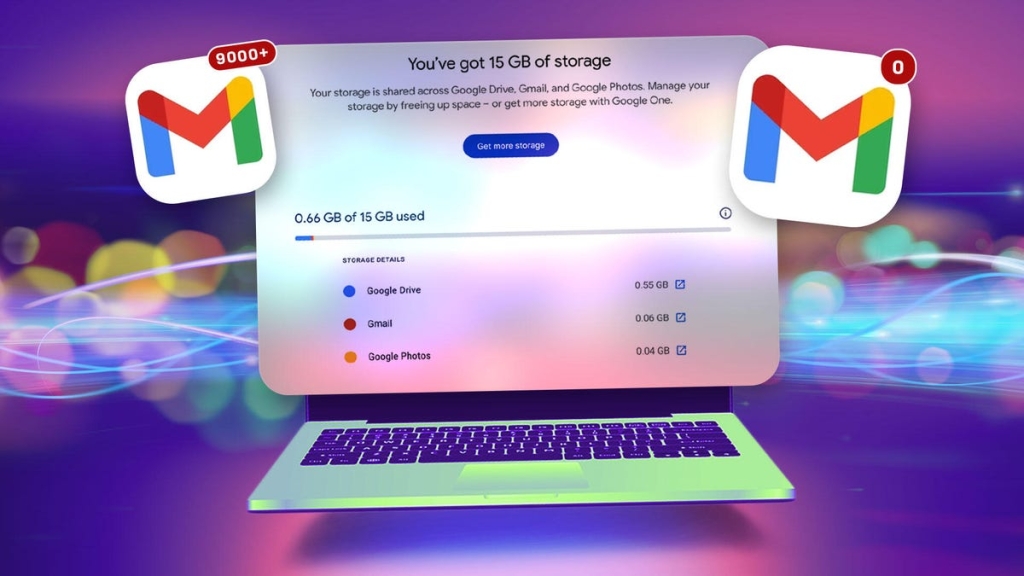
Let’s face it: that seemingly generous 15GB of free Gmail storage fills up faster than your coffee cup at a Monday morning meeting. And here’s the kicker—it’s not just emails eating up that space. Your Google Drive files and Google Photos are also sharing that same storage pie, and trust me, they’re hungry.
For those of us who’ve been in the email game since the early 2000s (raise your hand if you remember your first @gmail.com address!), we’re sitting on a goldmine of digital memories—and a potential storage nightmare.
The Game-Changing Solution
Picture this: you’re moving out of a cramped apartment into a spacious storage unit across town. That’s essentially what we’re doing here, folks. Instead of wrestling with the emotional turmoil of deleting years of correspondence (because let’s be honest, we all have that one email thread we can’t bear to part with), we’re creating a smart workaround.
Why You Need to Act Now
Here’s where it gets interesting. Google is pulling the plug on POP3 support, and the clock is ticking. New users will lose access to this protocol in the first quarter of 2026, while current users get a temporary reprieve. This means our little storage hack might not be available forever, making this the perfect time to take action.
The Step-by-Step Guide to Email Freedom
Phase 1: The Backup Bonanza
Before we dive into the transfer process, let’s talk about backing up your emails. Think of it as creating a digital safety net—because in the world of technology, it’s always better to be safe than sorry.
Head over to Google Takeout, and let the magic begin. In my test run with approximately 75,000 messages, the backup process took about 2 hours. Not too shabby for securing a decade’s worth of digital memories!
Phase 2: The Transfer Tango
Now, let’s get down to business. Here’s how to make the magic happen:
-
Original Account Setup
- Log into your primary Gmail account
- Navigate to Settings (that trusty gear icon)
- Select “Forwarding and POP/IMAP”
- Enable POP for all mail
- Choose your deletion preferences (we recommend “delete Gmail’s copy” for a clean slate)
-
New Account Creation
- Create your shiny new “archive” account
- Access settings and select “Accounts and Import”
- Add your mail account using POP3
- Enter your original account details
- Configure your import settings (don’t forget that crucial port 995!)
The Plot Twist: Google App Passwords
Here’s where things get spicy. During my testing, I discovered that standard Gmail passwords often don’t cut it for this transfer process. Enter: Google App Passwords.
These 16-digit codes are like VIP passes for your accounts, allowing secure access without compromising your main password. It’s a bit of extra work, but trust me, it’s worth it for the peace of mind.
The Waiting Game
Patience, young padawan. Depending on your email volume, the transfer could take anywhere from a few hours to several days. In my test case with 75,000 messages, it took a full two days for the complete transfer.
The Aftermath: Inbox Zero Achieved!
Once the dust settles, you’ll be staring at a gloriously empty inbox. But wait, there’s more! Your original account will have offloaded all those messages to the Trash folder, which you’ll need to empty manually. It’s like spring cleaning for your digital life!
What Gets Left Behind?
Here’s the plot twist: Drafts and Spam messages don’t make the transfer cut. You’ll need to manually deal with your Drafts, while Spam messages get automatically deleted every 30 days. Choose your own adventure!
The Final Steps
Before you celebrate your newfound digital freedom, there are a couple of housekeeping items:
- Disable the automatic transfer to keep using your original account
- Delete that Google App Password if you created one (security first, folks!)
The Bottom Line
This Gmail transfer hack is more than just a storage solution—it’s a digital lifehack that gives you the best of both worlds. You get to keep all your precious emails while enjoying the bliss of an empty inbox. It’s like having your cake and eating it too, but in digital form.
Remember, Google will delete inactive accounts after two years, so make sure to sign into your archive account periodically. Consider it a digital museum of your email history!
tags
GmailHacks #InboxZero #DigitalDeclutter #TechTips #GoogleWorkspace #EmailManagement #StorageSolutions #DigitalOrganization #TechLifeHacks #GmailTips
viralphrases
“Digital storage crisis solved!” “The ultimate inbox zero hack revealed!” “Gmail’s secret weapon uncovered!” “Say goodbye to ‘storage full’ warnings forever!” “The nuclear option for email management!” “Transform your Gmail experience today!” “The tech hack everyone needs to know!” “Your digital clutter nightmare is over!” “The storage solution that costs zero dollars!” “The email transfer trick that changes everything!”
,

Leave a Reply
Want to join the discussion?Feel free to contribute!