
How to Connect Bluetooth Headphones to Your Smart TV
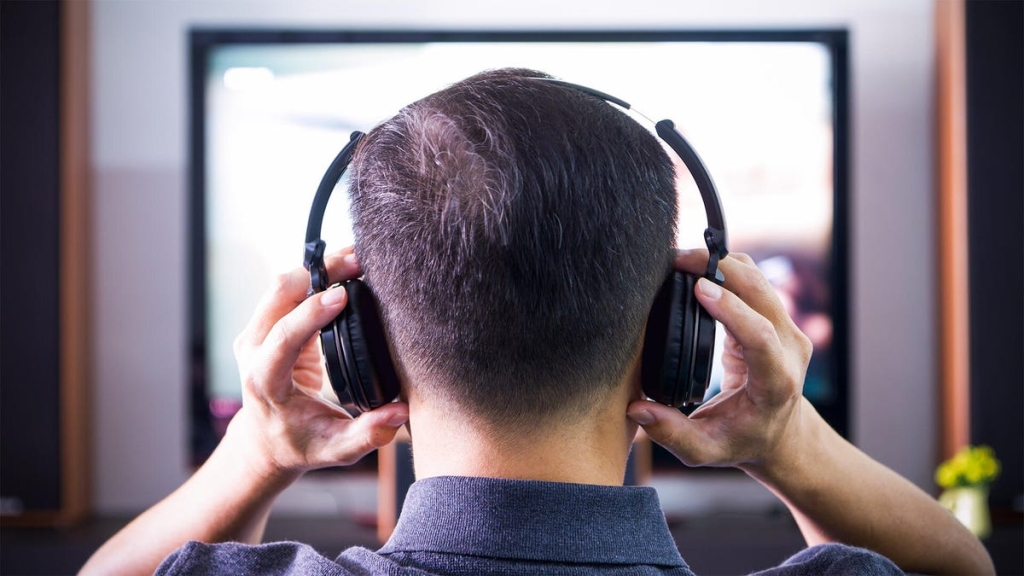
Unlock Silent TV Nights: Your Ultimate Guide to Bluetooth Headphones & Earbuds
Whether you’re a parent tiptoeing past sleeping kids, a roommate trying not to disturb your roommate, a spouse sneaking in late-night binge-watching, or juggling all of the above, you’ve probably resigned yourself to missing out on your favorite shows and movies to avoid waking the whole house. The good news? You don’t have to squint at a tiny phone or tablet screen anymore. You can still enjoy your favorite content on your big, beautiful TV—without bothering anyone else.
Bluetooth is the unsung hero here, and it’s practically everywhere, including in the best TVs on the market today. Connecting your wireless headphones or earbuds to your TV is usually quick, painless, and—dare we say—life-changing. Here’s how to do it, what you can do with it, and what to do if you hit a snag.
Initial Prep: Set Yourself Up for Success
Before you dive in, make sure you’re ready for a smooth connection. First, update the firmware on both your TV and your headphones/earbuds. You’ll usually do this through the companion app on your phone—don’t skip this step, as outdated firmware is a common culprit for connection issues.
Next, put your headphones or earbuds into pairing mode. This usually involves pressing and holding a button on the headphones or the case until a light starts flashing. If you’re not sure, check the manual—it’s worth the extra minute to avoid frustration later.
Connect: The Magic Moment
Now, head to your TV’s settings menu (usually represented by a gear icon). Look for the Bluetooth menu—this might be a separate option or tucked inside the sound/audio output settings, depending on your TV model.
Once you’re in the Bluetooth settings, select Add device (or the closest equivalent). Your headphones or earbuds should pop up in the list. Select them, and your TV should confirm that the connection is made.
If your TV’s Bluetooth settings are separate from the audio output settings, you’ll need to change the audio output to Bluetooth as well. You should also hear a brief connection tone from your headphones—music to your ears, literally!
Automatic Bliss (Most of the Time)
Once a set of headphones is paired with your TV, you generally just need to put them on, and they should automatically reconnect. Some TV models may require you to revisit the settings and manually select Bluetooth as the sound output, but most modern sets handle this seamlessly.
Here’s a pro tip: Some TVs support audio output through both Bluetooth and the built-in speakers simultaneously. This is perfect if you’re watching with multiple people and one of them likes the volume cranked way up—everyone wins!
Multipoint and Dual Audio: Level Up Your Experience
If your headphones support multipoint Bluetooth, you can switch from your TV audio to a phone call without having to manually switch and reconnect devices. It’s seamless, it’s smart, and it’s a total game-changer for multitaskers.
If your TV supports dual audio, you can connect two headsets and watch or listen together without waking the kids (or your partner, or your roommate). Pair the second device using the same procedure, then go to the audio output settings. You should be able to choose multiple devices for simultaneous, synced output. Movie night just got a whole lot more flexible.
Troubleshooting: When Things Don’t Go as Planned
Sometimes, tech doesn’t play nice. Some HDMI connections to devices like soundbars can hog up the audio output and prevent you from switching to Bluetooth. For example, I encountered a specific combination of devices—an LG OLED TV and a Sonos Arc soundbar—where I selected Bluetooth, and the HDMI connection took over the audio within a couple of seconds. If this happens, try unplugging the soundbar cable and reconnecting.
If you see a Bluetooth connection error message, don’t panic. Return to your TV’s Bluetooth settings, select the device, and choose either Forget device or Delete device. Then, repeat the pairing process. It’s a quick fix that works more often than you’d think.
No Bluetooth? No Problem!
If your TV doesn’t have Bluetooth, you’re not left out in the cold. Bluetooth transmitters are easy to connect to older TVs with an audio output (typically an optical connection) and usually support two headphone connections simultaneously. However, be sure to look for a transmitter model that includes the aptX low-latency codec and use it with headphones that also support the same codec. If not, you may experience distracting lag time between audio and video—aka lip-sync issues. Nobody wants to watch a badly dubbed movie in their living room.
To pair the transmitter with your headphones, place both devices in pairing mode, and they should connect automatically. If another device hijacks the connection to your headphones, turn off that device’s Bluetooth. Easy peasy.
Tags & Viral Phrases
- Silent TV Nights
- Wireless Headphones for TV
- Bluetooth Earbuds TV Connection
- How to Connect Headphones to Smart TV
- TV Audio Without Disturbing Others
- Multipoint Bluetooth Headphones
- Dual Audio TV Setup
- TV Bluetooth Troubleshooting
- No Bluetooth? Use a Transmitter
- Lip-Sync Issues Fixed
- Best TVs with Bluetooth
- Late-Night Binge-Watching
- Don’t Wake the Kids
- Seamless Audio Switching
- Wireless Audio for TV
- TV Soundbar Bluetooth Problems
- Fix HDMI Audio Conflicts
- Pair Headphones to TV Fast
- Upgrade Your TV Audio
- Modern TV Audio Solutions
,


Leave a Reply
Want to join the discussion?Feel free to contribute!