
Live Activities Taking Over Your Apple Watch? Here’s the Fix
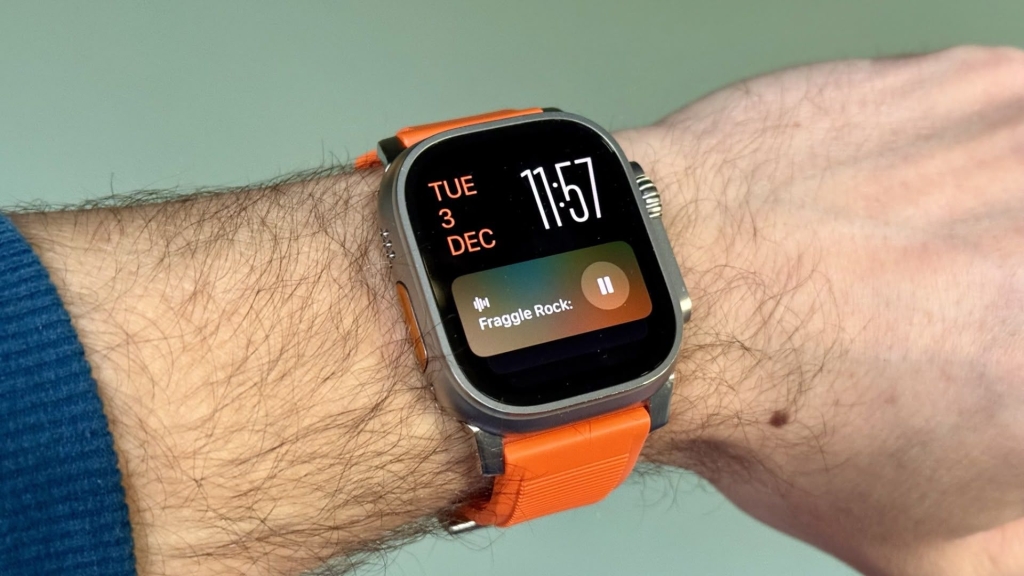
Take Back Control: How to Stop Your Apple Watch from Hijacking Your Watch Face with Live Activities
If you’ve ever raised your wrist to check the time, only to be greeted by a barrage of media controls or a stubbornly persistent timer, you’re not alone. Apple’s Smart Stack in watchOS 26 is designed to be helpful, but sometimes its eagerness to keep you informed can feel more like an intrusion than a convenience. Live Activities, while undeniably useful, have a tendency to auto-launch and take over your watch face at the most inconvenient moments. Whether it’s Apple TV playback controls or a cooking timer that still has ages to go, these interruptions can disrupt your flow.
But fear not, fellow Apple Watch users—there’s a way to reclaim your watch face and customize your Smart Stack experience. Here’s how to take back control:
Step-by-Step Guide to Disabling Auto-Launch Live Activities
- Open Settings on your Apple Watch. Navigate to the Settings app on your device.
- Tap Smart Stack. This is where you can manage the widgets and Live Activities that appear in your Smart Stack.
- Select Live Activities. Here, you’ll find the settings for Live Activities.
- Toggle off Auto-Launch Live Activities. This will prevent Live Activities from automatically taking over your watch face.
Once you’ve disabled auto-launch, Live Activities will still be available in your Smart Stack—you’ll just need to manually scroll to see them instead of having them pop up automatically. This gives you more control over when and how you interact with these features.
Fine-Tune Your Experience with Granular Controls
If you want even more control, you’re in luck. From the same settings screen, you can manage which Apple apps display Live Activities. Using the Watch app on your iPhone, you can also control Live Activities settings for third-party apps. This allows you to keep the notifications you find useful while preventing the less important ones from interrupting your watch face.
Pro Tip: Silence Media Controls for Good
If it’s just those persistent media controls that bug you, head to Media Apps in the same settings menu. Here, you can turn off Live Activities completely or select Off or Smart Stack under “Auto-Launch” for a more focused watch face experience.
Why This Matters
The Smart Stack is a powerful feature that can enhance your Apple Watch experience, but it’s not one-size-fits-all. By customizing your settings, you can strike the perfect balance between staying informed and maintaining a clean, distraction-free watch face. Whether you’re a productivity enthusiast, a fitness fanatic, or just someone who values a clutter-free interface, these tweaks can make your Apple Watch work better for you.
So go ahead—take back control of your watch face and enjoy a more personalized, streamlined experience. Your wrist will thank you.
Tags & Viral Phrases:
- Apple Watch tips and tricks
- watchOS 26 customization
- Smart Stack hacks
- Live Activities control
- Apple Watch productivity
- Stop media controls from hijacking your watch face
- How to disable auto-launch on Apple Watch
- Apple Watch settings guide
- Take back control of your Apple Watch
- Watch face customization
- Apple Watch notifications
- Granular control for Live Activities
- Media Apps settings
- Apple Watch user experience
- WatchOS 26 features
- Apple Watch troubleshooting
- Smart Stack optimization
- Apple Watch hacks
- Live Activities management
- Apple Watch personalization
,
Leave a Reply
Want to join the discussion?Feel free to contribute!