
To Find Images in Apple Photos, Forget Siri and Do It This Way Instead
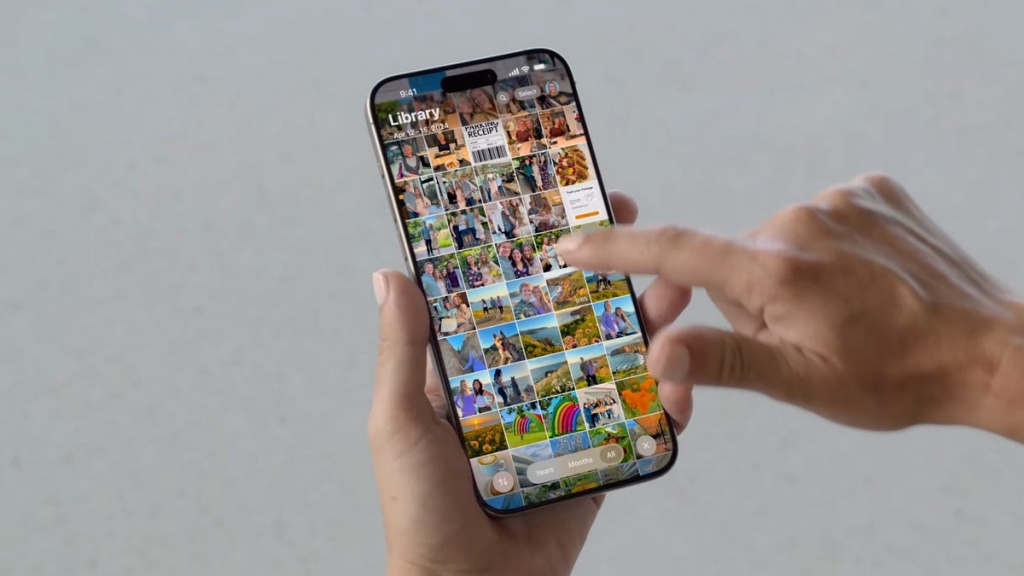
The Frustrating Truth About Siri’s Photo Search (and How to Actually Find Your Pics)
TL;DR: Siri can’t reliably find your photos, but Apple Photos has powerful AI search features you’re probably not using. Here’s how to master them.
If you’ve ever asked Siri to “show me pictures of [your name]” and instead got a web search of random people with the same name, you’re not alone. Despite Apple’s promises of seamless AI integration, Siri’s photo search is still a mess. But don’t worry—Apple Photos already has some seriously smart AI tools built in, you just need to know how to use them.
Why Siri Fails (and What Apple Photos Actually Does)
Apple Intelligence is supposed to make your life easier, but when it comes to finding photos, it’s a letdown. For example, asking Siri to “show me pictures of Jeff Carlson” might bring up a movie star, a rock band leader, or even a deceased sci-fi author—but not you. Meanwhile, the Photos app already knows who you are because you’ve tagged photos of yourself. It’s just not integrated into Siri yet.
The good news? Apple Photos uses machine learning to analyze your images and build a rich database of metadata. This means you can search for photos using keywords, locations, people, and even text that appears in the images—no tagging required.
How to Actually Find Your Photos
Here are five strategies to make your photo searches smarter and faster:
1. Search for Items, Scenes, or Places
Apple Photos scans your images for recognizable elements like objects, scenes, and locations. For example, typing “flowers” into the search bar will bring up all photos that contain flowers, even if you never tagged them. The app also recognizes concepts like “spring” or “skiing” and can search for cities, neighborhoods, or landmarks if your photos have location data.
2. Search for Identified People
Photos uses AI to identify people in your images. If you’ve tagged someone in the People & Pets category, you can search for their name and find all photos they’re in. You can even combine names to narrow results—for example, searching for “Steve Jobs and Steve Wozniak” will show only photos where both appear.
3. Search for Text in Photos
Photos can recognize text in your images, like signs, menus, or documents. If you search for a word that appears in a photo, it will show up in the results. Look for a small square icon with horizontal lines in the corner of the thumbnails to indicate which results include the text you’re searching for.
4. Combine Elements for More Targeted Searches
You can combine multiple search criteria to narrow down your results. For example, searching for “Jeff L. Carlson in Italy in 2022” will bring up only photos of you from that trip. Just tap each item in the pop-up menu to add it to your search.
5. Add Keywords in Photos for Mac
If you want even more control, you can add keywords to your photos in the MacOS version of Photos. Select a photo, choose Window > Info, and type keywords into the Keywords field. These keywords will sync to your iPhone and iPad, making your searches even more specific.
What Does “Some Results May Not Appear” Mean?
At the bottom of the search screen, you might see a message that says “Some Results May Not Appear.” This is Apple’s way of managing expectations. Photos only scans your images for metadata when your device is locked, charging, and connected to Wi-Fi. So if you’ve recently imported new photos, it might take some time for them to show up in searches.
The Bottom Line
Siri’s photo search might be a disappointment, but Apple Photos has some seriously powerful AI tools that can help you find exactly what you’re looking for. By using these strategies, you can save time and frustration—and maybe even impress your friends with your photo-finding skills.
Tags: #ApplePhotos #Siri #AI #TechTips #iPhone #iPad #MacOS #PhotoSearch #MachineLearning #AppleIntelligence #TechHacks #DigitalOrganization
Viral Sentences:
- “Siri can’t find my photos, but Apple Photos already knows who I am. What’s the deal?”
- “Why ask Siri when you can just search smarter in Apple Photos?”
- “Apple Intelligence promised a lot, but Siri’s photo search is still a mess.”
- “Stop scrolling through thumbnails—use these AI-powered search strategies instead.”
- “Your iPhone already knows what’s in your photos. Here’s how to find them.”
- “Apple Photos’ AI is smarter than you think. Here’s how to unlock its full potential.”
- “Why Siri fails at photo search (and what to do instead).”
- “The secret to finding any photo on your iPhone—no Siri required.”
- “Apple Photos’ hidden AI features you’re not using (but should be).”
- “Stop relying on Siri—here’s how to actually find your photos.”
,


Leave a Reply
Want to join the discussion?Feel free to contribute!