
Phone acting weird? 5 red flags that could point to hackers
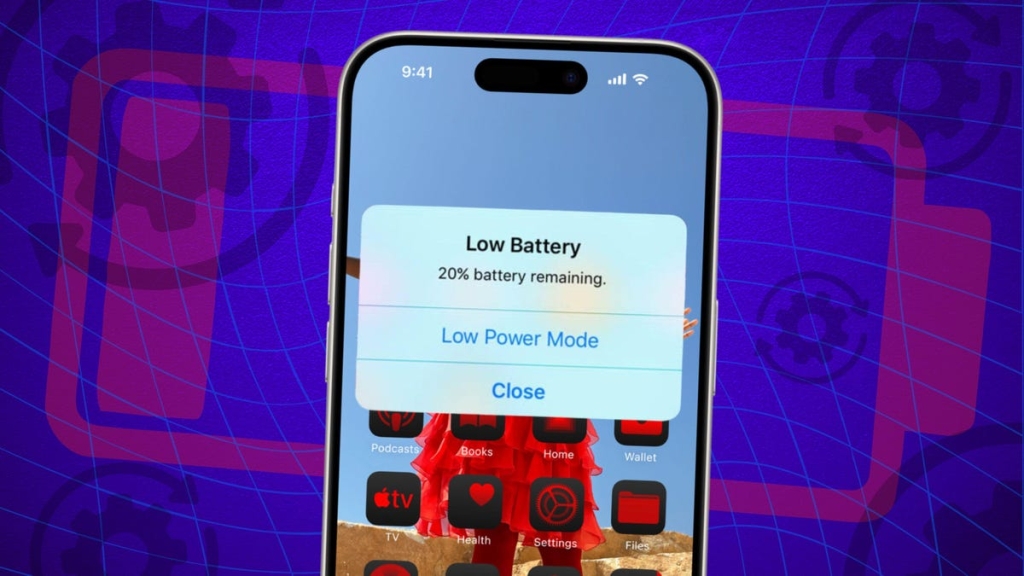
Your iPhone Battery Draining Fast After iOS 18.4? Here’s What’s Really Happening
If you’ve updated your iPhone to iOS 18.4 and noticed your battery life taking a nosedive, you’re not alone. Thousands of users are reporting significant battery drain after installing Apple’s latest update. But before you panic and consider downgrading, let’s dive into what’s actually causing this issue and—more importantly—how to fix it.
The iOS 18.4 Battery Drain Mystery
When Apple releases a new iOS version, it’s not uncommon for users to experience battery issues. The iOS 18.4 update is no exception. But what makes this particular update different is the combination of new features and background processes that are quietly consuming your battery life.
5 Potential Causes of iOS 18.4 Battery Drain
1. Background App Refresh Overload
iOS 18.4 introduced enhanced background processing capabilities, which sounds great in theory. However, many apps are taking advantage of this to refresh more frequently than necessary. Apps like social media platforms, news aggregators, and email clients are particularly guilty of this.
The Fix: Go to Settings > General > Background App Refresh and selectively disable this feature for apps that don’t need constant updating. You’d be surprised how much battery life you can save by limiting this to only essential apps.
2. Siri Intelligence Features Running Wild
Apple’s new AI-powered Siri features in iOS 18.4 are impressive, but they come at a cost. The system is constantly analyzing your usage patterns, learning your habits, and preparing responses—all of which consume significant processing power.
The Fix: Navigate to Settings > Siri & Search and adjust which features are enabled. Consider disabling “Show Siri Suggestions” in apps where you don’t need them. You can also turn off “Listen for ‘Siri'” when your iPhone is face down to save battery.
3. Location Services Gone Rogue
Several users have reported that iOS 18.4 has location services running more frequently than previous versions. Apps that previously only accessed your location when in use are now requesting background location access more aggressively.
The Fix: Head to Settings > Privacy & Security > Location Services. Review each app’s location access and change “Always Allow” to “While Using the App” or “Never” for apps that don’t genuinely need constant location data.
4. Spotlight Indexing Running in the Background
Every time you update iOS, Spotlight re-indexes your entire device to improve search functionality. With iOS 18.4’s enhanced search capabilities, this process is more intensive than ever and can run for days after installation.
The Fix: Unfortunately, you can’t speed up this process, but you can reduce its impact. Avoid using your phone for intensive tasks while indexing is happening (you’ll see a loading bar under Settings > General > Spotlight Search). The process should complete within 24-48 hours.
5. Push Email Settings Causing Constant Syncing
iOS 18.4 changed how push notifications work for email accounts, particularly Microsoft Exchange accounts. The new system is more aggressive about syncing, which means your phone is constantly checking for new emails.
The Fix: Go to Settings > Mail > Accounts and select each account. Change “Fetch New Data” from “Push” to “Fetch” and set it to check every 15 or 30 minutes instead of instantly. For personal accounts, you might even consider manual fetch.
Advanced Battery Saving Techniques for iOS 18.4
Optimize Your iPhone’s Charging Habits
iOS 18.4 introduced new charging optimization features, but they’re not always enabled by default. Go to Settings > Battery > Battery Health & Charging and ensure “Optimized Battery Charging” is turned on. This feature learns your charging routine and waits to finish charging past 80% until you need to use your phone.
Reduce Motion and Visual Effects
The visual flourishes in iOS 18.4 are beautiful but battery-intensive. Navigate to Settings > Accessibility > Motion and enable “Reduce Motion.” This not only saves battery but can also make your phone feel more responsive.
Manage Widgets and Live Activities
iOS 18.4’s new widget system and Live Activities are fantastic features, but they’re constantly updating in the background. Review your widgets on the home screen and notification center, keeping only the ones you use frequently. For Live Activities, go to Settings > Face ID & Passcode (or Settings > Face ID & Passcode on newer models) and disable those that aren’t essential.
When to Consider a Reset
If you’ve tried all the above solutions and your battery is still draining rapidly, it might be time for a more drastic approach. Before doing a full reset, try “Reset All Settings” (Settings > General > Transfer or Reset iPhone > Reset > Reset All Settings). This won’t erase your data but will reset system settings that might be causing conflicts.
If that doesn’t work, a full factory reset might be necessary. Make sure to back up your iPhone first, then go through the setup process as a new device rather than restoring from backup. Sometimes, restoring from a backup can bring back the very settings causing your battery issues.
The Bigger Picture: Is iOS 18.4 Worth It?
Despite the battery concerns, iOS 18.4 brings significant improvements in security, privacy, and functionality. The key is finding the right balance between enjoying these new features and maintaining acceptable battery life. Apple typically addresses major battery issues in subsequent point releases, so keep an eye out for iOS 18.4.1 or similar updates that might resolve these problems.
Pro Tips for Power Users
- Enable Low Power Mode Proactively: Don’t wait until 20% battery. Enable it at 80% during heavy usage days.
- Use 5G Only When Necessary: Go to Settings > Cellular > Cellular Data Options and switch to “LTE” when you don’t need 5G speeds.
- Disable Raise to Wake: Settings > Display & Brightness > disable “Raise to Wake” to prevent accidental screen activations.
Final Thoughts
The iOS 18.4 battery drain issue is frustrating but manageable. By understanding what’s causing the problem and implementing the fixes we’ve outlined, you can significantly improve your iPhone’s battery life without sacrificing the features you love.
Remember, every iPhone user’s experience is different based on their usage patterns, apps installed, and even their specific iPhone model. What works for one person might not work for another, so be prepared to experiment with different combinations of settings to find your perfect balance.
Tags: iOS 18.4 battery drain, iPhone battery life fix, Apple iOS update problems, smartphone battery optimization, iOS 18.4 tips and tricks, iPhone battery saving hacks, Apple software update issues, mobile device battery management
Viral Sentences:
- “My iPhone dies faster than my motivation on Monday mornings after iOS 18.4”
- “iOS 18.4 turned my iPhone into a desktop—it needs to be plugged in constantly”
- “Apple’s latest update is great except for the part where it murders my battery”
- “I updated to iOS 18.4 and now my charger is my new best friend”
- “Battery life? Never heard of her. (Thanks, iOS 18.4)”
- “iOS 18.4: Where innovation meets battery anxiety”
- “My iPhone 15 Pro Max lasts longer as a paperweight than as a phone now”
- “Apple’s idea of ‘optimization’ clearly involves watching my battery percentage drop in real-time”
- “iOS 18.4 update: Free battery replacement coupon inside (just kidding, buy a new iPhone)”
- “I didn’t sign up for a battery-draining experiment when I updated to iOS 18.4”
,


Leave a Reply
Want to join the discussion?Feel free to contribute!