
I made the ultimate Windows keyboard shortcut guide (and they’ll work for anyone)
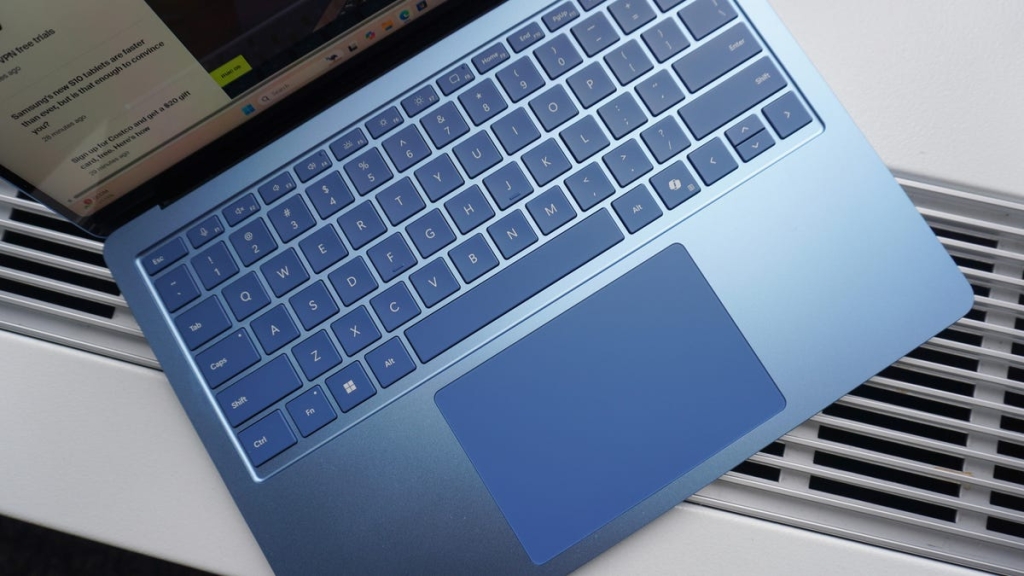
Mastering Windows 11: 50+ Keyboard Shortcuts to Boost Your Productivity
In the fast-paced world of technology, efficiency is king. While most Windows users rely on their mouse for everyday tasks, power users know that mastering keyboard shortcuts can dramatically increase productivity. These time-saving keystrokes eliminate unnecessary clicks and streamline your workflow, allowing you to accomplish more in less time.
ZDNET’s Key Takeaways:
- Windows 11 offers hundreds of keyboard shortcuts for various functions
- Most users only utilize basic shortcuts like Ctrl+C and Ctrl+V
- Learning these shortcuts can significantly boost your productivity
- Many shortcuts work across different applications and platforms
The Productivity Shortcuts You Need to Know
Let’s start with the essential productivity shortcuts that form the foundation of efficient Windows usage. These are the shortcuts you’ll find yourself using multiple times throughout your workday.
Copy, Paste, and Cut Operations:
- Ctrl + C – Copy selected text or files
- Ctrl + V – Paste copied content (preserves formatting)
- Ctrl + Shift + V – Paste without formatting
- Ctrl + X – Cut selected content
- Win + V – Open clipboard history to access previously copied items
Undo and Redo Functions:
- Ctrl + Z – Undo last action (your new best friend)
- Ctrl + Y – Redo previously undone action
Text Selection and Navigation:
- Ctrl + A – Select all content in current window or document
- Ctrl + F – Open find/search dialog
- Ctrl + S – Quick save your work
- Ctrl + Backspace – Delete entire previous word
- Ctrl + Delete – Delete entire next word
Accessibility Shortcuts: Making Windows Work for Everyone
Windows 11 includes numerous accessibility features that can benefit all users, not just those with disabilities. These shortcuts can make your computing experience more comfortable and efficient.
Magnification and Visual Aids:
- Win + Plus (+) – Activate Magnifier and zoom in
- Win + Minus (-) – Zoom out with Magnifier active
- Win + Esc – Exit Magnifier
- Win + Ctrl + C – Toggle color filters (grayscale, invert colors, etc.)
Screen Reader and Keyboard Navigation:
- Win + Ctrl + Enter – Launch Narrator (text-to-speech)
- Win + U – Open Accessibility settings
- Win + Ctrl + O – Open on-screen keyboard
- Shift pressed 5 times – Toggle Sticky Keys
High Contrast and Visual Modifications:
- Left Shift + Left Alt + Print Screen – Toggle high contrast mode
- Left Shift + Left Alt + Num Lock – Toggle Mouse Keys
Navigation Shortcuts: Moving Through Windows Like a Pro
Efficient navigation is crucial for multitasking and managing multiple applications simultaneously. These shortcuts will help you move through your system with ease.
Window Management:
- Win + D – Show desktop (toggle)
- Win + Tab – Open Task View
- Win + Left/Right Arrow – Snap window to left/right side
- Win + Up Arrow – Maximize window
- Win + Down Arrow – Minimize window
Virtual Desktop Management:
- Win + Ctrl + D – Create new virtual desktop
- Win + Ctrl + F4 – Close current virtual desktop
- Win + Ctrl + Left/Right Arrow – Switch between virtual desktops
Application Switching:
- Alt + Tab – Cycle through open applications
- Ctrl + Alt + Tab – Show all open apps with arrow key navigation
- Win + Number (1-9) – Open pinned taskbar application
File Management Shortcuts: Organize Like a Pro
The File Explorer in Windows 11 has its own set of powerful shortcuts that can transform how you manage your files and folders.
Basic File Operations:
- Win + E – Open File Explorer
- F2 – Rename selected item
- F3 – Open search bar in File Explorer
- F4 – Select address bar
- F5 – Refresh current window
Advanced File Management:
- Ctrl + N – Open new File Explorer window
- Ctrl + Shift + N – Create new folder
- Shift + Delete – Permanently delete (bypass Recycle Bin)
- Alt + Enter – Open Properties dialog
- Alt + Left/Right Arrow – Navigate back/forward in history
- Alt + Up Arrow – Go up one folder level
Browser Shortcuts: Surf the Web at Lightning Speed
Whether you’re using Chrome, Edge, Firefox, or another browser, these shortcuts work consistently across most web browsers.
Tab Management:
- Ctrl + T – Open new tab
- Ctrl + W – Close current tab
- Ctrl + Shift + T – Reopen last closed tab (incredibly useful!)
- Ctrl + Tab – Move to next tab
- Ctrl + Shift + Tab – Move to previous tab
Navigation and History:
- Ctrl + D – Bookmark current page
- Ctrl + H – Open browsing history
- Alt + Left Arrow – Go back in history
- Alt + Right Arrow – Go forward in history
Private Browsing:
- Ctrl + Shift + N – Open new incognito/private window
The Power of Muscle Memory
After spending nearly a decade writing about software and consumer electronics, I can confidently say that keyboard shortcuts have become an integral part of my daily workflow. What started as conscious effort has evolved into muscle memory – I find myself instinctively pressing Ctrl+Z when I make a mistake, even when I’m not working.
The beauty of these shortcuts is that they work everywhere. Whether you’re drafting an email, editing a document, managing files, or browsing the web, these keystrokes remain consistent and reliable. The initial learning curve is minimal compared to the long-term productivity gains you’ll experience.
Pro Tip: Don’t try to learn all these shortcuts at once. Start with the ones you’ll use most frequently (like Ctrl+C, Ctrl+V, Ctrl+Z) and gradually incorporate others as you become comfortable. Within a few weeks, you’ll notice a significant improvement in your computing efficiency.
Tags: Windows 11 shortcuts, productivity hacks, keyboard shortcuts, Windows tips, computer efficiency, time-saving tricks, accessibility features, file management, browser shortcuts, virtual desktops, multitasking, power user, Windows productivity, keyboard mastery, computing efficiency, workflow optimization, digital productivity, tech tips, computer skills
Viral Phrases: “Transform your workflow overnight,” “The shortcut that will change your life,” “Boost productivity by 300%,” “Master Windows like a pro,” “The secret weapon of power users,” “Work smarter, not harder,” “The one shortcut you can’t live without,” “Become a Windows wizard today,” “Slash your work time in half,” “The ultimate productivity hack,” “Level up your Windows game,” “The shortcut everyone should know,” “Work faster than ever before,” “The hidden features of Windows 11,” “The productivity secret of tech experts”
,


Leave a Reply
Want to join the discussion?Feel free to contribute!