
How to take full-page screenshots in Chrome on any device – it’s easy and free
How to Take Full-Page Screenshots in Chrome on Any Device
Taking screenshots is a daily necessity for many of us, but standard screenshots only capture what’s visible on your screen at that moment. When you need to capture an entire web page—including content that requires scrolling—you need a full-page or scrolling screenshot. The good news is that Chrome offers built-in tools across desktop, iPhone, and Android to accomplish this without paying for third-party apps.
ZDNET’s Key Takeaways
- You can capture full web pages in Chrome for free on desktop and mobile devices
- Each platform (desktop, iPhone, Android) has different built-in tools available
- While PDFs work, images provide cleaner results for long scrolling captures
How to Take Full-Page Screenshots in Chrome on Desktop
Chrome on desktop offers two approaches for capturing full web pages, though they produce different file types.
Method 1: Using Chrome Developer Tools (Recommended)
This method captures the entire page as a single PNG image:
- Open the web page you want to capture in Chrome
- Open Chrome Developer Tools – Press Ctrl + Shift + I (Windows/Linux) or Command + Option + I (Mac)
- Open the Command Menu – Press Ctrl + Shift + P (Windows/Linux) or Command + Shift + P (Mac)
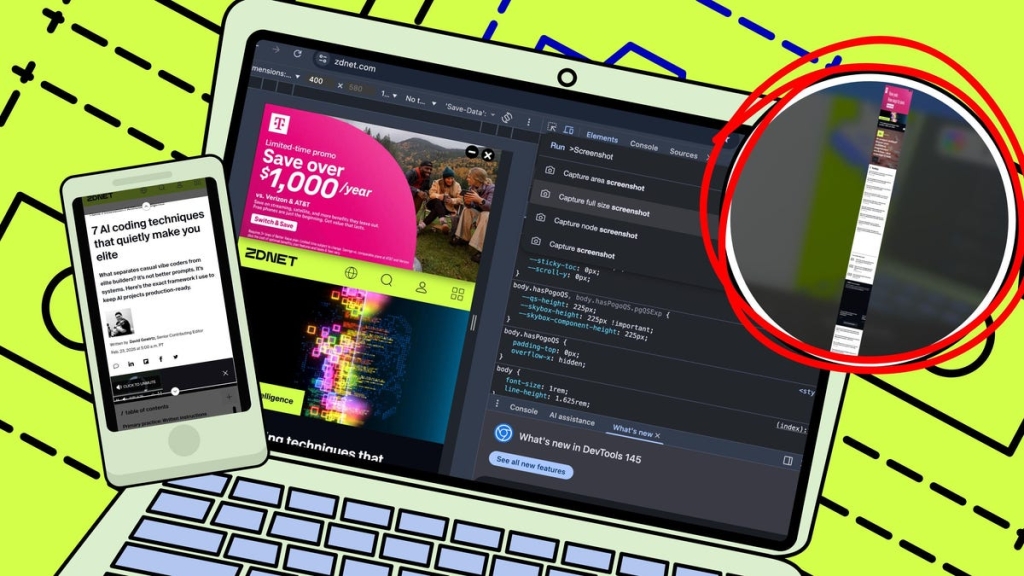
- Type “screenshot” and select “Capture full-size screenshot”
Chrome will automatically download a PNG image containing the entire web page. This is the cleanest method for capturing scrolling content as a single image file.
Method 2: Using the Print Menu (PDF Option)
If you prefer a document format rather than an image:
- Open the web page in Chrome
- Open the Print menu – Press Ctrl + P (Windows/Linux) or Command + P (Mac)
- Set Destination to “Save as PDF”
- Open More settings and enable “Background graphics” if you want colors and images included
- Click Save
Note that this creates a multi-page PDF document rather than a single scrolling image. The layout may appear slightly different from the original webpage, especially if it contains many images, ads, or repeated elements.
How to Take Full-Page Screenshots in Chrome on iPhone
Chrome doesn’t have a built-in full-page screenshot option on iPhone, but iOS provides excellent alternatives.
Method 1: Using iOS Full-Page Capture (Recommended)
- Take a regular screenshot by pressing the side button and volume up button simultaneously
- Look for the “Full Page” option in the screenshot preview (appears at top right)
- Tap the check mark to save the capture to Photos or Files
- You can mark up and edit the full-size capture before saving
To convert the PDF to an image:
- Open the document in Files
- Tap the down arrow next to its title
- Choose “Export” and save as PNG or JPEG
This gives you a single scrolling image rather than a PDF document.
Method 2: Using Chrome’s Print Menu (PDF Option)
- Open the web page in Chrome
- Tap the Share icon in the URL field and choose “Print”
- Tap the Share icon again in Print options, then save the PDF to Files or share it
Unfortunately, you cannot later convert this PDF into a single scrolling image—it will only save the first page as an image.
How to Take Scrolling Screenshots in Chrome on Android
Android offers the most seamless experience for scrolling screenshots, with Chrome integrating the feature directly.
Method 1: Using Chrome’s Built-in Long Screenshot
- Open the web page in Chrome
- Tap the three-dot menu and select “Share”
- Choose the “Long screenshot” option
- Adjust the capture area to include the entire page
- Save the image
If you don’t see the Long screenshot option, your device or Chrome version may not support it.
Method 2: Using Android’s System Scroll Capture
Newer Android phones include a system-level scrolling screenshot option:
- Take a normal screenshot (on Pixel, press power and volume down buttons)
- Tap the “Expand” button in the screenshot toolbar
- Adjust the capture length to include the entire page
- Save the screenshot
This works across all apps, not just Chrome.
FAQ
Are full-page screenshots and scrolling screenshots the same thing?
Yes. These terms are used interchangeably to describe capturing an entire web page beyond what’s visible on screen in a single capture.
Why do some pages not capture correctly when saving as a PDF?
Infinite scrolling pages, image-heavy layouts, ads, repeated menu or footer links, sticky headers, pop-ups, and embedded content can all appear garbled when saved as PDF. This typically occurs because the browser forces the page into letter-size print layouts, adding page breaks and formatting content for printing rather than on-screen scrolling.
Should I use third-party tools instead?
While built-in options work best for most users, third-party tools can offer additional features. The Chrome extension GoFullPage is free and reliable. For professional needs, TechSmith Snagit ($39/year) provides advanced capture options, timers, cursor capture, and multiple output formats. However, for everyday use, Chrome’s built-in tools are sufficient and don’t require additional software.
Tags: Chrome screenshot, full page capture, scrolling screenshot, Chrome tips, web capture, developer tools, iPhone screenshot, Android screenshot, PDF capture, tech tutorial
Viral Phrases: “capture entire web pages for free,” “no more stitching screenshots together,” “Chrome’s hidden screenshot tool,” “screenshot hack everyone should know,” “stop paying for screenshot apps,” “the easy way to screenshot long pages,” “Chrome secret feature revealed,” “screenshot like a pro,” “tech tip that will change your workflow,” “free alternative to paid screenshot tools”
,


Leave a Reply
Want to join the discussion?Feel free to contribute!