
How to Customize Notifications on Android Auto
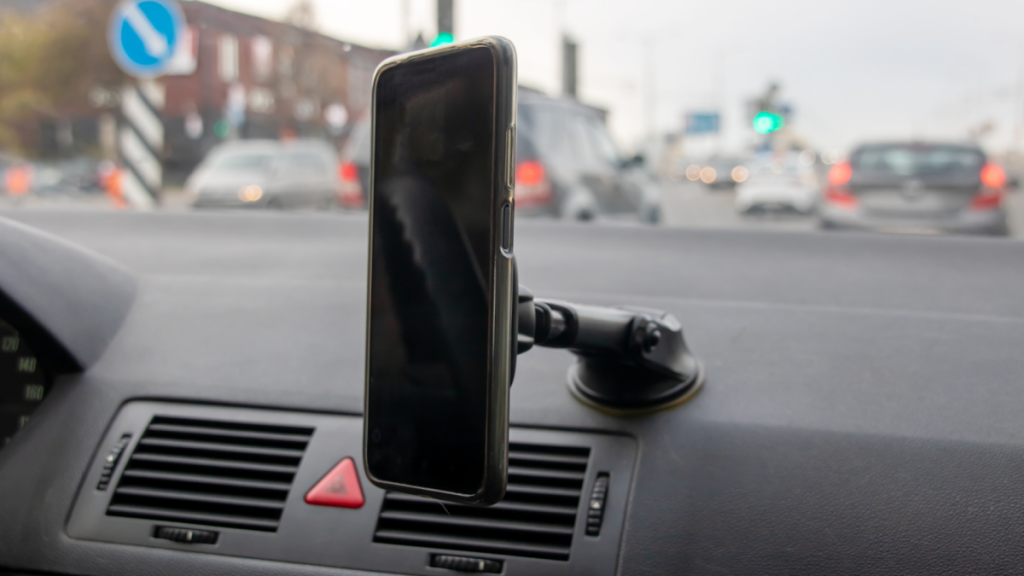
Google Refines Android Auto Notifications: A Smarter, Safer Driving Experience
If you’re an Android Auto user, you’ve likely wrestled with the delicate balance between staying connected and staying focused on the road. Missing an urgent message or call is frustrating, but the risks of distracted driving are far more serious. Google has recently fine-tuned Android Auto’s notification settings, aiming to make the experience safer, smarter, and less intrusive—without sacrificing essential connectivity.
The Evolution of Driving Modes
For Pixel users, notification control is managed through Do Not Disturb Modes, found in Settings under Modes. The Driving mode can now be automatically activated using a new, more reliable method: Bluetooth detection. This means Android will recognize when you’re connected to your car’s dashboard and adjust notifications accordingly. Previously, the system relied solely on motion sensors, which often led to false positives—like activating while you were just a passenger. The addition of Bluetooth detection should make the experience far more accurate and user-friendly.
Samsung Galaxy users have a slightly different setup. By navigating to Settings > Modes and Routines, you can access the Driving mode and set it to trigger specifically when connected to an Android Auto dashboard. This targeted approach is something Google could consider adopting for standard Android devices, as it offers greater precision.
Customizing Your Driving Experience
Both Pixel and Galaxy phones allow you to customize which apps and contacts can send notifications while driving. However, it’s wise to be selective—too many alerts can quickly become a distraction.
On Pixel devices, tapping Display settings within the Driving mode lets you control whether your phone lights up for notifications, dim the wallpaper, or switch to a grayscale look. These subtle changes can significantly reduce visual distractions.
Galaxy users can also tweak their Lock screen and Home screen settings for the Driving mode, adjusting the wallpaper and color palette to create a less stimulating interface.
Android Auto’s Advanced Notification Controls
Beyond the Driving mode, Android Auto offers a suite of notification settings to fine-tune your experience. In Settings > Connected devices > Connection preferences > Android Auto (Pixel) or Connected devices > Android Auto (Galaxy), you’ll find options under the Messaging header. Here, you can disable alerts for group conversations or messaging apps entirely, and even choose whether to show the first line of incoming messages. For safety, it’s recommended to hide message previews to minimize the temptation to glance at your dashboard.
Another standout feature is the ability to have incoming messages read aloud. This hands-free option keeps your eyes on the road while ensuring you stay informed.
Additional Tips for a Safer Drive
To further reduce distractions, consider limiting the number of apps available in Android Auto and enabling taskbar widgets for easier, less intrusive app control. By reviewing and adjusting these settings, you can create a driving environment that’s both connected and safe.
Google’s latest tweaks to Android Auto notifications strike a thoughtful balance between staying informed and staying focused. With smarter detection, customizable settings, and hands-free options, Android Auto is becoming an even more reliable co-pilot for your journeys.
Tags: Android Auto, Google, driving mode, notifications, Do Not Disturb, Bluetooth, safety, Pixel, Galaxy, hands-free, messaging, road safety, tech update, Android settings
Viral Phrases:
- “Safer driving, smarter notifications”
- “Google’s latest tweak: No more false alarms while driving”
- “Stay connected without taking your eyes off the road”
- “Android Auto just got a whole lot smarter”
- “The ultimate guide to distraction-free driving”
- “Google’s Bluetooth fix: A game-changer for Android Auto users”
- “Customize your drive: Android Auto’s new notification controls”
- “Hands-free, hassle-free: Android Auto’s read-aloud feature”
- “Driving mode just got an upgrade—here’s how to set it up”
- “Your car, your rules: Tailor Android Auto to your needs”
,


Leave a Reply
Want to join the discussion?Feel free to contribute!