
5 Clever Tricks To Free Up Space On Your iPad
5 Clever Tricks to Free Up Space on Your iPad
Is your iPad constantly nagging you with “Storage Almost Full” alerts? Don’t worry—you’re not alone. With our ever-growing digital lives, it’s easy for iPad storage to fill up faster than we realize. But fear not! We’ve compiled five ingenious tricks to help you reclaim that precious space and keep your iPad running smoothly.
1. Delete Messages and Attachments Automatically and Manually
While a single message might seem insignificant, they can quickly accumulate over time, especially when paired with attachments. Instead of tediously deleting messages one by one, you can automate the process or manage them more efficiently through your iPad’s settings.
To automatically delete old messages and attachments:
- Launch Settings
- Scroll to the bottom and select Apps
- Go to Messages
- Under Message History, tap on “Keep Messages”
- Choose either 30 Days or 1 Year
- Press Delete to confirm
For more control over what gets deleted, you can manage messages through the iPad Storage menu:
- In Settings, navigate to General
- Open iPad Storage
- Select Messages from the list of apps
- To delete entire conversations, go to Top Conversations
- To remove specific types of attachments, pick the file type under Documents
- Press Edit at the top
- Mark the items for removal
- Hit the trash icon in the top-right
2. Offload and Delete Apps
We’ve all been guilty of downloading apps on a whim, only to forget about them later. These forgotten apps can quickly eat up your storage. Luckily, your iPad offers two ways to remove apps: offloading and deleting.
When you offload an app, only the app itself is removed, not its data. This is perfect for apps you might want to use again in the future. To offload an app:
- Go to Settings
- Select General
- Open iPad Storage
- In the apps list, tap on Size
- Change the sort order to Last Used Date
- Choose the app you want to offload
- Press Offload App and confirm your choice
For apps you no longer need, you can delete them entirely:
- Follow steps 1-6 above
- Tap Delete App
- Confirm by selecting Delete in the pop-up
Your iPad can even automatically offload unused apps when storage is running low. This feature is available in the iPad Storage menu under Recommendations.
3. Go Through Your On My iPad Files
Offline files, whether they’re work presentations or personal journals, can accumulate over time and consume significant storage space. While you can manually delete these files through the Files app, there’s a more efficient method:
- Open the Settings app
- Head over to General
- Choose iPad Storage
- From the app list, find On My iPad
- Under Documents, open the folders where you want to delete some files
- Go to Edit in the upper right corner
- Press the red minus icon next to the file
- Tap the Delete button that pops up to the right
- Hit Delete again to confirm
- Repeat until you remove all unwanted files
- Hit the checkmark at the top
To empty your Recently Deleted folder, go back to the On My iPad menu and press Empty Trash.
4. Make Use of Google Photos
Photos and videos are often the biggest storage hogs on our devices. Moving them off your iPad is an excellent way to free up space. While iCloud is an option, we recommend Google Photos for several reasons:
- It’s a separate backup system, not just a sync service
- It offers 10GB more free storage than iCloud
- It’s accessible even after you delete photos from your iPad
After backing up your photos and videos to Google Photos (and triple-checking they’re there), you can remove them from your iPad:
- In the Settings app, choose General
- Go to iPad Storage
- Under Recommendations, tap on Review Your Photos & Videos
- Open the section where you want to delete items
- Hit Select in the top-right corner
- Tap on the items you want to delete
- Press the trash icon
- Hit Delete From This iPad to proceed
5. Follow Your iPad’s Storage Management Recommendations
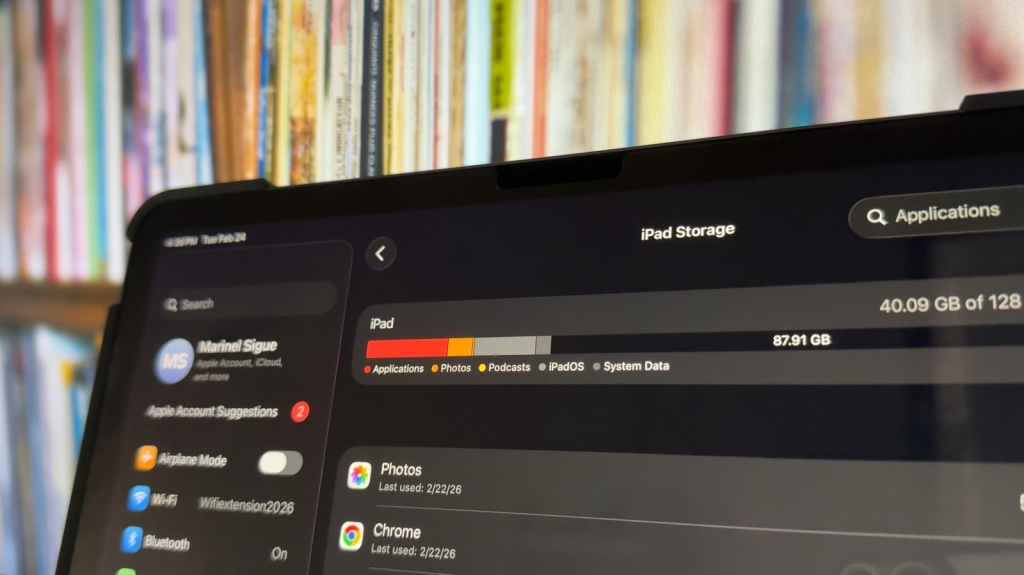
Your iPad’s Storage menu not only shows you how much space different types of content are using but also provides personalized recommendations to free up space quickly. These recommendations can range from enabling iCloud Photos to offloading unused apps, or reviewing large attachments and photos.
To view these recommendations:
- Open Settings
- Press General
- Head over to iPad Storage
At the top of the screen, you’ll find the Recommendations section. Hit Show All to view all available recommendations for your specific device. Remember, these recommendations are tailored to your usage patterns and may vary from device to device.
By implementing these clever tricks, you’ll not only free up valuable space on your iPad but also improve its overall performance. Say goodbye to those annoying “Storage Almost Full” alerts and hello to a smoother, more efficient iPad experience!
ipadstorage #freespace #ipadtips #apple #techhacks #storagehacks #iphonetips #digitalcleanup #techlife #appletips #storagefull #cleaniPad #techsupport #applehacks #storagemanagement #digitaldeclutter #techadvice #ipadlife #storagealert #techhelp #appletech #storageissues #ipadhelp #techsolutions #storageproblems #appleinsider #technews #ipadstorage #storagefull #techlife #applecommunity #techsupport #storagehacks #applehacks #techadvice #storagemanagement #digitaldeclutter #techhelp #appletech #storageissues #ipadhelp #techsolutions #storageproblems #appleinsider #technews #ipadstorage #storagefull #techlife #applecommunity #techsupport #storagehacks #applehacks #techadvice #storagemanagement #digitaldeclutter #techhelp #appletech #storageissues #ipadhelp #techsolutions #storageproblems #appleinsider #technews #ipadstorage #storagefull #techlife #applecommunity #techsupport #storagehacks #applehacks #techadvice #storagemanagement #digitaldeclutter #techhelp #appletech #storageissues #ipadhelp #techsolutions #storageproblems #appleinsider #technews
,


Leave a Reply
Want to join the discussion?Feel free to contribute!