
10 Hacks Every Whoop User Should Know
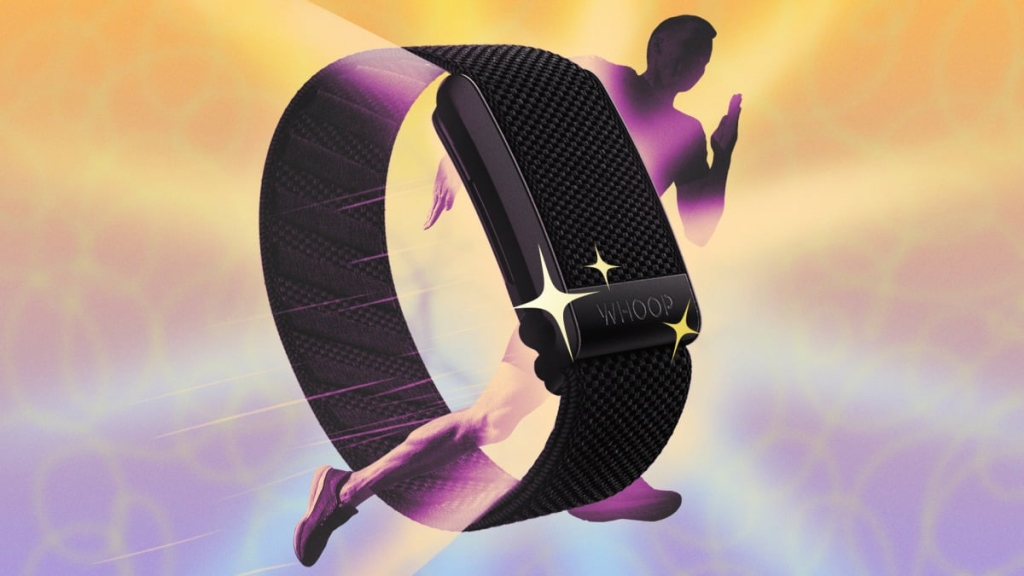
Whoop Fitness Tracker: 9 Hidden Features to Maximize Your Training and Recovery
If you’re a Whoop user, you’ve likely discovered some of the impressive features packed into its data-rich app—but there are still plenty of hidden gems that can take your fitness tracking to the next level. As a long-time Whoop wearer since version 3.0, I’m here to share some of the best ways to use your Whoop (and a few tricks that go against the “official” advice).
1. Use Strength Trainer Post-Workout for Better Results
Here’s my top tip: Whoop’s Strength Trainer is far more convenient when used after your workout rather than during it. While the Strength Trainer can identify your exercises and calculate “muscular load” for accurate strain scores, using it mid-workout requires tedious set-by-set tracking that kills your flow.
Instead, record your weightlifting session normally, then afterward Whoop will prompt you to attach a Strength Trainer workout. Select your exercises, input your weights, and Whoop will reprocess the data to give you that higher, more accurate strain score—without interrupting your training session.
2. Unlock the Hidden Horizontal View
Here’s an Easter egg you might never find unless by accident: rotate your phone sideways while on the Whoop home screen. You’ll reveal a long, horizontal graph showing your heart rate throughout the day, with sleep and workout periods clearly highlighted. (Just make sure screen rotation is enabled in your phone settings first.)
3. Set Up Custom Weekly Plans
Weekly plans are one of Whoop’s most underrated features. They transform the overwhelming flood of data into manageable, actionable weekly goals. If you’re feeling lost in all the metrics, set up a plan and check your progress throughout the week.
You can choose from pre-made plans like “Feel Better,” which targets daily steps, hydration goals four days per week, and recovery activities three days weekly—all customizable. Or create your own custom plan, even asking Whoop Coach to generate one for you. I find weekly targets more motivating than daily recommendations I might ignore.
4. Access the Better Whoop Coach Through “Daily Outlook”
Whoop Coach is the only fitness AI I actually find useful. While they all have flaws, Whoop Coach does a solid job summarizing your daily data and showing how you’re tracking against your goals.
The key is accessing it through the “daily outlook” button in the center of your home screen, just below “My Day.” This gives you a comprehensive rundown of your recent performance and today’s focus areas—sometimes even including weather reports if you’ve been doing lots of outdoor workouts.
Avoid using the “W” button in the corner, which tends to focus on generating workouts without considering your broader goals or weekly plan.
5. Broadcast Heart Rate to Gym Equipment
Your Whoop can function as a heart rate monitor for other devices. While not as accurate as a chest strap, it’s perfect for broadcasting your heart rate to treadmills or ellipticals at the gym. This lets you see your heart rate on the machine’s display in real-time while still tracking everything in your Whoop app.
To enable this, tap your device icon in the top right corner and toggle on “broadcast heart rate.”
6. Wear It Anywhere (Not Just Your Wrist)
The wristband is convenient, but Whoop’s ability to be worn on your bicep is a game-changer. You can buy Whoop’s official bicep band, but it’s pricey. Third-party compatible options are available on Amazon, with some designs that snap onto the device more easily than Whoop’s own.
Whoop also offers Body clothing with device pockets, including sports bras and boxer shorts. If you’re crafty, you could sew your own. Or, in a pinch, athletic tape works surprisingly well for temporary off-wrist wear.
7. Customize Your Bedtime Recommendations
Whoop’s sleep features are powerful but hidden. Since it knows your recovery status, it can estimate sleep debt and recommend optimal bedtimes to catch up.
Scroll down on your home screen to find the bedtime recommendation card. Tap it to choose between “meet my sleep need” (catch up when needed) or “improve my sleep” (maintain consistency while maximizing sleep). Tap the calendar icon to set a weekly schedule with options for set-time alarms or sleep-based wakeups (get by, perform, or peak).
8. Be Strategic With Journal Tracking
Whoop’s daily journal helps identify what affects your recovery, but don’t make the mistake of logging everything. If you already know something affects your sleep (like alcohol), there’s no need to track it. Too many questions become a hassle, and Whoop can only use data that varies between yes and no answers.
I recommend tracking only:
- Things you sometimes do that you’re unsure about
- Items relevant to your weekly plan
- Current-life priorities (swap questions monthly)
Keep it focused and the journal stays valuable.
9. Charge During Showers, Not While Wearing
Whoop’s wireless power pack is brilliant in theory—you can charge while wearing it without data gaps. But practically speaking, who wants to shower with a fabric band or wear a soggy strap afterward?
My solution: remove Whoop for showers, and if the battery is low, charge it then. This avoids both the awkward battery pack bulge and the damp band problem.
Tags: Whoop fitness tracker, Whoop hacks, fitness tracking tips, Whoop strength training, Whoop sleep tracking, wearable technology, fitness recovery, heart rate monitoring, workout optimization, health tech
Viral Phrases: “Game-changing fitness hack,” “Hidden Whoop features you need to know,” “Maximize your recovery with these tips,” “The Whoop trick that changed my training,” “Stop making this Whoop mistake,” “Whoop secrets fitness pros don’t want you to know,” “Transform your Whoop data into results,” “The Whoop feature everyone overlooks,” “Fitness tracking made simple,” “Recover smarter, not harder”
,


Leave a Reply
Want to join the discussion?Feel free to contribute!