
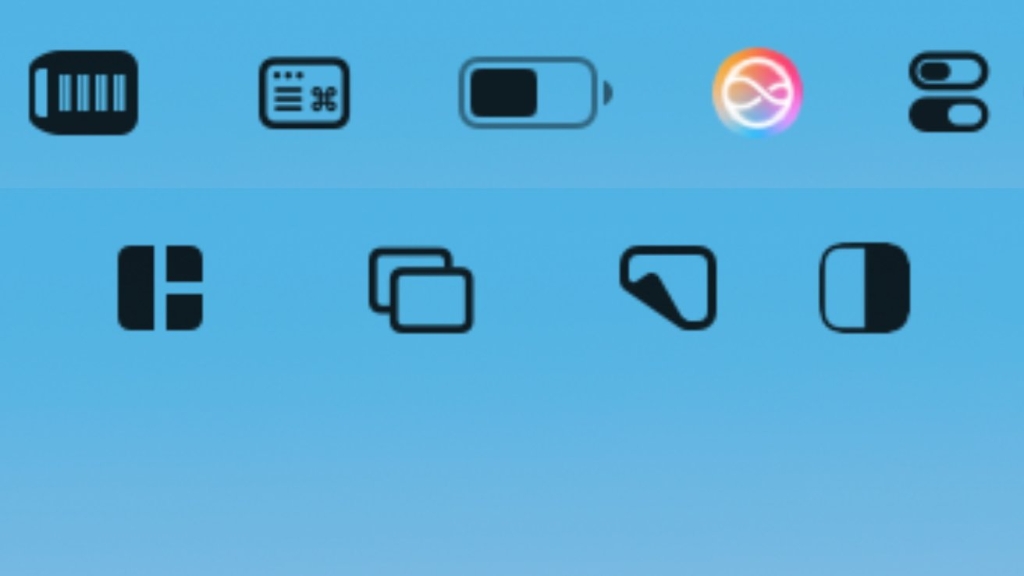
Inside Control Center on macOS Tahoe
How to Take Back Control of Your Mac’s Menu Bar — and Why It Matters More Than Ever
If you’ve been using a Mac for any length of time, you’ve probably experienced the frustration of a cluttered menu bar. Whether it’s on your MacBook Pro’s compact screen (especially with that notch) or your large external display, the menu bar can quickly become a chaotic jumble of icons — many of which you don’t recognize or use. And the worst part? Some of the apps you actually want to keep handy simply won’t fit.
Apple’s macOS has long allowed apps to place icons in the menu bar, but it’s never given users a truly elegant way to manage them. The system will happily let any app claim a spot, but it also moves them around as you open and close apps, making it hard to build muscle memory for where things are. On smaller screens, the problem is even worse: icons get pushed off-screen, and some even hide behind the notch on newer MacBook Pro models.
This isn’t just a cosmetic issue. A cluttered menu bar slows you down. Every second you spend hunting for the Wi-Fi icon or your calendar is a second wasted. And if you’re a power user, you know that quick access to certain tools can make or break your workflow.
Enter Control Center, a feature Apple introduced in macOS Big Sur and has refined ever since. Control Center is essentially a centralized hub for quick settings and controls — think of it as a more powerful, customizable version of the old Control Strip. It’s designed to keep your most important functions just a click away, without crowding your menu bar.
Here’s the game-changing part: Control Center can help you reclaim your menu bar by moving many of those rarely-used or space-hogging icons out of sight, while still keeping them accessible. For example, instead of having a dedicated Bluetooth icon always visible, you can tuck Bluetooth controls into Control Center. The same goes for Wi-Fi, Do Not Disturb, and even some third-party app functions.
But Control Center isn’t just about hiding things. It’s also about making your menu bar smarter. You can choose which controls appear in Control Center and which (if any) show up in your menu bar. This means you can keep your menu bar lean and mean, with only the essentials visible, while tucking away the rest for when you need them.
For MacBook users with limited screen real estate, this is a lifesaver. You can finally fit all your favorite tools without sacrificing precious pixels. And for desktop Mac users, it’s a way to bring order to chaos — no more endless rows of mystery icons.
There’s also a productivity angle. By consolidating controls in Control Center, you reduce visual clutter and make your workspace feel calmer and more focused. It’s a small change, but one that can have a big impact on your daily workflow.
So, how do you get started? It’s easier than you might think. Head to System Settings (or System Preferences on older macOS versions), then Control Center. From there, you can choose which controls appear in the menu bar and which live in Control Center. You can also drag and drop to rearrange them, putting your most-used controls front and center.
Of course, not every app will play nicely with this system. Some third-party apps insist on putting their icons in the menu bar and don’t offer an option to hide them. In those cases, you might need to dig into the app’s settings or even contact the developer for support. But for most built-in macOS functions and many popular third-party tools, Control Center offers a flexible, user-friendly solution.
In short, Control Center is your secret weapon for a cleaner, more efficient Mac experience. It’s not just about aesthetics — it’s about taking back control of your digital workspace. So if your menu bar is starting to feel more like a junk drawer, it’s time to give Control Center a try. Your future self will thank you.
Tags & Viral Phrases:
- Menu bar chaos
- MacBook notch nightmare
- Control Center revolution
- macOS productivity hack
- Clean up your Mac
- Reclaim your menu bar
- Apple’s hidden gem
- Menu bar management
- Stop app icon overload
- The ultimate Mac tip
- Boost your workflow
- Menu bar makeover
- Hide those icons
- Mac menu bar secrets
- Take back control
- Menu bar minimalism
- macOS Big Sur feature
- MacBook Pro menu bar
- Mac menu bar tips
- Control Center guide
- Menu bar organization
- AppleInsider tech tip
- Mac menu bar tricks
- Menu bar decluttering
- Menu bar customization
- Menu bar hacks
- Menu bar must-knows
- Menu bar essentials
- Menu bar organization
- Menu bar cleanup
- Menu bar clutter
- Menu bar control
- Menu bar efficiency
- Menu bar essentials
- Menu bar hacks
- Menu bar must-knows
- Menu bar secrets
- Menu bar tips
- Menu bar tricks
- Menu bar workspace
- Menu bar workflow
- Menu bar workspace
- Menu bar workflow
- Menu bar workspace
- Menu bar workflow
- Menu bar workspace
- Menu bar workflow
,


Leave a Reply
Want to join the discussion?Feel free to contribute!