
How to get started with Pixels’ new Desktop Mode
Android Desktop Mode: 8 Essential Tips to Master Your Pixel’s New PC Interface
Google’s March Pixel Drop brought a game-changing feature to Pixel phones: Desktop Mode. This new interface transforms your Android device into a full-fledged desktop experience with just a single cable connection. While it feels familiar to anyone who’s used a traditional PC, there are several nuances that can take some getting used to. Here are eight essential tips to help you master this powerful new feature.
1. Bluetooth All the Things
To truly harness the power of Android’s Desktop Mode, you’ll want to ditch touchscreen controls and embrace physical peripherals. The quickest way to get started is by connecting your keyboard and mouse via Bluetooth.
Simply long-press the Bluetooth quick settings button and select “Pair New Device.” Google’s desktop setup is smart enough that it doesn’t require any extra configuration to support these essential wireless accessories—it’s just plug and play. You can pair your keyboard, mouse, and other accessories ahead of time, and they’ll remain in your phone’s pair list when you connect to Desktop Mode.
2. Invest in a USB-C Dock/Dongle
While technically all you need is a USB-C cable and a monitor that supports DisplayPort Alternate Mode or Thunderbolt, a dock or dongle offers significantly more convenience. A dock lets you quickly connect peripherals without sluggish Bluetooth pairing.
If your monitor is older and lacks modern connectivity, a USB-C dongle with HDMI or VGA ports can bridge the gap. Beyond display connectivity, a good dock provides additional USB-A and USB-C ports for accessories and power. Look for one that supports USB Power Delivery PPS to ensure your Pixel charges quickly when needed.
3. Find Settings and Start Configuring
One minor complaint about Android’s Desktop Mode is that the settings menu isn’t immediately obvious. There’s no little gear icon on the desktop or the bottom dock. Instead, you’ll find it tucked away in the notification shade, accessible by clicking the tiny clock in the top left or the equally minuscule icons in the top right.
Once you locate the gear icon at the bottom of the notification shade, head to Settings > Connected Devices > External Displays. Here you can change the general size of text, icons, and menu items, along with display resolution and rotation options. These settings are saved per display, allowing you to store specific customizations for different monitors.
4. Master Those Big-Screen Apps
Google has done an excellent job ensuring most of its apps look great across mobile and tablet/desktop window sizes, but not every third-party app scales as well. You might find some locked to narrow phone-proportioned windows or restricted to full-screen mode.
With most apps, you can click and drag the edges of their windows to resize them to whatever proportions you prefer. If you make windows very narrow, apps will automatically default to their mobile layouts, while wider layouts might present more desktop-friendly icon layouts.
5. Learn Some Keyboard Shortcuts
Like any good operating system, Android’s desktop UI supports a wide range of keyboard shortcuts. The classic Alt+Tab lets you cycle through open apps, while pressing your keyboard’s Windows/Super/Command key quickly launches the app menu.
Here are some essential shortcuts to master:
- Super + Esc — go back
- Super + Space — launch Gemini
- Super + I — opens the Settings menu
- Super + Q — opens the Quick Settings panel
- Super + N — opens the Notifications panel
- Super + [ — snaps the current window left
- Super + ] — snaps the current window right
- Super + Ctrl + Up — enter full-screen
- Super + Ctrl + Down — exit full-screen
- Super + L — instantly locks the device
6. Make Use of Multi-Desktop
If you’ve found yourself with a cluttered desktop, you’ll be pleased to note there’s support for multiple desktop spaces. To access this feature, open the desktops menu (the square icon in the bottom right) and press the right-most icon that looks like a window with a little plus sign.
You can have up to four desktops active at once, which should be plenty for most users. To move between them, simply head back to the desktop menu and drag your mouse left and right. You can also quickly clear everything running in a particular desktop space by clicking ‘Desktop’ and selecting Clear.
7. Limit Your Pixel’s Charging to 80%
Heat and small cyclical currents are battery killers, and both are far more likely to occur if you leave your phone plugged in and charging while using it for a long period. To combat this risk and keep your Pixel’s battery in top shape, you should set your Pixel’s 80% charging limit.
Newer Pixels switch over to bypass charging when the 80% limit is reached. This means the phone’s display, modem, processor, etc., receive power directly from the USB-C connection instead of charging and discharging the battery. That’s far better for long-term battery health and will help keep your phone cooler and running smoothly.
8. Know When to Mirror
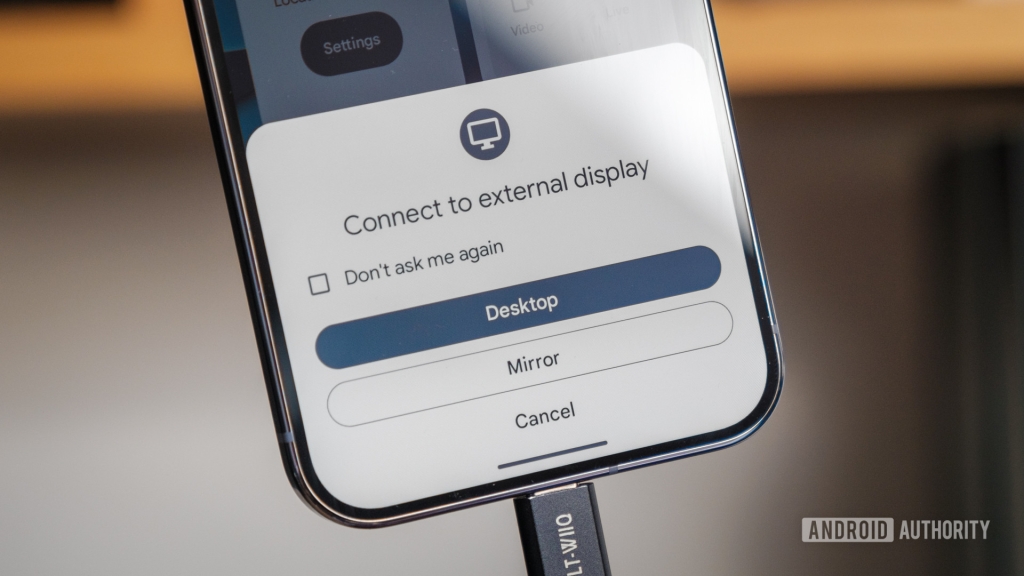
While it’s tempting to hit “don’t ask me again” when connecting up an external display for the first time, the option to mirror your display rather than jump into Desktop Mode shouldn’t be dismissed too hastily.
If you just want to throw up some pictures or stream a video onto a bigger display, mirroring is often the better option. Audio playback is supported over USB-C as well, so you can definitely use mirroring to watch videos on a bigger screen without having to jump through the desktop hoops.
Android Desktop Mode represents a significant step forward in mobile computing, and with Aluminum OS on the way, this is just the beginning of Android’s desktop journey. These essentials should help convert you into a pro user in no time.
Tags: #AndroidDesktopMode #PixelDesktop #GooglePixel #MobileDesktop #DesktopModeTips #AndroidTips #PixelHacks #MobileProductivity #DesktopExperience #AndroidAuthority
Viral Phrases:
- “Game-changing feature”
- “Transform your Android device”
- “Full-fledged desktop experience”
- “Master this powerful new feature”
- “Android’s desktop journey”
- “Mobile computing revolution”
- “Pro user in no time”
- “Significant step forward”
- “Mobile productivity powerhouse”
- “Desktop experience reimagined”
,
Leave a Reply
Want to join the discussion?Feel free to contribute!