
These hidden Galaxy S26 features will save your eyes while scrolling at night
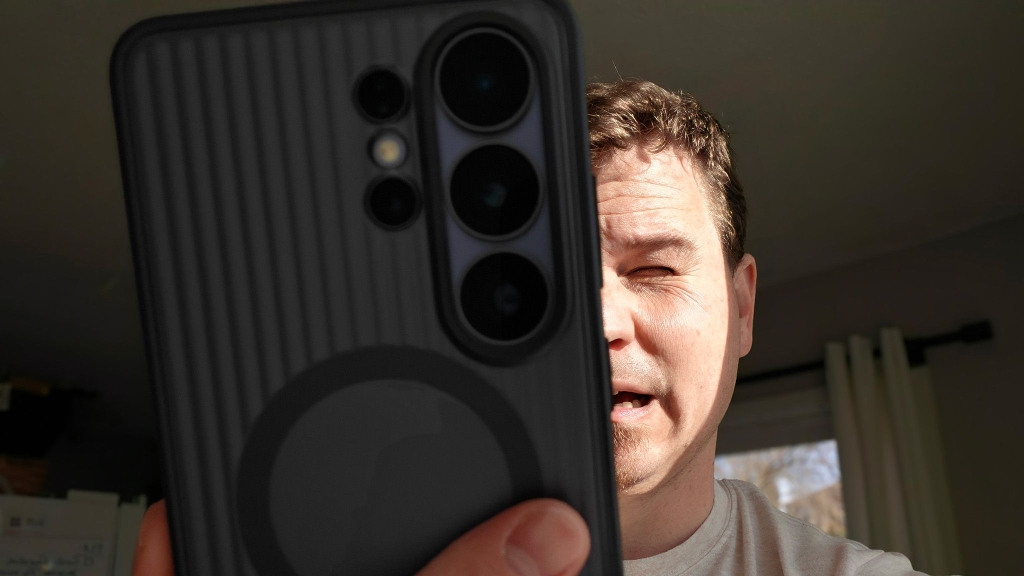
Samsung’s Galaxy S26 Ultra Gets a Game-Changing Feature to Stop Strobe Lights From Ruining Your Viewing Experience
If you’ve ever been immersed in a movie, gaming session, or even just scrolling through Instagram Reels, only to have your enjoyment shattered by an onslaught of strobing lights, you’re not alone. Whether it’s a dramatic club scene in the latest John Wick film or an intense power-up moment in an anime, those flashing lights can be more than just annoying—they can actually be painful and, in extreme cases, even trigger seizures.
But Samsung’s latest flagship phones, including the Galaxy S26 Ultra, have just received a brilliant accessibility feature that could change everything: automatic strobing light detection that dims your display in real-time.
The Problem with Strobing Lights
Strobing lights aren’t just an aesthetic choice in media—they’re a genuine accessibility concern. For people with photosensitive epilepsy, certain light patterns can trigger seizures. Even for those without epilepsy, strobing lights can cause eye strain, headaches, and general discomfort, especially when viewing content in darker environments.
Samsung’s new “dim strobing” feature doesn’t claim to be a medical solution for epilepsy, but it’s designed to make viewing experiences significantly more comfortable for everyone. The feature works by detecting rapid light changes on screen and automatically adjusting your display brightness to reduce the intensity of those flashes.
How It Works (and Where It Works)
During my testing on the Galaxy S26 Ultra, I discovered that this feature is currently limited to specific apps. YouTube was the standout performer—whenever I played videos with noticeable strobing effects, the phone immediately detected the pattern and dimmed the display accordingly. It was like having a built-in comfort filter that activated exactly when needed.
However, the feature’s limited app compatibility is worth noting. Instagram and TikTok didn’t trigger the dimming effect during my tests, even with videos containing obvious strobing. Similarly, I couldn’t find strobing content intense enough to activate the feature on Netflix, Peacock, or the Google TV app. This suggests that either the strobing patterns in these apps aren’t intense enough to trigger detection, or the feature hasn’t been fully integrated with these platforms yet.
How to Enable Samsung’s Dim Strobing Feature
Setting up this accessibility feature is surprisingly straightforward:
- Open your phone’s Settings app (either from the app drawer or by swiping down the status bar and tapping the gear icon)
- Scroll down and select Accessibility
- Choose Vision Enhancements from the list
- Scroll about halfway down and toggle on Dim strobing
That’s it! Once enabled, your Galaxy S26 Ultra will automatically detect and dim strobing lights whenever they appear on supported apps.
Beyond Strobing: Other Accessibility Features Worth Enabling
While you’re in the accessibility settings, there are two more features that can dramatically improve your viewing comfort: Extra Dim and Privacy Display.
Extra Dim: Your New Best Friend for Nighttime Viewing
The Extra Dim feature, enhanced in Android 16, includes a customizable strength slider that lets you adjust how much the display dims. During my testing, I found that enabling Extra Dim reduced the Galaxy S26 Ultra’s peak brightness by an impressive 80%. When combined with Privacy Display, which adds another 74% reduction, you’re looking at a display that’s significantly easier on the eyes during nighttime use.
Here’s how to set it up:
- Go to Settings > Accessibility > Vision Enhancements
- Scroll down and tap on Extra Dim
- Toggle on Extra Dim and adjust the slider to your preferred strength
- Enable Extra Dim Shortcut to add it to your quick settings
Privacy Display: Double Protection for Your Eyes
Privacy Display works in tandem with Extra Dim to provide maximum comfort. To add it to your quick settings:
- Swipe down the status bar to open Quick Toggles
- Tap the pencil icon to edit
- Tap Add a control at the bottom
- Scroll to Display and enable Privacy Display
- Scroll to Accessibility and enable Extra Dim
- Drag both buttons to your preferred position in the quick settings menu
The Bigger Picture
Samsung’s dim strobing feature represents a growing awareness in the tech industry about accessibility and user comfort. While it may seem like a small addition, features like this can make a significant difference in how people interact with their devices, especially during extended viewing sessions.
The Galaxy S26 Ultra’s implementation shows that Samsung is listening to user feedback and actively working to address common pain points. Whether you’re someone who suffers from light sensitivity, someone who enjoys late-night viewing sessions, or simply someone who wants a more comfortable viewing experience, these features are worth exploring.
Tags & Viral Phrases
- Samsung Galaxy S26 Ultra accessibility features
- Dim strobing lights on Android phones
- How to stop strobing lights on Samsung
- Best accessibility settings for Galaxy phones
- Samsung Extra Dim feature tutorial
- Privacy Display Samsung Galaxy
- Android 16 accessibility enhancements
- Reduce eye strain on Samsung phones
- Samsung vision enhancement settings
- How to make Galaxy S26 Ultra screen dimmer
- Samsung strobing light detection
- Best Samsung accessibility features 2024
- Galaxy phone comfort settings
- Samsung display customization
- How to enable dim strobing on Samsung
- Samsung vision accessibility guide
- Galaxy S26 Ultra viewing comfort
- Samsung phone eye protection features
- Android accessibility for light sensitivity
- Samsung screen dimming features
- How to reduce screen brightness Samsung
- Galaxy phone accessibility tutorial
- Samsung phone comfort settings
- Best Samsung phone features 2024
- Samsung accessibility settings explained
- Galaxy S26 Ultra hidden features
- Samsung phone eye strain solutions
- How to make Samsung phone easier on eyes
- Samsung display accessibility guide
- Galaxy phone viewing comfort tips
,

Leave a Reply
Want to join the discussion?Feel free to contribute!