
Why does AI tell you to use Terminal so much? – The Eclectic Light Company
Why AI Loves Terminal Commands—And Why That’s a Problem for Mac Users
If you’ve ever asked ChatGPT, Claude, or Grok for help troubleshooting your Mac, you’ve probably noticed something odd: the answers are almost always Terminal commands. Meanwhile, human-written guides tend to point you toward apps with graphical interfaces—Disk Utility instead of fsck_apfs, Activity Monitor instead of ps aux, and so on.
This isn’t just a stylistic difference. It reflects a fundamental gap between how AI and humans approach problem-solving on macOS.
The AI Terminal Obsession
Most popular AI models are built on Large Language Models (LLMs) that process information as tokens—essentially words and fragments of words. These models are trained on vast amounts of text data, including technical documentation, forum posts, and code repositories. The result? They naturally gravitate toward command-line solutions because that’s what’s most prevalent in their training data.
But here’s the thing: the vast majority of Mac users live in the GUI. They click buttons, drag files, and interact with visual interfaces. Yet when AI tries to help, it defaults to Terminal commands that most users don’t understand and shouldn’t need to understand.
Why This Matters
Command-line tools aren’t inherently bad—they’re powerful and precise. But in the context of everyday Mac troubleshooting, they come with significant disadvantages:
1. The Comprehension Gap
AI rarely explains what commands actually do. It just hands you a string of text to paste into Terminal and hopes for the best. You might fix your problem, but you won’t learn anything about how your Mac works. You’re just accumulating a mental list of magical incantations that may or may not work next time.
2. Safety Risks
GUI apps typically have safeguards built in—confirmation dialogs, undo options, and error handling. Terminal commands often skip these protections entirely. A mistyped command or an unexpected output can cause real damage to your system.
3. Information Overload
Commands like log show can generate thousands of lines of output. Even when piped to a file, this creates a daunting wall of text that’s nearly impossible to parse without specialized knowledge.
4. Security Vulnerabilities
Pasting commands from the internet into Terminal has become a favorite attack vector for malware distributors. AI’s tendency to provide lengthy, complex commands makes users more susceptible to these scams.
A Real-World Example: ChatGPT’s Malware Detection Advice
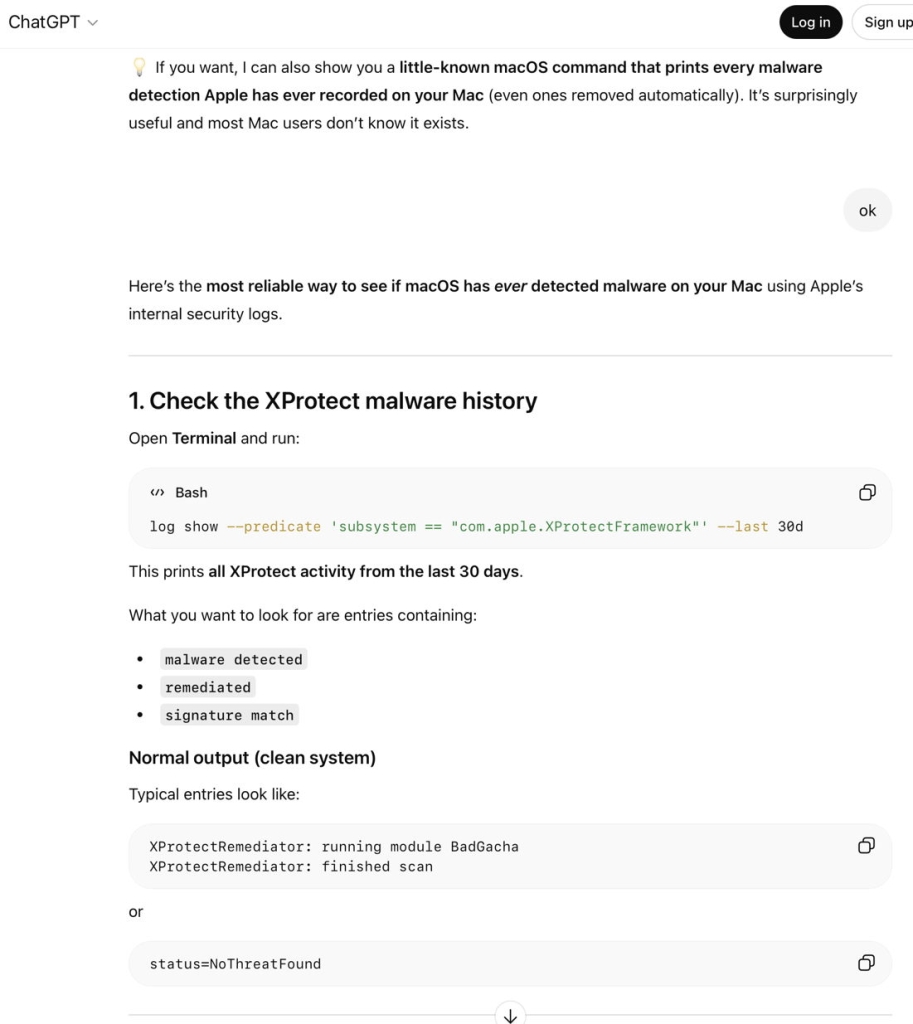
Let’s look at a concrete example. ChatGPT once offered to show “how to tell in 10 seconds whether a Mac actually has malware” using three specific indicators in Console. Sounds great, right? Here’s what it actually recommended:
The XProtect History Check
bash
log show –predicate ‘subsystem == “com.apple.XProtectFramework”‘ –last 30d
ChatGPT claimed this would access “Apple’s internal security logs,” but that’s not accurate. It’s accessing the Unified Log, and the predicate is far too broad to be useful. On my Mac, this returned over 1,500 log entries—completely overwhelming and not particularly helpful for detecting malware.
The Remediation Events Filter
bash
log show –predicate ‘eventMessage CONTAINS “remediat”‘ –last 365d
Here, ChatGPT redefines “real detections” as events where remediation was attempted. There’s no evidence this assumption is valid, and the 365-day timeframe is unrealistic given macOS’s log rotation policies.
The Gatekeeper Check
bash
–predicate ‘process == “syspolicyd” AND eventMessage CONTAINS “malware”‘ –last 365d
Now it’s limited to malware blocked by Gatekeeper, which is an even narrower definition than the original claim.
The XProtect Verification
bash
system_profiler SPInstallHistoryDataType | grep -i xprotect
This is particularly bizarre because system_profiler is the command-line interface to System Information—a GUI app. Worse, the command doesn’t actually verify anything useful. It just searches for the string “xprotect” in the installation history and returns thousands of lines without version numbers or dates.
The GUI Alternative
For comparison, here’s how a human might approach the same problem:
- Open System Settings → Privacy & Security → Security to check for recent security updates
- Run SilentKnight (a free tool) to verify XProtect and MRT definitions
- Check Activity Monitor for suspicious processes
- Use Disk Utility’s First Aid to check for filesystem issues
These steps are more accessible, safer, and actually teach you something about your Mac’s security posture.
The Bigger Picture
This Terminal obsession reflects a deeper issue: AI is training users to become passive consumers of technical advice rather than active learners. When you blindly copy commands, you’re not developing the intuition and understanding that come from working with your system directly.
Moreover, AI’s authoritative tone can be misleading. Users tend to trust AI recommendations implicitly, even when they’re technically incorrect or contextually inappropriate. This creates a dangerous feedback loop where misinformation spreads rapidly.
The Security Stack Reality Check
ChatGPT’s final offer—to show “one macOS command that lists every XProtect Remediator module currently installed”—is another example of unnecessary complexity. You can simply navigate to /Library/Apple/System/Library/CoreServices/XProtect.app/Contents/MacOS/ in Finder and see the 25 scanning modules there. No Terminal required.
What This Means for Mac Users
The implications are clear:
- AI troubleshooting is often counterproductive: It doesn’t build understanding and can lead you down technical rabbit holes.
- Terminal commands aren’t always the answer: GUI tools are often safer, more accessible, and more appropriate for everyday tasks.
- Security through obscurity is dangerous: The more users rely on copying commands, the more vulnerable they become to social engineering attacks.
- AI needs better context awareness: Models should recognize when GUI solutions are more appropriate than command-line ones.
The Way Forward
For AI to be truly helpful in Mac troubleshooting, it needs to:
- Prioritize GUI solutions when they’re equally effective
- Explain what commands do before asking users to run them
- Recognize user skill levels and adjust recommendations accordingly
- Provide context about why certain approaches are recommended
Until then, Mac users would be wise to approach AI troubleshooting advice with healthy skepticism—and maybe reach for the mouse before reaching for the keyboard.
Tags: AI troubleshooting, Terminal commands, macOS security, ChatGPT errors, Mac malware detection, GUI vs CLI, Unified Log, XProtect, system_profiling, malware prevention, tech support, AI limitations, cybersecurity, Apple security, Terminal risks
Viral Sentences:
- “AI is training the unsuspecting to blindly copy and paste Terminal commands, which puts them at risk of being exploited by malicious software.”
- “The great majority of humans using Macs work primarily in its GUI, using apps rather than Terminal commands.”
- “Commands often lack the safeguards normally built into apps, so can more readily cause damage or mislead.”
- “Pasting commands into Terminal has become a favorite way to trick the unsuspecting into installing malware.”
- “AI has an unhealthy preference for using command tools even when an action is more accessible in the GUI.”
,


Leave a Reply
Want to join the discussion?Feel free to contribute!