
How to enter Safe Mode on your Android phone – and why it’s critical to do so
Safe Mode on Android: What It Does and How It Helps Fix Your Phone
If you’ve ever faced issues with your Android phone—whether it’s freezing, crashing, or running slower than usual—you’ve probably heard of Safe Mode. But what exactly does Safe Mode do, and how can it help you troubleshoot your device? Let’s dive into the details.
What is Safe Mode?
Safe Mode is a diagnostic tool built into Android that allows you to run your phone with only the essential system software and preinstalled apps. When you boot your phone into Safe Mode, all third-party apps are temporarily disabled. This means that only the core Android system and apps that came with your device are active.
The primary purpose of Safe Mode is not to fix your phone’s problems directly, but to help you diagnose them. By isolating third-party apps, Safe Mode allows you to determine whether an issue is caused by a specific app or by something deeper in the system.
How Does Safe Mode Help Diagnose Issues?
When your phone is in Safe Mode, you can test whether the problems you’re experiencing—such as freezing, crashing, or slow performance—persist. If your phone works normally in Safe Mode, it’s a strong indication that one of your third-party apps is the culprit.
For example, if you recently installed or updated an app and started noticing issues, Safe Mode can help confirm whether that app is causing the problem. By systematically uninstalling or updating apps, you can often resolve the issue without needing to perform a factory reset or seek professional help.
What If My Phone Still Has Problems in Safe Mode?
If your phone continues to experience issues even in Safe Mode, the problem may lie deeper. It could be a software glitch or even a hardware malfunction. In such cases, you might need to:
- Check for system updates: Installing the latest software updates can often resolve bugs and improve performance.
- Reset your device: A factory reset can restore your phone to its original state, but be sure to back up your data first.
- Contact the manufacturer: If the issue persists, reaching out to your phone’s manufacturer or visiting an authorized service center may be necessary.
Will Safe Mode Delete My Apps or Data?
One of the most common concerns about Safe Mode is whether it will delete apps or data. The good news is that Safe Mode does not delete your apps or personal data. However, it does disable third-party apps temporarily, meaning they won’t run until you exit Safe Mode.
Google does warn that Safe Mode may remove some home-screen widgets. If you rely on widgets for quick access to information or functionality, it’s a good idea to take a screenshot of your home screen before entering Safe Mode. This way, you can easily restore your widgets once you’re back to normal mode.
Why Does My Phone Run Faster in Safe Mode?
If you notice that your phone runs significantly faster in Safe Mode, it’s likely because fewer apps and processes are running in the background. Third-party apps often consume system resources, such as CPU and RAM, even when you’re not actively using them. By disabling these apps, Safe Mode reduces the load on your phone’s processor and memory.
If performance improves dramatically in Safe Mode, it’s a sign that one or more of your apps may be using too many resources or crashing in the background. In this case, you might want to identify and remove the problematic app to restore normal performance.
How to Enter and Exit Safe Mode
Entering Safe Mode varies slightly depending on your Android device, but the general steps are as follows:
- Press and hold the power button until the power menu appears.
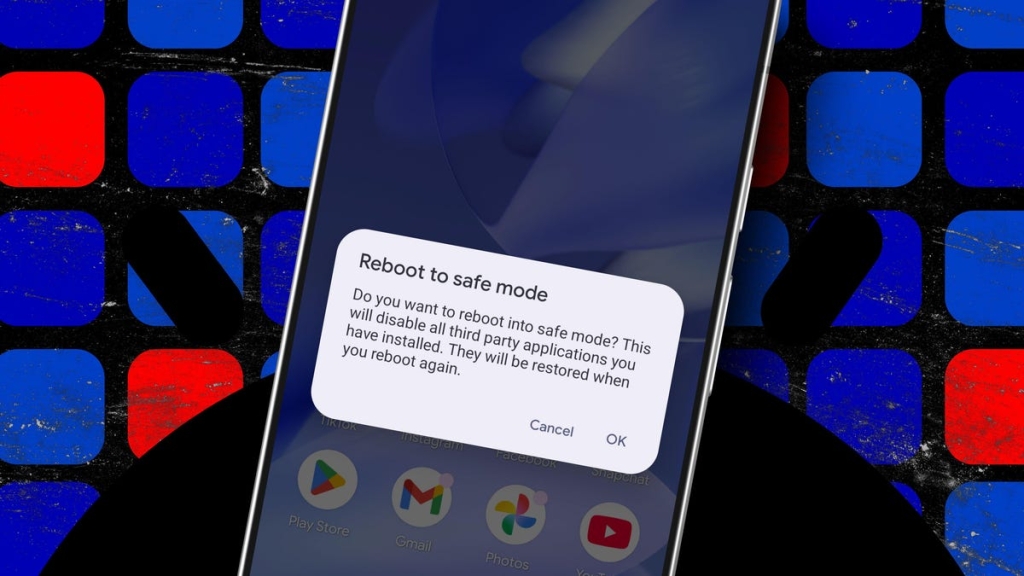
- Tap and hold the “Power off” option until you see the “Reboot to Safe Mode” prompt.
- Tap “OK” to confirm and reboot your phone into Safe Mode.
To exit Safe Mode, simply restart your phone as you normally would. Once it reboots, all your apps will be re-enabled.
Final Thoughts
Safe Mode is a powerful tool for diagnosing and troubleshooting issues on your Android phone. By isolating third-party apps, it helps you pinpoint the source of problems and take appropriate action. Whether you’re dealing with a freezing screen, a crashing app, or sluggish performance, Safe Mode can be your first step toward a solution.
Remember, Safe Mode is not a fix-all solution, but it’s an essential part of your Android troubleshooting toolkit. So, the next time your phone acts up, don’t panic—just boot into Safe Mode and start diagnosing!
Tags
Android, Safe Mode, troubleshooting, diagnostics, third-party apps, system software, performance issues, freezing, crashing, slow performance, widgets, hardware problems, software updates, factory reset, manufacturer support, CPU, RAM, background processes, diagnostic tool, Android system, preinstalled apps.
Viral Phrases
- “Safe Mode: Your Android’s secret weapon!”
- “Is your phone acting up? Try Safe Mode first!”
- “Diagnose like a pro with Android’s Safe Mode.”
- “Boost your phone’s speed by disabling third-party apps.”
- “Safe Mode: The ultimate troubleshooting hack.”
- “Why your phone runs faster in Safe Mode—explained!”
- “Don’t panic, just boot into Safe Mode!”
- “Safe Mode: The first step to fixing your Android.”
- “Isolate the problem: Enter Safe Mode and find the culprit.”
- “Safe Mode: Your phone’s built-in doctor.”
,


Leave a Reply
Want to join the discussion?Feel free to contribute!