
How to enable Google’s free VPN on your Pixel phone – it’s easy
How to Enable Google’s Free VPN on Your Pixel Phone — It’s Easy
In today’s hyper-connected world, our smartphones are constantly transmitting data—sometimes on networks we don’t fully trust. That’s where a VPN (Virtual Private Network) comes in. While many people pay for premium VPN services, Google quietly offers a free built-in VPN on Pixel devices that’s both easy to activate and effective at protecting your privacy.
If you own a Pixel 7 or newer, including the Pixel Tablet, you already have access to this feature. Here’s everything you need to know about Google’s free VPN, how to enable it, and why you might want to use it.
Why You Should Care About Mobile VPNs
Public Wi-Fi networks—like those in airports, hotels, and coffee shops—are notoriously insecure. Without protection, your data can be intercepted by malicious actors using simple tools available online. Even at home, your internet service provider can see and potentially log your browsing activity.
Google’s free VPN encrypts your internet traffic, making it significantly harder for anyone to snoop on what you’re doing online. It doesn’t change your virtual location (so you can’t use it to bypass geo-restrictions), but it does provide a crucial layer of privacy for everyday browsing.
What You’ll Need
- A Google account
- An internet connection
- A Pixel 7 or newer device (including Pixel Tablet)
The VPN is built directly into Android’s settings, so there’s no need to download any additional apps.
Step-by-Step: Enabling Google’s Free VPN
1. Open the Settings App
Find the Settings app on your Pixel device. You can locate it in your app drawer or use the search bar on your home screen.

2. Navigate to Network and Internet
Scroll down and tap on “Network and internet.”
3. Open the VPN Menu
Tap on “VPN” to access VPN settings.
4. Select VPN by Google
Tap on “VPN by Google” to open the VPN settings. The first time you access it, your Pixel will display information about how the VPN works and what permissions it needs.
Google explains that it will set up a “VPN connection via Android that routes your device’s network traffic through Google’s VPN service.” It will then ask if you want to switch on a “Use VPN on mobile network” toggle.
Below that, Google explains the VPN helps “keep your network traffic private, protecting your data from hackers or other actors.” It emphasizes that it does not “associate the traffic with your account or identity” and that it will “never use your VPN connection to track, collect, or sell your online activity.”
5. Turn On the VPN
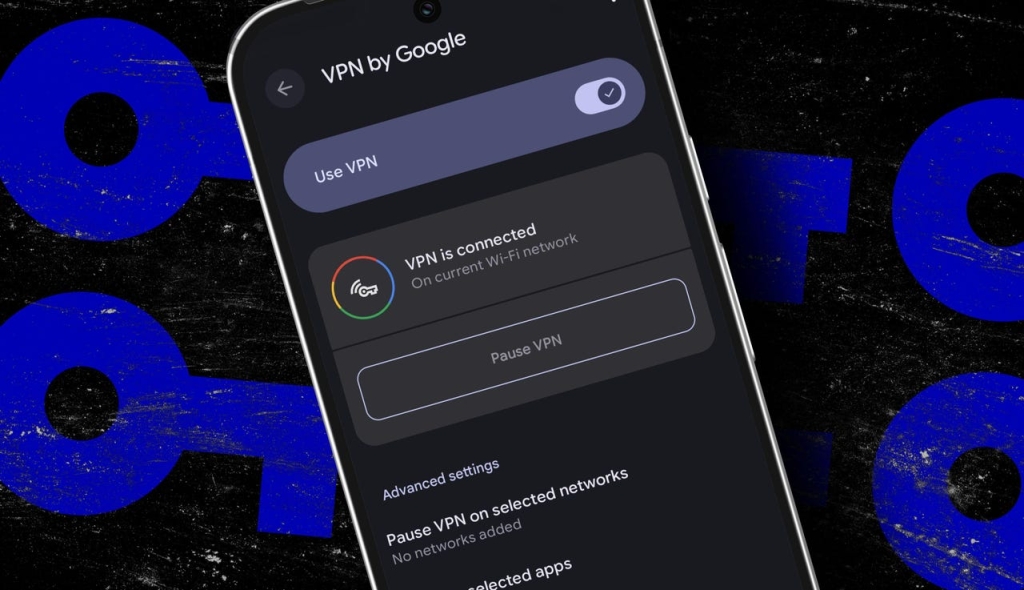
Tap “Use VPN” to activate Google’s free VPN service. Your Pixel will connect instantly, and Google says it will automatically reconnect each time you join a network.
A key icon appears at the top of your screen to show the VPN is active and encrypting your internet traffic.
From this same screen (Settings > Network and internet > VPN > VPN by Google), you can tap the “Pause” or “Resume” button to control the VPN. There is also an option that lets you pause the VPN on select networks.
If you pause it, the VPN stays off until your device auto-connects to a different network. So you can disable it on your home Wi-Fi, for example, while still having it activate on other networks when you leave the house.
6. Add the VPN Tile to Quick Settings
For faster access to the feature from anywhere on your device, you can add a VPN control tile to your Quick Settings panel.
Pull down the notification shade twice to expand Quick Settings. Tap the pencil icon to edit it, then select the VPN by Google tile to add it to Quick Settings. You can now tap the tile anytime to control the VPN.
7. Exclude Apps from the VPN
Some apps work better without a VPN connection. If you want to keep Google’s free VPN enabled but still need to use a specific app without it interfering, you can exclude that app under Settings > Network and internet > VPN > VPN by Google > Exclude selected apps.
Any app you add to this list will send traffic directly to the internet without passing through the VPN. This can reduce latency or fix compatibility issues while keeping the rest of your traffic protected.
What is a VPN?
A VPN, also known as a virtual private network, is a security service that creates an encrypted “tunnel” for your internet traffic, masking your IP address and location. This helps protect your data and hides your activity from others on the network.
Is VPN by Google really free?
Yes. VPN by Google is included at no additional cost on Pixel 7 and later devices, as well as the Pixel Tablet.
Does this replace the free Google One VPN perk?
Yes. Google discontinued its VPN by Google One perk for Google One subscribers in 2024.
Does using a VPN slow down my internet?
Sometimes. A VPN can reduce your speeds and increase latency because it routes your traffic through additional servers.
Can I use the VPN when traveling?
Yes. If the VPN is turned on and your home country or region is supported by Google, it will continue to work when you travel to other locations that Google also supports.
Google lists all supported countries and regions here.
The Bottom Line
Google’s free VPN is a powerful privacy tool that comes pre-installed on Pixel devices. It’s particularly valuable when using public Wi-Fi networks, where your data is most vulnerable to interception.
While it won’t help you bypass geo-restrictions or significantly change your browsing experience, it does provide peace of mind knowing your internet traffic is encrypted and protected from prying eyes.
Best of all, it’s completely free and incredibly easy to set up—so if you have a compatible Pixel device, there’s really no reason not to enable it.
Tags: Google VPN, Pixel phone, mobile security, free VPN, Android privacy, public Wi-Fi protection, internet encryption, Google services
Viral phrases: “free VPN on Pixel,” “encrypt your traffic,” “protect public Wi-Fi,” “Google’s hidden feature,” “privacy without paying,” “easy setup,” “key icon shows active,” “exclude apps option,” “travel with confidence,” “no additional cost”
Viral sentences: “Google offers a free VPN on Pixel 7 and newer devices,” “A key icon appears when the VPN is active,” “You can exclude specific apps from the VPN,” “The VPN automatically reconnects when you join a network,” “Google says it will never track or sell your activity,” “Public Wi-Fi networks are notoriously insecure,” “The VPN adds a layer of privacy for everyday browsing,” “It’s built directly into Android’s settings,” “You don’t need to pay for mobile VPN protection,” “The feature is available on Pixel Tablet too”
,

Leave a Reply
Want to join the discussion?Feel free to contribute!