
5 Ways To Use Your PC’s Ethernet Port (Besides Plugging In Your Router)
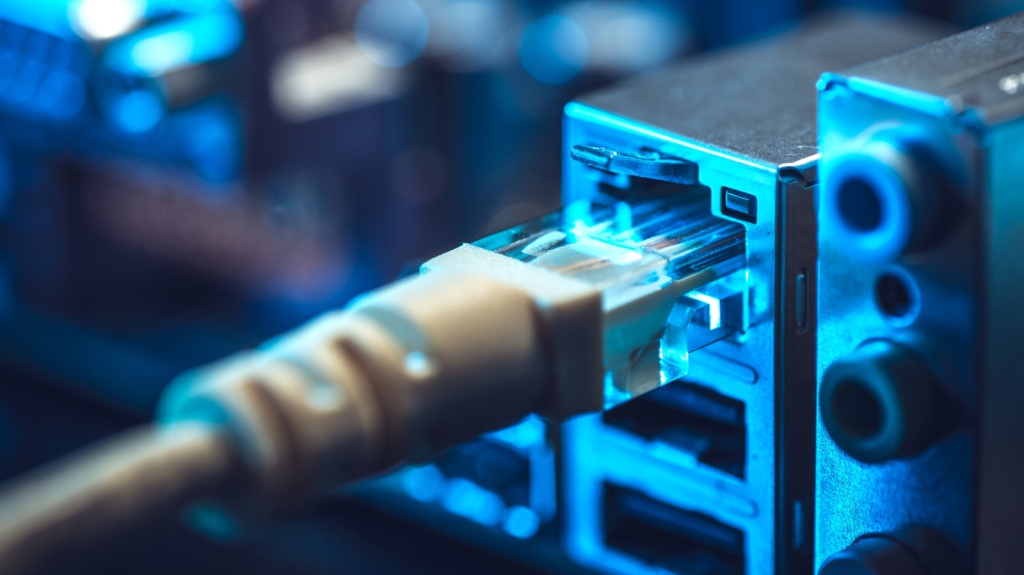
5 Creative Uses for Your PC’s Ethernet Port Beyond Internet Connection
In the era before Wi-Fi routers became ubiquitous, RJ45 Ethernet cables were the primary means of connecting computers to the internet. Even today, many users prefer wired connections for their reliability and stability, particularly for gaming setups, workstations, and servers where network interruptions can be problematic. The market has responded with specialized products like gaming Ethernet cables, flat cables for better cable management, and even color-coded cables for easy identification in commercial environments.
If you have Ethernet cables gathering dust, you might be surprised to learn there are numerous ways to repurpose your PC’s Ethernet port beyond simply connecting to the internet. Whether you’re looking to transfer files, share connections, or create specialized setups, your Ethernet port offers versatile functionality that can enhance your computing experience.
Transfer Large Files at High Speeds
Moving large files like 4K videos, extensive backups, or massive datasets between computers can be painfully slow over Wi-Fi. Traditional methods using USB flash drives or even the fastest portable SSDs require multiple steps: copying data from one machine, transferring the drive, then pasting on the other computer. Your Ethernet port provides a direct, high-speed alternative.
By connecting two computers directly with an Ethernet cable (thanks to Auto-MDIX technology, which automatically configures the connection), you can achieve transfer speeds up to 125 MB/s on standard Gigabit Ethernet. If both machines have 2.5GbE or 10GbE ports, speeds can reach 300 MB/s or 1.2 GB/s respectively. This method bypasses your router entirely, eliminating network congestion from other devices streaming or gaming. Simply assign static IP addresses to both computers on the same subnet (e.g., 192.168.1.1 and 192.168.1.2), enable file sharing, and transfer files directly through your file explorer.
Share Your Internet Connection
There may be situations where your PC has a robust internet connection, but another device lacks Wi-Fi capabilities. You can transform your computer into a makeshift router by sharing its internet connection through the Ethernet port. Connect one end of an Ethernet cable to your PC and the other to the device needing internet access.
In Windows, navigate to Network Connections, right-click your internet-connected adapter, select Properties, and under the Sharing tab, enable “Allow other network users to connect through this computer’s internet connection.” This setup is particularly useful in hotels or public spaces with captive portal logins that some devices struggle to navigate. It’s also ideal when your router is too far for a device to get a good wireless signal, but your PC has a powerful antenna. This creates a stable, hardwired connection perfect for lag-free gaming or streaming.
Connect to a NAS Directly
Network Attached Storage (NAS) devices serve as personal cloud servers, typically connected to routers for network-wide access. However, if you’re a solo creative professional who needs maximum performance without network bottlenecks, you can connect your NAS directly to your workstation via Ethernet.
This direct connection is especially valuable if your NAS has a 10-Gigabit Ethernet (10GbE) port. Rather than investing in an expensive 10GbE network switch and upgrading your router, you can achieve the same speeds by connecting the NAS directly to a 10GbE PCIe card in your PC. Assign static IP addresses to both devices (e.g., NAS: 10.0.10.1, PC: 10.0.10.2), and you’ll have blazing-fast access to your files without competing with network traffic from other users in your home or office.
Connect a Printer
Printers are notorious for connectivity issues, particularly wireless models that mysteriously drop connections when you need them most. While network printers are designed to connect to routers, you can create a more reliable setup by wiring a network printer directly to your PC.
Connect the printer’s Ethernet port to your computer’s Ethernet port, then configure both devices with static IP addresses on the same subnet (e.g., printer: 192.168.8.60, PC: 192.168.8.61). In your PC’s printer settings, add the printer manually using its TCP/IP address. This direct connection eliminates the frustration of wireless connectivity issues and provides enhanced security for printing sensitive documents like legal contracts or confidential client data, as the printer remains completely isolated from your network.
As a Makeshift KVM Switch
Managing multiple computers with separate keyboards, mice, and monitors can create desk clutter and workflow interruptions. While hardware KVM switches solve this problem, they can be expensive and add cable complexity. Software KVM solutions allow you to share one mouse and keyboard across multiple computers, and running this over an Ethernet connection provides the most stable experience.
Connect two computers via Ethernet and configure static IP addresses. Install software like Barrier or Mouse without Borders, designating one computer as the server (with the physical keyboard and mouse) and the other as the client. While software KVMs can work over Wi-Fi, they may introduce latency or micro-stutters, especially when other devices use the same network. A hardwired Ethernet connection ensures near-zero latency, creating a seamless experience where you can move your cursor between computers as if they were one system.
Tags: Ethernet port, wired connection, file transfer, internet sharing, NAS, printer setup, KVM switch, network configuration, static IP, Auto-MDIX, 10GbE, Gigabit Ethernet
Viral phrases: “Unlock the hidden potential of your Ethernet port,” “Say goodbye to Wi-Fi frustrations forever,” “Transform your PC into a networking powerhouse,” “The ultimate file transfer hack you never knew existed,” “Create a professional-grade setup without breaking the bank”
,


Leave a Reply
Want to join the discussion?Feel free to contribute!