
Which phone-powered PC experience is better?
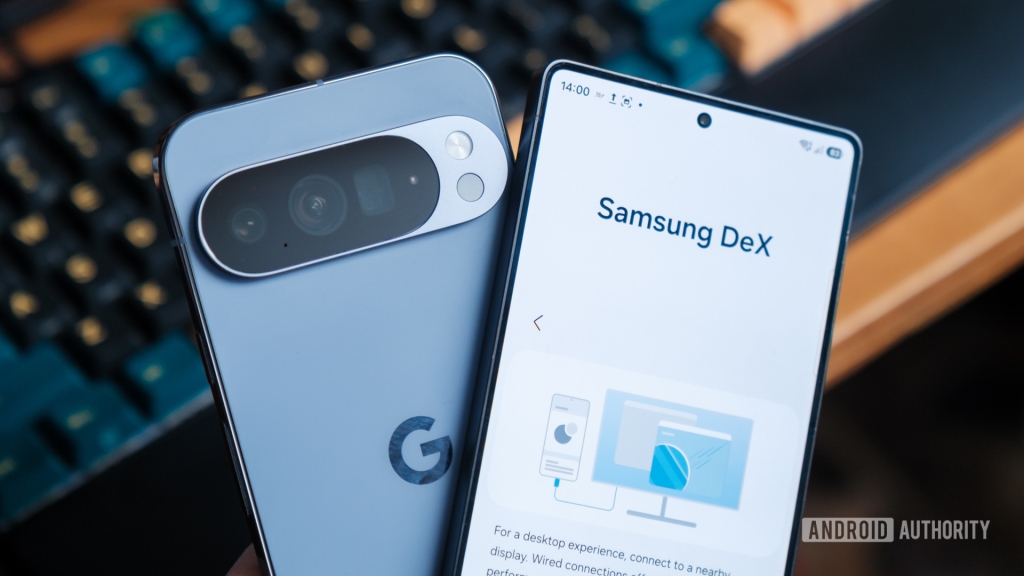
Pixel Desktop Mode vs Samsung DeX: The Battle for Android’s Desktop Future
When Google unveiled Pixel Desktop Mode alongside the Pixel 10 series, it promised to revolutionize how we think about mobile computing. I’ve been using it extensively on my Pixel 10 Pro XL, and while it’s impressive, Samsung’s DeX has been refining this concept since 2017. The question isn’t just which is better—it’s whether Google’s late entry can compete with Samsung’s seven years of polish.
The Core Architecture Difference
The fundamental distinction between these platforms runs deeper than their interfaces. Pixel Desktop Mode runs the exact same Android system that powers your phone’s interface, simply rendering a second windowing environment on the external display. Apps run in the same OS instance, but Android’s native window manager allows them to appear in resizable windows on the larger screen.
Samsung DeX takes a different architectural approach. Rather than relying on Android’s new default desktop-style windowing, Samsung layers its own desktop interface on top of Android through One UI. Apps still run in the same Android OS instance, but Samsung replaces much of the system’s window management and UI behavior with its own desktop shell. This architectural difference leads to subtle but meaningful variations in the user experience.
Getting Started: Equally Painless
Both platforms support DisplayPort output via USB-C, and connecting through HDMI dongle adapters works flawlessly. Older Samsung models offered additional connection methods like DeX cables and Wireless DeX, which the Pixel currently lacks. However, both phones support power pass-through and hassle-free plug-and-play support for Bluetooth and USB keyboards and mice. I had zero issues getting started with either platform.
The Shared Android Desktop Foundation
Once you’re up and running, the similarities become immediately apparent. Both desktop environments greet you with familiar layouts: a customizable dock along the bottom (positioned on the left for DeX, right for Pixel), an app drawer, and Android’s classic three navigation buttons. Both support up to four separate desktop environments for managing complex multitasking setups.
Peripheral support is identical across both platforms. Bluetooth devices remain paired when switching between mobile and desktop modes. External storage devices—whether microSD cards, USB sticks, or SSDs—are detected instantly without issue.
App Compatibility: Where Both Shine
The most crucial test for any desktop environment is how it handles Android apps, and here’s where both platforms excel. Google has pushed developers to support a wider range of aspect ratios in recent years, from standard phone portrait to wider foldable and tablet UIs. Pixel Desktop Mode leverages these options, automatically refreshing the UI to fit the most applicable mode when you resize windows.
DeX works in a remarkably similar way, allowing you to resize windows to whatever size and adapting the UI where possible. However, not every app has been updated to support the broader range of UI options available in today’s Android ecosystem. In the old days, DeX used to put older apps into fixed windows, but I couldn’t find any apps that defaulted to this mode—all the apps I tried could be stretched and expanded.
Interestingly, DeX handled some older apps better than the Pixel, which defaulted to full screen and became unresponsive with a couple of older apps I tried that definitely weren’t built for widescreen support. That’s a minor difference in the grand scheme, though.
The Subtle Differences That Matter
Eagle-eyed observers will have already spotted key differences when comparing interfaces. DeX defaults to showing desktop icons along with the dock, and you can add apps to the desktop grid simply by clicking and dragging them out of the app drawer. In fact, DeX’s desktop is a fully customizable landscape of its own, complete with the very same widgets you can plaster all over your phone’s homescreen. Importantly, changes made here don’t affect your phone’s homescreen. Meanwhile, Pixel’s desktop is essentially just a glorified wallpaper—unlike DeX, you can’t place app icons or widgets directly on it.
Quick Settings and Notifications: A Tale of Two Approaches
Another significant change is how the two handle quick settings and notifications. DeX adds these options as more familiar “system tray” or “notification area” items, along with a calendar and clock. Clicking any of these icons opens the relevant settings, allowing quick access to check your schedule, toggle Bluetooth connections, or respond to incoming messages. It’s very PC-like.
Google currently has nothing like this. Instead, Pixel opts for a top-down, phone-inspired approach to notifications and quick settings. While this is familiar in one sense, it’s at odds with muscle memory for how we expect desktop interfaces to work. For a start, the tiny little clock or connectivity icons you have to click at the top of the screen are far too small. Even after you finally pull down the menu, it still takes up the entire screen, blocking your apps and limiting your multitasking. Compared to a nice little pop-up at the side of your screen, it’s not great.
Browser Experience: Where Pixel Pulls Ahead
It’s not a clean sweep for DeX, though. On my Samsung Galaxy S25 Ultra, DeX scaled Chrome so aggressively that navigating some pages became awkward. It’s essentially trapped in the mobile world, causing all sorts of formatting issues when viewing pages on a large screen. Requesting desktop versions of sites helped, but not sufficiently to make this a native experience—you’re best off sticking to Samsung Internet, which works flawlessly.
By comparison, Google has gone to some effort to ensure a more desktop-like Chrome experience, though it still lacks extensions. This is one area where Pixel’s approach shows clear advantages.
Advanced Features: DeX’s Maturity Shows
DeX does a better job of surfacing additional but very important External Display settings. There’s a dedicated option for screen timeout for PC mode, which is frustratingly the same for phone and desktop modes on the Pixel. Furthermore, you can set PC-only wallpapers on DeX while all customization settings are shared on Google’s implementation.
My Galaxy S25 Ultra even features a nice little touchpad button at the bottom left of the phone screen, letting me easily navigate the external display without a mouse connected. These are points for DeX here; the platform’s maturity and extra years under refinement do make it that little bit nicer to use.
The Verdict: DeX Still Reigns Supreme
By now, you can probably tell I’m leaning more in favor of DeX than Pixel Desktop Mode, but only for a few small quality-of-life improvements rather than a core functionality difference.
For instance, DeX does a better job of surfacing additional but very important External Display settings. There’s a dedicated option for screen timeout for PC mode, which is frustratingly the same for phone and desktop modes on the Pixel. Furthermore, you can set PC-only wallpapers on DeX while all customization settings are shared on Google’s implementation. My Galaxy S25 Ultra even features a nice little touchpad button at the bottom left of the phone screen, letting me easily navigate the external display without a mouse connected. Points for DeX here; the platform’s maturity and extra years under refinement do make it that little bit nicer to use.
I can best sum up the difference as the Pixel’s setup is more limited in one key way: its UI is still very much bound to its phone interface. The phone-like notification panel and the lack of per-interface persistent settings are minor gripes, but they are certainly enough to take the shine off the experience for power users. Once you peel back the wrapper, it’s clear that you’re still very much working on a Pixel phone, while DeX has a clearer separation between its phone host and the desktop interface you want to spend time doing serious work in. It’s only small differences, but they add up.
Pixel Desktop Mode shows where Android is heading—a single OS that scales seamlessly from phone to desktop. Google plans to take on desktops with Aluminium OS before the end of the year, after all. But today, Samsung DeX still feels like the more complete desktop environment thanks to its extra refinement. The gap isn’t huge, though, and if Google continues iterating at its current pace, Pixel Desktop Mode may not stay behind for long.
tags
AndroidDesktop #PixelDesktop #SamsungDeX #MobileComputing #TechComparison #AndroidAuthority #DesktopMode #Pixel10 #GalaxyS25Ultra #OneUI #AndroidOS
viral
Android desktop mode comparison 2025
Pixel vs DeX ultimate showdown
Google’s late entry into desktop Android
Samsung’s seven-year head start
Android’s desktop future revealed
Mobile-to-desktop revolution
The best Android desktop experience
Pixel Desktop Mode hands-on review
Samsung DeX maturity advantages
Android Authority tech deep dive
,


Leave a Reply
Want to join the discussion?Feel free to contribute!