
Android’s new desktop windowing mode has changed how I use my tablet
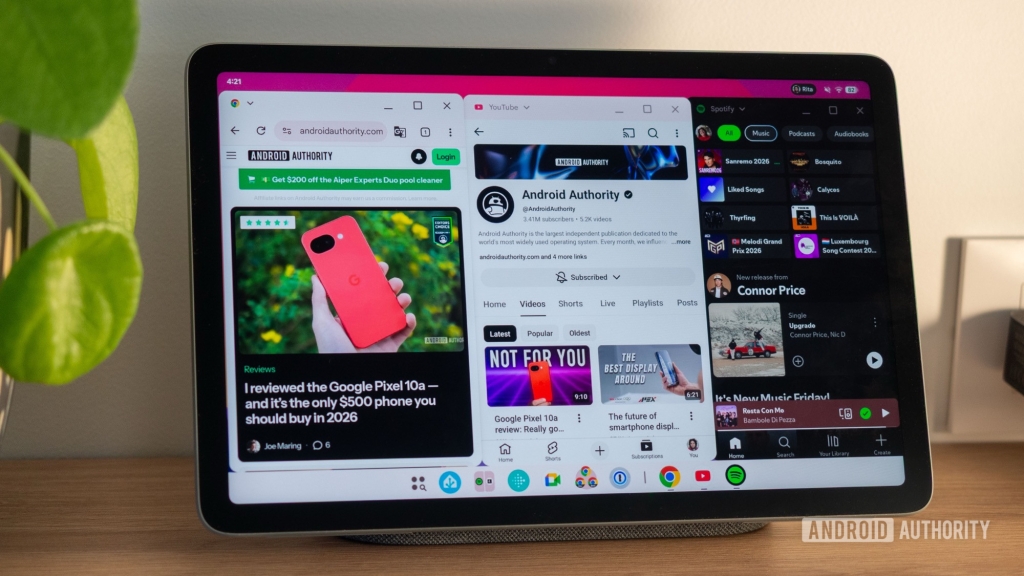
Google’s Desktop Windowing Revolution Arrives on Android 16 QPR3: A Game-Changer for Tablet Users
In a bold move that signals Android’s evolution into a true desktop operating system, Google has officially rolled out desktop windowing to Pixel Tablets running Android 16 QPR3. This long-awaited feature, which has been in development since Android Nougat, finally delivers a fluid, intuitive, and surprisingly powerful multitasking experience that rivals traditional desktop environments.
The Evolution of Android Multitasking
For years, Android users have been stuck with basic split-screen functionality or the clunky app switcher. While these methods work, they pale in comparison to the seamless window management we’ve come to expect from desktop operating systems. Google’s desktop windowing changes all that, bringing true freeform window management to Android tablets.
The feature’s journey has been fascinating. What began as an experimental feature in Android Nougat has evolved through years of refinement, likely accelerated by Google’s vision to transform Android into a viable desktop platform. The recent addition of Desktop Mode when connecting phones to external displays, Samsung DeX-style, and the push toward bringing similar interfaces directly to devices with large screens has culminated in this moment.
First Impressions: Smooth, Fluid, and Surprisingly Polished
After spending a week with desktop windowing on my Pixel Tablet, I can confidently say that Google has nailed the fundamentals. The animations are buttery smooth—resizing windows, snapping apps to screen edges, and transitioning between desktop spaces all feel natural and responsive. Even on a touchscreen interface, where desktop-like interactions can sometimes feel awkward, everything works remarkably well.
The bottom taskbar deserves special mention. It intelligently displays all currently running apps across all desktops, allowing you to switch between them with a single tap regardless of which desktop they’re in. This is a huge improvement over traditional Android multitasking, where you often lose track of where your apps are.
Feature-Rich and Thoughtfully Designed
Google hasn’t just delivered basic window management—they’ve packed in thoughtful features that demonstrate deep consideration for how people actually use tablets:
- Multiple Desktops: Create and switch between different desktop spaces, each with its own set of apps
- Intuitive Gestures: Snap windows to screen edges, resize with precision, minimize and maximize with familiar controls
- Smart App Switching: The taskbar shows all running apps across desktops, making navigation effortless
- Context-Aware Menus: Long-press on window headers or use the app switcher to quickly access split-screen, desktop, or full-screen options
The app switcher deserves special praise for its window previews. No matter how you’ve arranged your floating windows—different sizes, misaligned, various aspect ratios—the preview aligns them perfectly side by side. This attention to detail shows Google’s commitment to polish.
The Best of Both Worlds: Coexisting Paradigms
What impresses me most is how Google has managed to preserve Android’s traditional full-screen app experience while introducing desktop windowing. You don’t have to choose one or the other. Want to use a single app maximized? No problem. Need two apps side by side? That still works perfectly. Want to create a desktop with three or four apps? Go for it.
This flexibility is crucial because different tasks benefit from different approaches. For quick multitasking between a few apps, traditional split-screen or full-screen modes are still superior—they maximize screen real estate and minimize visual clutter. But when you need to juggle multiple applications simultaneously, desktop windowing shines.
The Speed Advantage
Desktop windowing’s biggest advantage over traditional Android multitasking is speed. You don’t need to open the app switcher and wait for animations. The taskbar provides instant access to any running app, and switching is instantaneous. This might seem like a small improvement, but when you’re constantly moving between applications, it makes a huge difference in workflow efficiency.
Not Without Limitations
While impressive, desktop windowing isn’t perfect. There are some notable limitations:
- Moving apps between desktops isn’t immediately obvious (if it’s even possible without keyboard shortcuts)
- When sending a full-screen app to a desktop, it always goes to the first desktop rather than letting you choose
- You can’t rearrange the order of your desktops
- Chrome window management is still inconsistent—opening multiple Chrome windows in different desktops doesn’t work reliably
These are relatively minor issues that Google will likely address in future updates, but they’re worth noting if you’re considering this as a primary workflow.
Finding the Sweet Spot
Through experimentation, I’ve discovered that desktop windowing works best when you limit yourself to 2-3 apps per desktop. More than that, and windows become too small to be useful. I also found that very small floating windows defeat the purpose—if an app is floating and obscuring other content, you might as well maximize it.
The key is finding your personal multitasking threshold. For me, that’s three apps maximum per desktop. Your mileage may vary depending on your specific use cases and screen size.
A Promising Foundation
While desktop windowing isn’t quite ready to replace a traditional desktop operating system, it represents a significant step forward for Android tablets. The feature feels polished, performs well, and adds genuine value to the tablet experience.
For Pixel Tablet owners, this update transforms the device from a consumption-focused tablet into a legitimate productivity tool. Combined with a Bluetooth keyboard and mouse, I suspect many users will find this setup surprisingly capable for everyday tasks.
Looking Ahead
Google’s desktop windowing initiative is clearly part of a larger strategy to position Android as a desktop-ready operating system. The feature’s availability on Pixel Tablets running Android 16 QPR3 suggests we’ll see it expand to other devices running Android 16 or later, possibly including Android 17.
The real test will be how well this scales to larger displays and whether Google can address the current limitations while maintaining the intuitive, touch-friendly nature that makes this feature special.
Final Thoughts
Desktop windowing on Android 16 QPR3 is a impressive achievement that delivers on years of promises. It’s not perfect, but it’s polished enough, fast enough, and useful enough to change how many people use their Android tablets. If you’re a Pixel Tablet owner, this update alone might be worth the upgrade.
For everyone else, it’s a clear signal that Google is serious about Android’s future as a versatile, multi-device operating system capable of handling everything from phone interactions to desktop productivity.
Tags: Android 16, desktop windowing, Pixel Tablet, multitasking, freeform windows, Android desktop mode, Google, tablet productivity, split-screen, window management, QPR3, Android evolution
Viral Phrases: “Android just got a desktop makeover,” “Google’s secret weapon for tablet productivity,” “The multitasking revolution is here,” “Your Android tablet is about to get way more powerful,” “Desktop windows on your phone? Yes, please!” “Google finally delivers what we’ve been waiting for,” “Android’s answer to Windows and macOS,” “The future of mobile computing is here,” “Why your next tablet might replace your laptop,” “Google’s bold move to dominate desktop computing”
,

Leave a Reply
Want to join the discussion?Feel free to contribute!