
Is increasing VRAM finally worth it? I ran the numbers on my Windows 11 PC
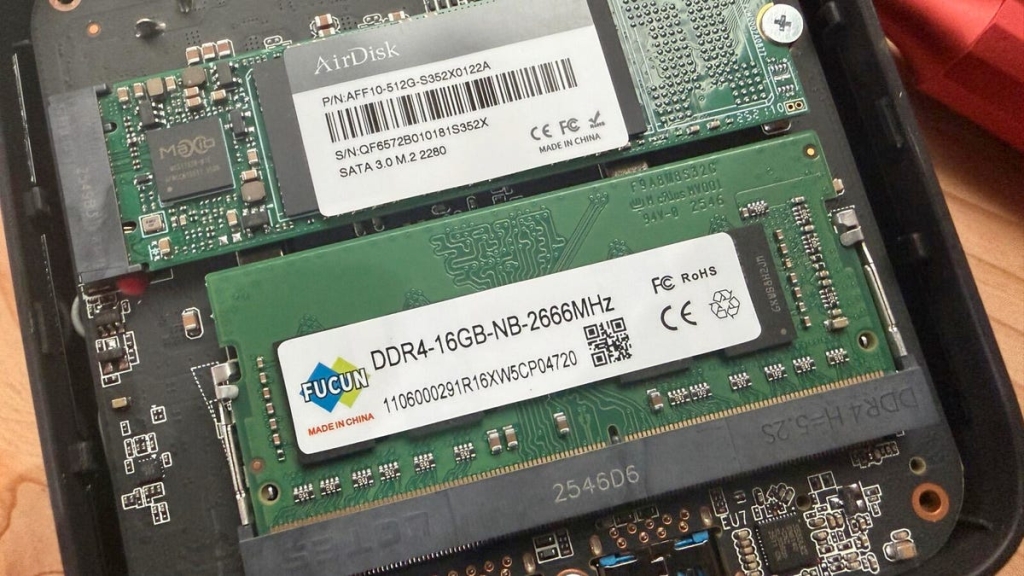
Virtual RAM: A Budget-Friendly Hack to Boost Your PC’s Performance
As PC enthusiasts and casual users alike face skyrocketing RAM prices, finding ways to maximize your system’s memory without breaking the bank has become crucial. With physical RAM costs at record highs, virtual RAM offers an intriguing alternative—though it comes with significant limitations.
The RAM Price Crisis: Why Virtual RAM Matters Now
The past seven months have been brutal for PC builders and upgraders. RAM prices have surged to unprecedented levels, driven largely by the AI boom and broader economic instability. What was once a routine $50-60 upgrade now costs $100+ for basic DDR4 memory. Even as prices begin to stabilize slightly, memory and hardware remain prohibitively expensive for many users.
This affordability crisis has pushed virtual RAM into the spotlight as a potential workaround. But is it a genuine solution or just a temporary Band-Aid?
What Exactly Is Virtual RAM?
Virtual RAM, also known as virtual memory, is a clever system resource management feature that allows your computer to use a portion of your storage drive as an extension of physical system memory. Think of it as creating an illusion of expanded memory—your PC behaves as if it has access to more RAM than physically installed.
As Lenovo explains, virtual memory “creates the illusion of a larger, continuous memory space,” effectively tricking your system into thinking it has more resources available. This can be particularly valuable for older computers struggling with modern software demands.
The Harsh Reality: Virtual RAM Isn’t Real RAM
Here’s the critical caveat that every tech enthusiast needs to understand: virtual RAM cannot match the performance of physical RAM. Period.
The speed difference is staggering. Even the fastest NVMe SSDs are approximately 10 times slower than physical RAM, while traditional hard drives lag behind by hundreds of times. RAM is specifically engineered for high-speed, temporary data storage of active processes, whereas storage drives prioritize long-term data retention.
To illustrate this performance gap, consider a real-world comparison. My desktop features 32GB of DDR4 RAM running at 2400 MT/s across two 64-bit channels, delivering a theoretical maximum bandwidth of 19,200 MB/s. In contrast, my PCIe 4.0 NVMe SSD achieves read speeds of ~6,700 MB/s and write speeds of ~6,200 MB/s—less than one-third the speed of my RAM.
This performance disparity translates directly to user experience. Virtual RAM will exhibit higher latency, slower response times, and reduced overall system responsiveness compared to physical memory.
The Hidden Danger: Memory Thrashing
Beyond speed limitations, virtual RAM introduces another significant risk: memory thrashing. This occurs when your system spends excessive time swapping data between physical RAM and virtual memory on your storage drive. The result? System freezes, severe lag, and overall poor performance that can make your computer virtually unusable.
While advanced memory management techniques like page replacement algorithms can help mitigate thrashing, they cannot eliminate it entirely. Your system will still experience performance degradation when heavily relying on virtual memory.
When Virtual RAM Actually Helps
Despite these limitations, virtual RAM isn’t entirely useless. The key is understanding when and how to use it appropriately. Virtual RAM shines as a temporary performance booster for lightweight machines with limited memory.
Consider budget laptops like the Acer Aspire Go 15, currently available for just $275. This affordable machine comes with only 8GB of LPDDR5 RAM—barely adequate for modern multitasking. Activating virtual RAM won’t transform this laptop into a powerhouse, but it can help the system handle more applications simultaneously without crashing or freezing.
Virtual RAM is particularly valuable for:
- Older computers with minimal RAM upgrades
- Budget systems where physical memory upgrades aren’t financially viable
- Temporary performance boosts during resource-intensive tasks
- Extending the usable life of aging hardware
How to Enable Virtual RAM in Windows 11
Setting up virtual RAM in Windows 11 is surprisingly straightforward:
- Search for “View advanced system settings” in the Windows search bar
- Open System Properties and navigate to the Advanced tab
- Click “Settings” under Performance, then Advanced again
- Click “Change” under Virtual Memory settings
- Uncheck “Automatically manage paging file size for all drives”
- Select your drive (choose the fastest available)
- Choose “Custom size” and enter your desired values
- Set initial size (recommended: 1.5x your physical RAM)
- Set maximum size (typically 3x initial size)
- Click “Set,” then “OK,” and restart your computer
For optimal performance, allocate virtual memory based on your physical RAM. A common recommendation is setting initial size to 1.5x your physical RAM and maximum size to 3x.
The Apple Perspective: Secure Virtual Memory
Mac users aren’t left out of the virtual memory conversation. MacOS implements “secure virtual memory,” which functions similarly to Windows but with enhanced security features. Apple’s implementation automatically encrypts virtual memory data, providing an additional layer of protection against unauthorized access.
Unlike Windows, MacOS doesn’t allow users to manually adjust virtual memory settings. The system automatically manages these resources based on your hardware configuration and usage patterns.
Should You Disable Virtual Memory?
While it’s technically possible to disable virtual memory entirely, doing so is generally inadvisable. Modern operating systems rely on the interaction between physical and virtual memory for optimal performance. Disabling virtual memory can lead to system instability, application crashes, and severe performance degradation.
The Bottom Line
Virtual RAM represents a clever workaround for the current RAM price crisis, but it’s not a magic solution. Think of it as a temporary performance enhancer rather than a permanent replacement for physical memory upgrades.
If you’re working with a budget system or trying to extend the life of older hardware, virtual RAM can provide meaningful improvements in system stability and multitasking capability. However, if you’re building a gaming PC, content creation workstation, or any system where performance is paramount, investing in physical RAM remains the superior choice.
The decision ultimately comes down to your specific needs, budget constraints, and performance requirements. Virtual RAM won’t make your old computer feel new again, but it might help you squeeze a bit more life out of it while you save for that much-needed hardware upgrade.
Tags: virtual RAM, RAM prices, PC upgrade, memory management, Windows 11, budget computing, system performance, hardware optimization, AI boom, memory thrashing, SSD speeds, DDR4 RAM, affordable laptops, tech tips, computer performance
Viral Phrases: “RAM prices are insane right now,” “virtual memory could save your old PC,” “why your computer feels slow,” “the budget PC hack everyone’s talking about,” “is virtual RAM worth it in 2026,” “how to make your laptop faster without spending money,” “the truth about virtual memory performance,” “PC builders are furious about RAM costs,” “extend your computer’s life for under $50,” “the secret Windows feature that boosts performance”
,


Leave a Reply
Want to join the discussion?Feel free to contribute!