
This Simple iOS Trick Makes Typing Accurately a Total Breeze
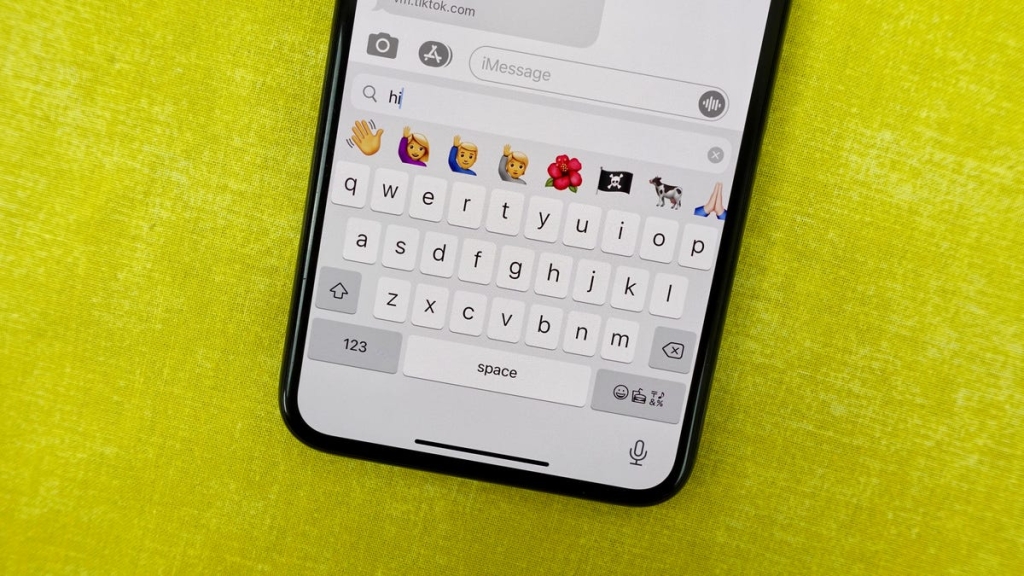
Unlock Your iPhone’s Hidden Trackpad: The Secret to Effortless Text Editing
The iPhone’s stock keyboard is a marvel of modern design—until you actually need to edit a typo. You meticulously tap on a single letter in a long word, but the cursor stubbornly refuses to land where it should. This clunky, outdated interaction makes even a thousand-dollar device feel remarkably dumb. And if you’re like most users, you’ve probably noticed it seems to get worse with each iOS update.
But here’s the good news: there’s a far superior, little-known alternative for moving the cursor while typing in iOS, and the best part is that it works even if you’re running an older software version like iOS 16. Stop fighting your screen and discover how to unlock your iPhone’s hidden trackpad feature.
The Hidden Trackpad: Your Text Editing Savior
This secret functionality transforms your entire keyboard into a precision cursor control tool, making text editing as smooth as using a Mac’s trackpad. It’s been hiding in plain sight since iOS 12, yet most users have never discovered it.
How to Activate the Hidden Trackpad
Step 1: Long-Press the Space Bar
Anywhere you’ve written a block of text, bring up your keyboard and press and hold your finger down on the space key. Keep pressing until you notice two things: the keyboard goes blank (or darkens), and you feel a subtle haptic feedback. You’ll also see the cursor enlarge briefly—this confirms you’ve successfully activated the trackpad mode.
Step 2: Navigate Like a Pro
With your finger still pressed down, move it around the entire keyboard surface. Notice how the cursor moves in perfect sync with your finger movement, just like you would on your Mac’s trackpad. The entire keyboard becomes a precision navigation tool.
Step 3: Place and Edit
To place the cursor exactly where you want it, simply lift your finger off the screen. You can then use any of the other keys—Delete, backspace, or even predictive text suggestions—to make your edits. If you need to move the cursor again, just repeat the process: press and hold the space bar to bring up the hidden trackpad once more.
Why This Feature Changes Everything
This hidden trackpad functionality addresses one of iOS’s most frustrating pain points. Traditional iPhone text editing requires you to tap precisely where you want the cursor, often resulting in it landing in the wrong spot, especially near the edges of the screen or in long paragraphs.
The trackpad mode eliminates this frustration entirely. You get pixel-perfect cursor control without the guesswork. It’s particularly useful when:
- Editing long documents or emails
- Making corrections in the middle of sentences
- Moving between words in complex text
- Positioning the cursor near the top or bottom of the screen
Compatibility and Availability
The best part about this feature is its broad compatibility. It works on:
- All iPhones running iOS 12 or later
- All iPads running iPadOS 12 or later
- Both physical and software keyboards
This means even if you haven’t updated to the latest iOS 17, you can still enjoy this game-changing functionality on iOS 16 or earlier versions.
Pro Tips for Maximum Efficiency
Use Light Pressure: You don’t need to press hard. A gentle, sustained touch on the space bar is all it takes to activate the trackpad mode.
Practice the Motion: Spend a few minutes practicing cursor movement. You’ll quickly develop muscle memory for precise positioning.
Combine with Selection: After positioning the cursor, you can tap once to move it, or tap and hold to start text selection—perfect for copying and pasting specific text segments.
Works in Any App: This feature works universally across all apps that use the standard iOS keyboard, from Notes and Messages to third-party apps like Microsoft Word or Google Docs.
The Bigger Picture
This hidden trackpad represents Apple’s understanding that sometimes the best features are the ones that solve everyday problems without requiring new hardware. It’s a testament to thoughtful software design that enhances productivity without complicating the user experience.
While Apple continues to refine iOS with each update, features like this hidden trackpad remind us that sometimes the most powerful tools are already in our hands—we just need to know where to look.
For more iPhone tips and tricks, be sure to check out how to fix the most annoying features and settings on your iPhone, and discover how to have secret conversations in the Notes app. If you’re an Apple computer user, don’t miss these 10 Mac hacks you should know about.
iphone #ios #iphonetricks #apple #textediting #productivity #iphonehacks #iosfeatures #techtips #mobileproductivity #applekeyboard #iphonetricks #hiddenfeatures #techlife #productivityhacks #iphoneusers #iosusers #texteditingtips #appleecosystem #mobiletechnology #techsecrets #iphonelifesaver #typingtips #cursorcontrol #mobileediting #appleinnovation #techhacks #iphonepoweruser #iosproductivity #mobileefficiency #applesecrets
,

Leave a Reply
Want to join the discussion?Feel free to contribute!