
iPhone Game Mode explained: What it is and how to turn it off
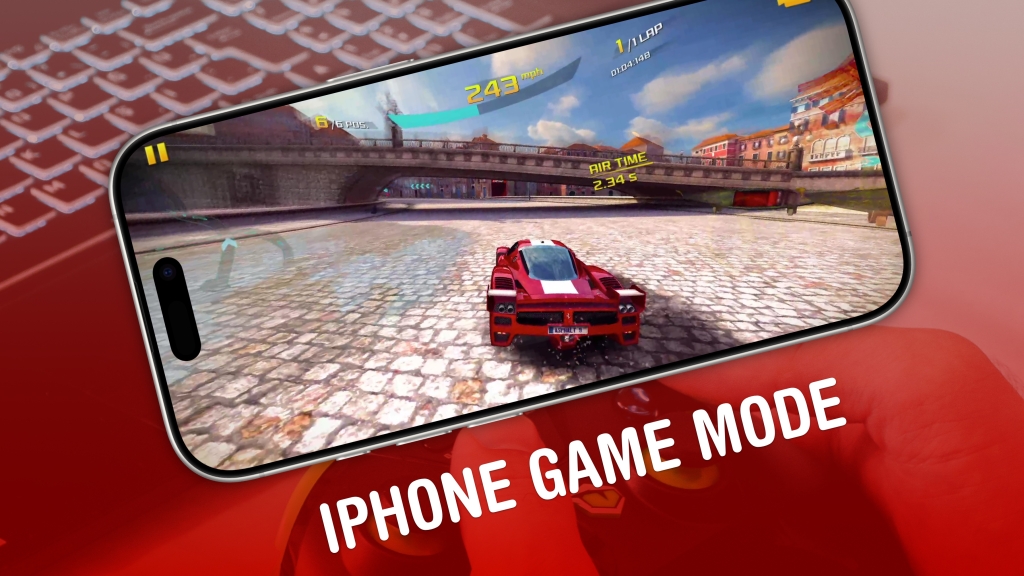
iPhone Game Mode: The Hidden Feature That’s Revolutionizing Mobile Gaming
Hold onto your controllers, gamers! Apple just dropped a bombshell feature that’s about to change the way you play on your iPhone forever. Game Mode is here, and it’s not just another setting buried in your phone’s labyrinth of options—it’s a game-changer (pun absolutely intended).
What Is iPhone Game Mode?
Picture this: You’re about to launch Asphalt 8: Airborne, fingers poised for high-speed racing action. Suddenly, your iPhone transforms. Graphics sharpen. Response times drop. The world around your game fades away. That’s Game Mode working its magic.
Apple’s Game Mode is an intelligent system that automatically kicks in whenever you launch a game on your iPhone. It’s like having a pit crew for your device, optimizing every aspect of performance to give you the smoothest, most responsive gaming experience possible.
How Does It Actually Work?
When Game Mode activates, your iPhone goes into hyperdrive. Here’s what’s happening behind the scenes:
Performance Optimization: Your iPhone reallocates system resources, prioritizing the game over background processes. This means more processing power and memory dedicated to keeping your gameplay buttery smooth.
Reduced Latency: Bluetooth connections get a speed boost. Your game controller inputs register faster, and your AirPods sound more responsive. Every millisecond counts when you’re in the heat of battle.
Background Activity Limitation: Non-essential processes get temporarily paused or slowed down. Your iPhone essentially says, “Sorry, notifications, but the gamer needs their fix right now.”
The Surprising Part? It Activates Automatically
Here’s where it gets interesting. Game Mode doesn’t wait for you to flip a switch. The moment you launch any game—yes, ANY game—it springs to life. I tested this myself with everything from simple 2D puzzlers like Zookeeper DX to graphically intensive racers like Asphalt 8, and Game Mode activated every single time.
When a game launches, you’ll see a notification banner slide down from the top of your screen. You’ve got a brief window to tap it if you want to disable Game Mode for that session. But here’s the kicker: most people don’t even notice it’s happening.
How to Take Control of Game Mode
Want to be the master of your gaming domain? Here’s how to access Game Mode controls:
- Summon the Control Center: Swipe down from the top-right corner (or up from the bottom on older iPhones)
- Find the Game Overlay: Look for the line of text at the top of the Control Center
- Toggle Game Mode: Tap the Game Mode button to turn it off if you prefer
Why would you turn it off? Maybe you’re playing a simple game that doesn’t need the extra juice, or perhaps you want to keep certain background processes running. The control is in your hands.
The Bigger Picture: Apple’s Gaming Evolution
This isn’t just a feature—it’s a statement. Apple is doubling down on mobile gaming, recognizing that the iPhone isn’t just a communication device; it’s a legitimate gaming platform. With Game Mode, Apple is essentially admitting what we’ve known for years: the iPhone is a powerhouse that deserves serious gaming consideration.
Real-World Impact
Early adopters are already noticing the difference. Frame rates are smoother, controller response is snappier, and those crucial split-second decisions in competitive games just got a little easier to execute. It’s the kind of behind-the-scenes improvement that you might not consciously notice—until you play without it and wonder why everything feels slightly off.
The Future of Mobile Gaming
Game Mode represents Apple’s commitment to making the iPhone an even more compelling gaming device. As mobile games become increasingly sophisticated, pushing the boundaries of what’s possible on a smartphone, features like this ensure that Apple’s hardware can keep pace.
Whether you’re a casual gamer who enjoys the occasional puzzle game or a hardcore competitor who lives for battle royale matches, Game Mode is working silently in the background to enhance your experience.
Pro Tips for Maximum Gaming Performance
Want to squeeze every drop of performance out of your iPhone gaming sessions? Try these tricks:
- Keep your iPhone cool (heat kills performance)
- Close unnecessary apps before gaming
- Use a controller for better precision
- Enable Low Power Mode when you’re not gaming to preserve battery
Game Mode is automatic, intelligent, and designed to make your gaming sessions better without you having to think about it. It’s Apple’s way of saying, “We’ve got your back, gamer.”
iPhone Game Mode
Mobile gaming optimization
Apple gaming features
iPhone performance boost
Game controller latency reduction
Automatic gaming mode
iPhone gaming experience
Apple Game Mode settings
Mobile game performance
iPhone gaming tips
You won’t believe how much better your iPhone games run now!
Apple just changed mobile gaming forever with this hidden feature
The secret iPhone setting that makes games feel brand new
Why your iPhone suddenly feels like a gaming console
Game Mode: The iPhone feature you didn’t know you needed
How Apple is turning every iPhone into a gaming powerhouse
The automatic setting that makes your games run smoother instantly
iPhone gaming just got a massive upgrade and you probably missed it
This one feature makes your iPhone games feel like they’re on steroids
Apple’s secret weapon for mobile gamers is finally here
,


Leave a Reply
Want to join the discussion?Feel free to contribute!