
Cricut Joy 2 review: portable DIY projects in a pinch
Cricut Joy 2: A Compact Crafting Powerhouse for Beginners
In March 2020, Cricut launched the first-of-its-kind compact craft device, the Cricut Joy. Little did we know at the time, this small machine would become a global sensation during the COVID-19 pandemic, as people turned to hobbies to fill the void of mandatory social isolation. While some were trying to keep their sourdough starters alive, others were crafting stickers, cutting vinyl, and making custom crafts thanks to Cricut’s tiny but mighty device. Since then, the Cricut community has flourished, bringing an already thriving group of crafters back into the limelight with reinvigorated imaginations for a multitude of DIY projects made possible by a Cricut machine.
Six years later, and one evolution down, Cricut has launched the second generation of the Joy, aptly named the Joy 2, with an impressive redesign and price tag to match. After reviewing the flagship Cricut Maker 4 last year, I was well-placed to try out the Joy 2. Seeing as it’s compact and easily portable, I spent the past two weeks taking the Joy 2 almost everywhere with me—read on to see how I fared with Cricut’s latest machine.
Cricut Joy 2 Review: Price and Availability
The Cricut Joy 2 can be purchased for $139 / £129.99 / AU$249 with an Essential materials bundle that lets you create any of 35 projects within minutes of opening the box. You can also purchase the machine only for $99 / £99.99 in the U.S. and the U.K.; however, you can only buy the Essentials bundle in Australia. While the machines are the same globally, the Aussie model comes with additional plug adapters for the APAC region.
Cricut crafters in the U.S. can purchase the Cricut Joy 2 directly from Cricut US. In the U.K., you can purchase the Cricut Joy 2 from Cricut UK, and in Australia, you can purchase it from retailers such as Big W, Officeworks, and Spotlight.
The Joy 2 has a similar footprint to its predecessor, the Cricut Joy, and remains smaller than the next evolution, Cricut Joy Xtra. That said, the Joy 2 packs a mighty punch, now with an upgraded cutting precision for over 75 materials.
The Joy 2 also comes with a new print-then-cut sensor for sticker making—optical sensor tech previously exclusive to the Maker and Explore models. This means you can print your sticker designs with Cricut-branded sticker paper and cut them to size with the smaller machine, instead of investing in a larger model.
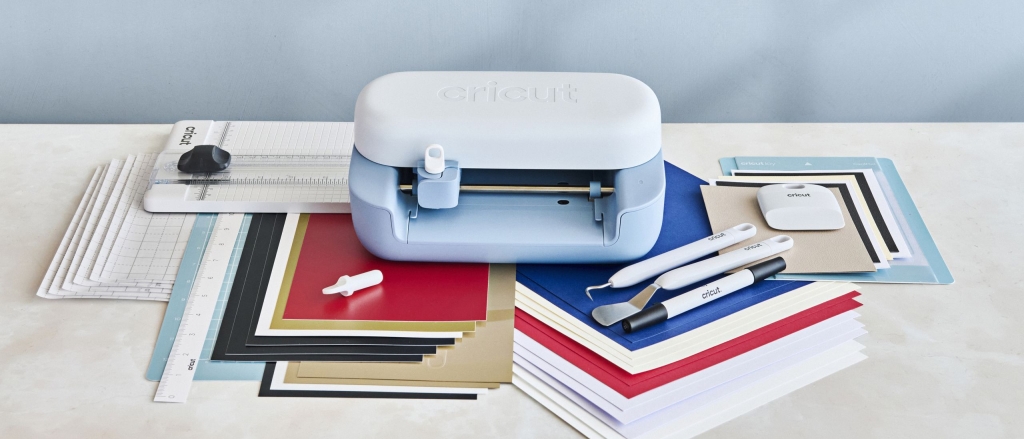
When it comes to Cricut materials, the Joy 2’s Essentials bundle includes ready-to-craft items such as value cardstock, Cricut-branded Smart Vinyl, transfer tape, iron-on sheets, insert card sets, and printable vinyl. As for tools, the bundle has a standard cutting tool, a scoring tool (typically sold separately), and a portable trimmer. The bundle also features a light grip machine mat and a card mat.
The Cricut Joy 2 is compatible with the Cricut Joy line of materials, which are typically smaller-sized rolls made for the compact machines. You can use other Cricut rolls and materials for larger machines, but you’ll need to cut them to size before using them in the Joy 2.
Cricut also has “Smart Materials,” which are rolls of vinyl and other textiles that don’t require using the machine’s mat. This means if you have a smaller workspace for the already small Joy 2, you don’t have to worry about the mat taking up excess space. Smart Materials cost roughly the same as the regular material rolls.
Launched alongside the Joy 2 was the Cricut Explore 5, which enters as the newest mid-range machine, priced at $249 / £249.99 / AU$449. The machine can make precision cuts on over 100 materials, with a 12-inch cutting space. The Explore 5 also comes with a bundle of select materials and tools, including vinyl, cardstock, and a cutting mat.
The new launches sport a new streamlined design (both machines have lost their lids), and the Joy 2 is available in an adorable two-toned blue colorway.
Cricut Joy 2 Review: Specifications
| Price (RRP) | $139 / £129.99 / AU$249 |
| Warranty | 1 year |
| Dimensions | 9.1 in x 5.4 in x 2.8 in / 23.1 cm x 13.7 cm x 7.1 cm |
| Weight | 2.7 lbs / 1.2 kg |
| Max cut size using the machine mat | 4.2 in x 11.7 in / 10.6 cm x 29.7 cm |
| Max cut size using Smart Materials | 4.5 in x 48 in / 11.4 cm x 121.9 cm |
| Cut speed | up to 5.3ips |
| Included in the box | Cricut Joy 2 cutting machine, Premium Fine-Point Blade + Housing, Scoring Tool, Light Grip Machine Mat, Card Mat, Dual Sided Pen, Mini Weeder tool, and Essential materials pack |
Cricut Joy 2 Review: Performance
I put the Cricut Joy 2 through three tests and made cards, stickers, and vinyl using the materials provided in the Essentials bundle. All of these projects used the Fine Point cutting blade, which is standard in the bundle.
Before conceptualizing your first craft, you need to set up the machine using the Design Space app. You’ll also need to be connected to Wi-Fi and have at least 3.93 in / 10 cm clearance behind the machine to allow the mat to glide in and out while cutting.
Vinyl Cutting
If Cricut machines are to be known for something special, let it be cutting all types of vinyl. Whether it’s a removable vinyl label, permanent vinyl, or iron-on, the Cricut Joy 2 can do it all—and do it all well.
As part of the machine’s setup, you need to cut a test piece of black vinyl. Design Space will hold your hand throughout the entire setup process and cut, but the Joy 2 has taken the manual work out of the equation entirely—there is no load, unload, or even a power button on the Joy 2. You only need to hit ‘make’ on Design Space for the machine to start trimming.
There’s even a new “Auto Load” feature that takes away the hassle of the machine checking your mat’s materials before cutting… but it can be a bit tricky if you haven’t quadruple-checked the edges of your material to make sure they’re aligned correctly. (The machine did munch some of my initial test vinyl due to a slight misalignment, so do keep this in mind.)
As for the trial cut, it took less than a minute or so for the machine to carve the Cricut logo, and I was mighty impressed. For the real test, though, I created my own design out of permanent vinyl and a rather important one at that—my dogs’ names for their matching harnesses. Sure enough, after agonizing over the hundreds of font options, I selected my block letters and hit ‘make,’ watching on eagerly as the fine cutting blade intricately cut the material.
Again, as a rather simple design, the Joy 2 was swift, cutting out the names within three minutes. Now, for this project, I used the provided Cricut Light Grip Mat, which measures 4.5 in x 6.5 in / 11.4 cm x 16.5 cm. However, I could have just as easily used the Smart Materials white vinyl on its own, as Cricut’s Smart Materials don’t require a mat.
With the much-improved Design Space (more on that in the section below), the software walked me through the entire vinyl-cutting process, from cutting to “weeding” (removing the cut vinyl from the mat) and applying the design onto the harnesses. My only caveat was not “burnishing” (a.k.a. affixing) the vinyl enough to the harness on the first go, as one letter fell off in the midst of puppy playtime, and it was never seen again. Thankfully, it was easy enough to cut another set of names, as I had saved the design to my projects in Design Space.
Stickers
As mentioned in my Cricut Maker 4 review, I love making stickers with my full-sized machine. I was most intrigued by the prospect of making stickers with the Joy 2, since it now includes the print-then-cut sensor, which wasn’t in the previous iteration.
That said, I was more concerned that Cricut-branded sticker sheets are A4-sized, and the Joy 2 can only cut materials half that width. Luckily, Design Space came to my rescue, as it automatically recognized the issue and divided the stickers into two sections lengthwise (or mats, as they’re called on Design Space) on the same paper. After printing the design, the sticker sheet was separated by a cut line and sensor marks for each mat, making it easy to trim and stick onto the mat for cutting.
For the test, I opted for a pre-designed sticker that says ’emotional support water bottle’ for my office tumbler, which stares at me longingly during my workday. Cutting the sticker took a few minutes, as it had to recognize the sensor marks and cut the sticker accordingly; however, it was much speedier than my Maker 4. That said, I often cut out an entire sheet of stickers at a time, so my use case for one sticker being quicker isn’t that surprising.
Regardless, I still love making stickers, and it was just as pleasant and seamless when using the Joy 2.
Card Making
Another Cricut-craft pastime I’ve picked up is making personalized cards for my nearest and dearest using the Cricut Maker 4. So, much like making stickers, I was keen to get stuck into cutting cards with the Cricut Joy 2. And boy, did it not disappoint.
With the included card mat, I made a fun, yet slightly silly, predesigned birthday card from Cricut’s Community for an older relative (which they loved, BTW). I already had a Cricut Cutaway card set from my previous review; however, you could just as easily create a similar design using the insert cards provided in the Essentials bundle or nab some separately.
The Cricut Joy 2 intricately cut each flower petal and letter in a matter of minutes, dancing around with impressive precision and detail. The only task required of me was to weed the excess pieces off the card post-cut, which was tricky but made easy with the included weeding tool.
Unlike other machines, the Cricut Joy 2 Essential bundle has a scoring tool, meaning you can easily fold or create cards from normal cardstock or paper. I made one of these cards as a trial, but it didn’t quite go to plan. It was definitely more of a trial-and-error project, but I’m determined to let card-making become my newest hobby.
Cricut Joy 2 Review: App Features
Despite having all the correct tools, materials, and power adapter, Cricut machines are all solely dependent on one factor—and that’s the companion design software, Cricut Design Space.
You’ll need to download the software to set up the machine, and you’ll find QR codes on the box and in the instruction manuals for the App Store and Google Play Store. Design Space is also available for PC and Mac. It’s also worth noting that the software needs to be regularly updated to use the Joy 2 effectively.
After setting up the machine, the search bar is the easiest way to find designs or templates for a new project. You can add the designs straight to a blank canvas or bookmark them for later projects. You can also upload your own images or files to use in your designs. If you haven’t used Design Space before, the software does have a step-by-step tutorial you can follow.
Now you can pay for a subscription that gives you access to everything Design Space has to offer; however, most users can get by without one. In full transparency, for this review, I was supplied with a paid subscription, which I’ve used a fair bit more than the average crafter.
The only caveat we’ve found in our reviews here at Tom’s Guide—including my own Cricut Maker 4 review—is that Design Space isn’t very user-friendly. That said, Cricut has listened to criticisms, transforming the software alongside the Joy 2 and Explore 5.
Cricut’s “Guided Flows” is designed to understand what the user wants to make and provides step-by-step instructions from start to finish. Guided Flows show users only what’s needed at each stage of the design process and help them understand exactly which materials and tools are required for their chosen project. Plus, you can now preview your design on the canvas by clicking the preview button, and you can find templates for most projects, just in case you need some inspiration.
Alongside this, Cricut now has a “Create AI” feature for paid Design Space subscribers, which allows you to generate custom single-layer AI designs. Having said that, this tool might not be the most essential, given the community designs, but it can offer powerful niche customization if you so desire it.
Throughout my review, I have really enjoyed previewing and following the guided flows for my projects. These improvements have drastically changed the Cricut Design Space in more ways than one, but largely, they’ve made the software much more accessible. I have been very appreciative of the guided flows in times of limited crafting patience, especially when creating cards, as it gave me hope my project would inevitably turn out as visualized.
Did I have any glaring issues using Design Space? Well, yes and no—yes, because for the majority of this review, I was using the Beta software, which was initially buggy as Cricut slowly sorted the issues. And no, because I’ve had a good six months under my belt of using the previous software, so any improvements were welcomed on my part.
Suffice to say, if you’re totally new to the Cricutting game, the new Design Space and new Joy 2 would be quite the beginner-friendly pair. If you’re a seasoned Cricut veteran, you’ll appreciate that the new automations take away some manual processes—i.e., Auto Loading and selecting your material.
Cricut Joy 2 Review: Verdict
In a world of die-cutting machines, the Cricut Joy 2 is hard to beat for beginners. It takes up a small footprint, is easy to carry (and transport if needed), and comes with everything you need to get started, thanks to the Essentials bundle. Sure, in the U.S. and the U.K., you can opt to purchase the machine separately, but for a modest $40 / £30 extra, you can get a pack of materials and extra tools that’ll save you from added expenditure down the road.
Having said that, if you’re keen to go all in on a Cricut machine or you’re upgrading your current Maker or Explore model, you may find yourself limited by the Joy 2’s smaller cutting dimensions. It definitely wouldn’t be my pick for small business owners—but if you enjoy the occasional crafternoon, the Joy 2 could be for you.
Tags and Viral Phrases
- Compact crafting powerhouse
- Beginner-friendly
- Print-then-cut sensor
- Smart Materials
- Guided Flows
- Auto Load feature
- Cricut Joy 2 Essentials bundle
- Cricut Design Space improvements
- Vinyl cutting mastery
- Sticker making made easy
- Card making with precision
- Portable and lightweight
- Affordable crafting solution
- Cricut Joy 2 review
- Cricut Joy 2 price
- Cricut Joy 2 specs
- Cricut Joy 2 performance
- Cricut Joy 2 app features
- Cricut Joy 2 verdict
- Cricut Joy 2 for beginners
- Cricut Joy 2 vs Cricut Maker 4
- Cricut Joy 2 vs Cricut Joy Xtra
- Cricut Joy 2 vs Cricut Explore 5
- Cricut Joy 2 color options
- Cricut Joy 2 warranty
- Cricut Joy 2 dimensions
- Cricut Joy 2 weight
- Cricut Joy 2 cutting speed
- Cricut Joy 2 included accessories
- Cricut Joy 2 materials compatibility
- Cricut Joy 2 setup process
- Cricut Joy 2 user experience
- Cricut Joy 2 pros and cons
- Cricut Joy 2 best features
- Cricut Joy 2 limitations
- Cricut Joy 2 for small businesses
- Cricut Joy 2 for hobbyists
- Cricut Joy 2 for crafters
- Cricut Joy 2 for DIY projects
- Cricut Joy 2 for personalized gifts
- Cricut Joy 2 for home decor
- Cricut Joy 2 for custom designs
- Cricut Joy 2 for creative projects
- Cricut Joy 2 for crafting enthusiasts
- Cricut Joy 2 for crafting beginners
- Cricut Joy 2 for crafting professionals
- Cricut Joy 2 for crafting hobbyists
- Cricut Joy 2 for crafting experts
- Cricut Joy 2 for crafting lovers
- Cricut Joy 2 for crafting fans
- Cricut Joy 2 for crafting addicts
- Cricut Joy 2 for crafting maniacs
- Cricut Joy 2 for crafting enthusiasts
- Cricut Joy 2 for crafting beginners
- Cricut Joy 2 for crafting professionals
- Cricut Joy 2 for crafting hobbyists
- Cricut Joy 2 for crafting experts
- Cricut Joy 2 for crafting lovers
- Cricut Joy 2 for crafting fans
- Cricut Joy 2 for crafting addicts
- Cricut Joy 2 for crafting maniacs
,

Leave a Reply
Want to join the discussion?Feel free to contribute!