
Every Apple TV Owner Should Be Using This Visual Setting
Apple TV’s Hidden Setting Transforms Your Viewing Experience: How to Activate Dark Mode and More
If you’re someone who loves winding down with a late-night binge session, you’ve likely experienced the jarring effect of turning on your Apple TV in a pitch-black room. That sudden burst of bright white light can feel like a punch to the retinas, making your cozy movie night anything but relaxing. Fortunately, Apple has thought of this and included a simple yet powerful solution: Dark Mode.
By default, most Apple TV devices come pre-configured with Dark Mode enabled, but if yours isn’t, activating it is a breeze. Here’s how: Open the Settings app, navigate to General, and select Appearance. From there, you can either choose Dark for a permanent switch or Automatic to let your Apple TV adjust based on the time of day—light during the day and dark at night. Once enabled, Dark Mode not only reduces eye strain but also creates a more immersive and calming viewing experience.
But that’s not all. Apple TV offers two additional features to make your screen even easier on the eyes: Light Sensitivity and Reduce White Point. These tools are part of Apple TV’s accessibility settings and work wonders for minimizing glare and discomfort.
Light Sensitivity dims the overall screen brightness, while Reduce White Point tones down the intensity of colors, similar to the battery-saving feature on iPhones. To activate these features, follow these steps:
- Launch the Settings app.
- Select Accessibility from the menu.
- Under Vision, click on Display.
- Scroll down and choose Light Sensitivity.
- Press Light Sensitivity to enable it.
- Go to Intensity and adjust the percentage to your preference.
- Return to Display settings and select Reduce White Point.
- Hit Reduce White Point to activate it.
- Choose Intensity and set your desired level using the slider.
If you don’t want to dive into settings every time you want to toggle these features, you can add them as accessibility shortcuts. Here’s how:
- Go to the main Accessibility menu in Settings.
- Choose Accessibility Shortcut at the bottom of the screen.
- Click on both Light Sensitivity and Reduce White Point.
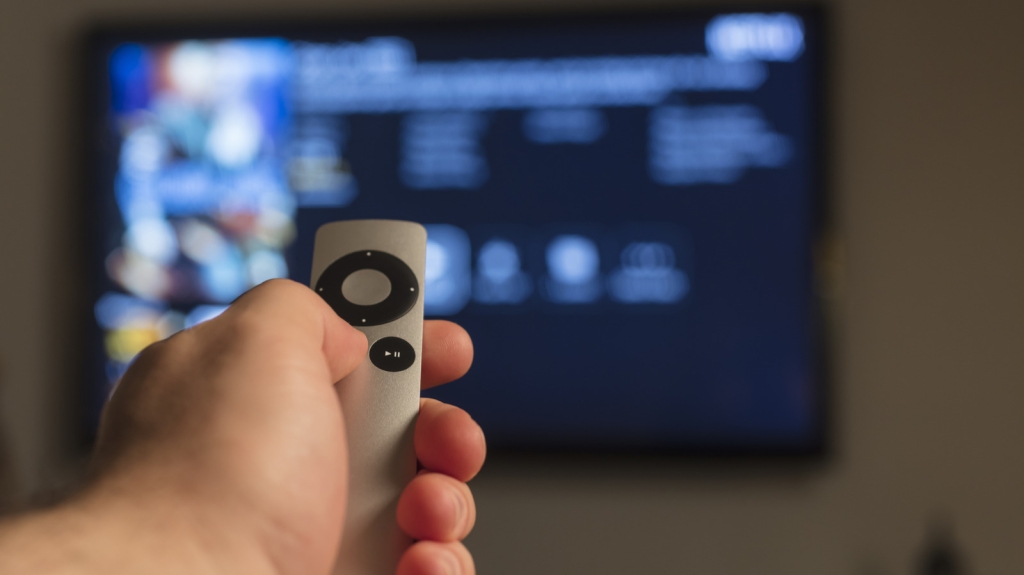
Now, you can quickly enable or disable these features directly from your Apple TV’s Control Center. Simply long-press the TV button on your remote, tap the person icon, and access the accessibility shortcut panel at the top of the screen. For even faster access, press the back button three times to bring up the panel in the middle of the screen.
With these settings, you can transform your Apple TV into a truly eye-friendly entertainment hub, perfect for those late-night marathons or early-morning news sessions.
Tags & Viral Phrases:
Dark Mode Apple TV, eye strain solution, binge-watching comfort, accessibility settings, Reduce White Point, Light Sensitivity, Apple TV tricks, hidden features, cozy viewing experience, immersive screen settings, tech hacks, late-night streaming, visual comfort, Apple TV customization, viral tech tips, must-know Apple TV settings, game-changing features, tech enthusiasts, digital wellness, screen brightness control, accessibility shortcuts, Control Center tips, back button shortcuts, tech-savvy hacks, Apple ecosystem, seamless viewing, eye-friendly tech, binge-worthy setup, tech trends 2023, viral tech news, must-try settings, ultimate Apple TV guide, tech life hacks, modern streaming solutions, digital relaxation, smart home tech, Apple TV secrets, tech innovation, user-friendly design, visual optimization, tech-forward living, binge-watching essentials, screen comfort, tech-savvy solutions, viral tech updates, Apple TV mastery, next-level streaming, tech convenience, digital comfort, Apple TV customization hacks, tech lifestyle, binge-watching hacks, eye health tech, Apple TV upgrades, tech must-haves, viral tech secrets, modern entertainment, tech essentials, Apple TV pro tips, digital eye care, tech hacks for everyone, Apple TV brilliance, streaming perfection, tech-savvy living, viral tech trends, Apple TV brilliance, binge-watching redefined, tech hacks 2023, Apple TV mastery, viral tech updates, tech life hacks, digital comfort, Apple TV secrets, tech innovation, user-friendly design, visual optimization, tech-forward living, binge-watching essentials, screen comfort, tech-savvy solutions, viral tech updates, Apple TV mastery, next-level streaming, tech convenience, digital comfort, Apple TV customization hacks, tech lifestyle, binge-watching hacks, eye health tech, Apple TV upgrades, tech must-haves, viral tech secrets, modern entertainment, tech essentials, Apple TV pro tips, digital eye care, tech hacks for everyone, Apple TV brilliance, streaming perfection, tech-savvy living, viral tech trends.
,


Leave a Reply
Want to join the discussion?Feel free to contribute!