
Get Better Picture Quality by Changing These TV Settings
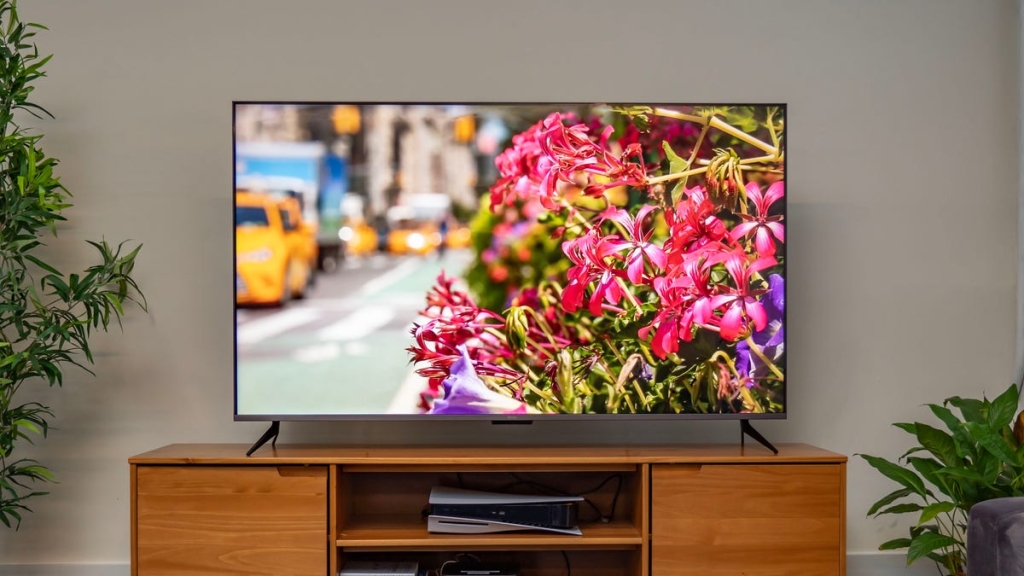
Unlock Your TV’s Hidden Potential: The Ultimate Guide to Picture-Perfect Settings
Every TV on the market—yes, even the best ones—arrives in your home looking less than its best. That’s because manufacturers optimize their displays for showroom appeal, not cinematic accuracy. The good news? With just a few tweaks to your TV’s picture settings, you can transform your viewing experience from “meh” to magnificent.
Why Your TV Looks Wrong Out of the Box
When you unbox that shiny new television, it’s typically set to a “Standard,” “Vivid,” or “Dynamic” mode. These settings pump up colors to eye-popping levels and crank contrast to create that “wow” factor on brightly lit showroom floors. But at home? They’re often garish, unrealistic, and far from what filmmakers intended you to see.
The truth is, your TV is lying to you. Those vibrant reds, electric blues, and unnaturally bright whites aren’t accurate—they’re marketing. And the worst part? Most people never change these settings, watching subpar picture quality for the entire lifespan of their television.
The Game-Changing First Step: Choose the Right Picture Mode
Here’s the simplest, most impactful change you can make: switch your TV to Cinema, Movie, or Filmmaker Mode. On Samsung TVs, this is labeled “Movie” mode. This single adjustment can dramatically improve your picture quality by:
- Reducing artificial enhancements that make movies look like soap operas
- Adjusting color temperature to more natural, film-like tones
- Lowering backlight intensity for better contrast and reduced eye strain
- Disabling motion smoothing that makes everything look unnaturally smooth
Warning: When you first switch to Cinema mode, your TV might look “soft” or “too warm” (reddish). Don’t panic! This is actually what accurate color looks like. Your brain has just been conditioned to prefer the artificially enhanced look of Standard mode. Give it a few days—you’ll never go back.
Motion Smoothing: Love It or Hate It?
Motion interpolation, also known as the “soap opera effect,” is perhaps the most controversial TV setting. This feature artificially creates new frames of video to make motion appear smoother. While some viewers love it for sports and gaming, many—including most filmmakers—despise it for movies and TV shows.
The effect makes everything look like it was shot on video rather than film, giving that distinctive “daytime soap” appearance. If you’ve ever watched a movie and thought “this looks cheap” or “too real,” motion smoothing was likely the culprit.
Cinema and Movie modes typically disable this feature, but you might need to dig into your TV’s settings to turn it off completely. Trust us—your favorite films will thank you.
Brightness: Not What You Think It Is
Contrary to what the name suggests, your TV’s brightness control doesn’t make the entire image brighter. Instead, it adjusts the black level—how dark the darkest parts of the image appear.
Set it too high, and your picture looks washed out with gray, detail-less shadows. Set it too low, and you lose all shadow detail, with dark scenes turning into murky black voids.
The perfect setting reveals detail in dark areas without making the image look flat. Test it with dark movies like “Aliens” or “The Dark Knight,” or look for scenes with subtle shadow details like the underside of someone’s hair or the texture of dark clothing.
Sharpness: The Counterintuitive Control
Here’s a mind-blowing fact: turning up the sharpness control actually makes your picture look worse. That’s because sharpness doesn’t sharpen anything—it adds edge enhancement, creating artificial halos around objects and hiding fine detail.
Most TVs look best with sharpness set to zero or near-zero. If your picture looks “soft” after turning it down, that’s because you’re finally seeing the actual detail your TV is capable of producing, not an artificial enhancement.
This is especially true for 4K content, where the increased resolution means you don’t need artificial sharpening to see fine details.
Game Mode: For More Than Just Gamers
Input lag—the delay between pressing a button and seeing the result on screen—can ruin gaming experiences, especially in fast-paced competitive games. Game mode reduces this lag by disabling picture processing features.
But here’s the thing: even if you’re not a gamer, Game mode can be useful for anything requiring precise timing, like rhythm games or certain interactive apps. Just remember to switch back to your preferred picture mode when you’re done gaming to get the best image quality.
Backlight and OLED Light: The Real Brightness Control
This setting actually does what you’d expect the brightness control to do—it adjusts the overall light output of your TV. Use it to compensate for room lighting: brighter for sunlit rooms, dimmer for nighttime viewing.
Higher backlight settings consume more energy and can cause eye strain. On OLED TVs, they can also increase the risk of burn-in, though this is rare with normal viewing habits.
Contrast: Finding the Sweet Spot
The contrast control adjusts how bright the bright parts of the image are. Set it too high, and you lose detail in bright areas—clouds become white blobs, snow loses texture. Set it too low, and everything looks dim and flat.
Test it with bright scenes containing detail—skiing, ice skating, or baseball games work well. Adjust until you can see detail in bright areas without them appearing blown out.
Color Temperature: The Warm Truth
Your TV’s default color temperature is likely too cool (blue), making everything look unnaturally bluish. Cinema and Movie modes typically use warmer color temperatures that are more accurate and easier on the eyes.
It might look “wrong” at first because you’re used to the cool, blueish tint of Standard mode. Give it time—your brain will adjust, and you’ll wonder how you ever watched TV any other way.
Pro Tips for Picture-Perfect Performance
Want to take your TV calibration to the next level? Consider:
- Setup discs: The Spears & Munsil UHD disc provides test patterns for precise calibration
- Apple TV calibration: Built-in calibration using your iPhone’s camera
- Professional calibration: For the ultimate accuracy, hire a certified calibrator
Also, ensure your sources are set to output the correct resolution (4K for 4K TVs), and don’t waste money on expensive HDMI cables—unless you’re having compatibility issues with 4K content.
Tags & Viral Phrases
- TV settings that will blow your mind
- The one setting that makes your TV look amazing
- Why your brand new TV looks terrible
- How to make your TV look like a movie theater
- The secret TV mode Hollywood wants you to use
- Motion smoothing: the feature everyone hates
- Brightness control lies: what it actually does
- Sharpness myth debunked: turn it down for better picture
- Game mode isn’t just for gamers
- Color temperature: why warm is actually right
- Professional TV calibration at home
- 4K content: are you really seeing it?
- HDMI cable scam exposed
- TV picture settings for beginners
- Cinema mode vs. Standard mode showdown
- The soap opera effect: love it or hate it?
- TV calibration secrets the manufacturers don’t want you to know
- How to watch movies the way directors intended
- The ultimate TV picture quality guide
- Transform your TV in 5 minutes or less
,


Leave a Reply
Want to join the discussion?Feel free to contribute!