
Here’s Why Your iPhone Won’t Let You Decline Certain Calls
Here’s Why Your iPhone Won’t Let You Decline Certain Calls
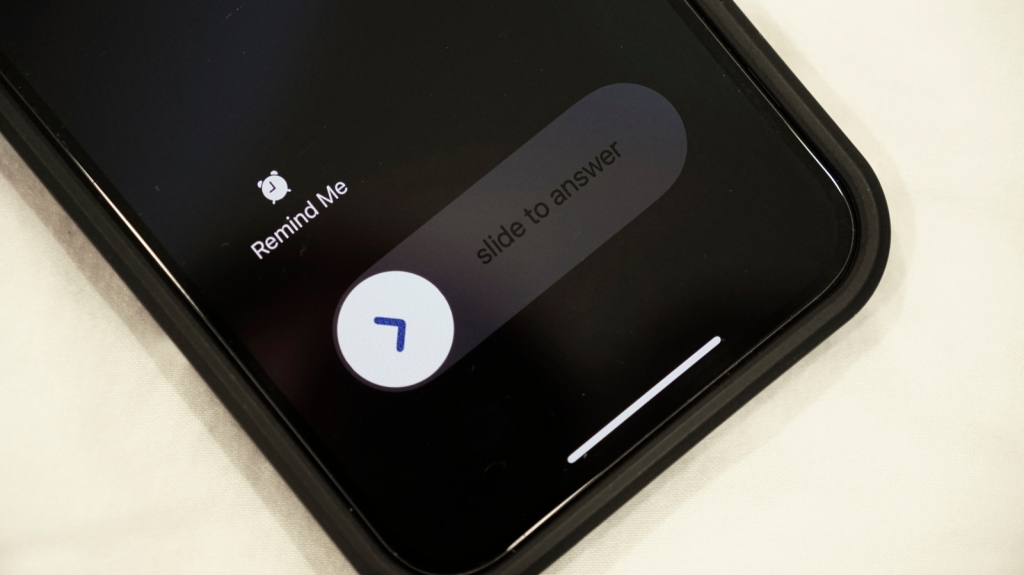
Have you ever been baffled by your iPhone’s inconsistent behavior when it comes to incoming calls? One moment, you’re presented with clear “Accept” and “Decline” buttons, and the next, you’re forced to “slide to answer” with no option to reject the call. This seemingly arbitrary difference has left countless iPhone users scratching their heads, but there’s actually a clever reason behind Apple’s design choice—one that prioritizes user experience and prevents those dreaded accidental calls.
The Mystery of the Disappearing Decline Button
If you’ve noticed that your iPhone sometimes shows you the option to decline calls while at other times only offers a “slide to answer” option, you’re not alone. This inconsistency has become one of the most discussed quirks of iOS, and even veteran iPhone users often don’t realize this is actually working in their favor.
The key to understanding this behavior lies in the lock state of your device. When your iPhone is unlocked, you’ll see both “Accept” and “Decline” options. However, when your phone is locked, those familiar buttons vanish, replaced exclusively by the “slide to answer” interface. But why would Apple make such a seemingly frustrating change?
The Accidental Input Problem
The answer is elegantly simple: to prevent accidental inputs. When your iPhone is locked, it’s reasonable to assume you’re not actively monitoring the screen. Your device might be tucked away in your pocket, nestled in your bag, or resting on a table nearby. In these scenarios, the last thing you want is for a slight bump or an unintentional touch to either answer or reject an important call.
Imagine this scenario: Your phone is ringing in your pocket, and the “Accept” and “Decline” buttons are visible on the lock screen. As you reach for your phone, your leg brushes against it, and—oops!—you’ve accidentally declined an important business call or answered a spam call you never wanted to pick up. This is precisely the situation Apple aims to prevent.
By replacing the tap-able buttons with the “slide to answer” option on the lock screen, Apple has created a safeguard against these frustrating accidents. The sliding gesture requires deliberate action and a more intentional movement, significantly reducing the likelihood of unintended call responses. Even if you accidentally tap the screen while retrieving your phone, nothing will happen—the call won’t be answered or declined until you complete the sliding motion.
Declining Calls from the Lock Screen: It’s Still Possible
Now, you might be thinking, “That’s great for preventing accidents, but what if I actually want to decline a call when my phone is locked?” Apple hasn’t left you without options. While the decline button disappears from the visual interface, the functionality hasn’t vanished entirely.
The solution is surprisingly intuitive: use the side button. Pressing the side button (also known as the power button or lock button) once will silence the incoming call, preventing it from ringing further. If you want to decline the call entirely, simply press the side button twice in quick succession. This method is not only effective but also incredibly convenient—you can reject calls without even looking at your screen, which is perfect for those moments when you know you don’t want to engage.
This approach represents Apple’s thoughtful consideration of real-world usage scenarios. The side button method allows for quick call management without the risk of accidental inputs that could occur with on-screen buttons.
The Evolution of iPhone Call Management
This design philosophy wasn’t always part of iOS. In fact, the behavior has evolved significantly over the years. Until iOS 5, incoming calls displayed the same interface regardless of whether your iPhone was locked or unlocked. Users saw the familiar “Accept” and “Decline” buttons in both scenarios.
Starting with iOS 6, Apple introduced the “slide to answer” screen for locked devices, marking a significant shift in how iPhone users interact with incoming calls. This change demonstrated Apple’s growing focus on preventing accidental interactions and improving the overall user experience.
What’s particularly interesting is how this iPhone feature has influenced the broader smartphone industry. Many Android devices have since adopted similar approaches, implementing slide-to-answer interfaces or other gesture-based systems to minimize accidental call responses. This cross-platform adoption suggests that Apple’s solution addressed a genuine pain point for mobile users across different operating systems.
The Logic Behind the “Frustration”
While the disappearing decline button might initially seem like an annoyance or a design oversight, understanding the reasoning behind it transforms it from a frustration into an appreciated feature. Apple’s decision represents a classic example of design choices that may seem confusing at first but reveal their wisdom once you understand the underlying logic.
The company prioritized preventing potentially embarrassing or problematic situations (accidentally answering a call during a meeting, declining an important call while fishing your phone out of your bag) over providing immediate visual access to all call management options. This trade-off reflects Apple’s broader design philosophy of creating intuitive, user-friendly experiences that anticipate and prevent common problems before they occur.
Looking Ahead: Will This Change?
As iOS continues to evolve, it’s worth considering whether this call management approach will remain unchanged. With advancements in haptic feedback, pressure sensitivity, and AI-driven context awareness, future iPhones might offer even more sophisticated ways to handle incoming calls based on your situation, location, or even your calendar events.
Imagine a future where your iPhone could automatically silence calls during meetings, provide different call interfaces based on whether you’re actively using your device, or even use facial recognition to determine if you’re looking at your phone before displaying certain options. The current “slide to answer” approach might be just a stepping stone toward even more intelligent call management systems.
Conclusion
The next time you find yourself wondering why your iPhone won’t let you decline certain calls, remember: it’s not a bug, it’s a feature. Apple’s decision to hide the decline button on the lock screen and implement the “slide to answer” interface represents a thoughtful solution to a common problem that many users face daily. By understanding the reasoning behind this design choice, what once seemed like an arbitrary limitation transforms into an appreciated safeguard that protects you from those all-too-common accidental call mishaps.
So the next time your iPhone rings while tucked away in your pocket, take a moment to appreciate the clever design thinking that went into ensuring you won’t accidentally answer that call from your enthusiastic friend just as you’re walking into an important meeting. Sometimes, the best features are the ones you barely notice—until you understand why they’re there.
Tags: iPhone call management, iOS features, slide to answer, decline calls iPhone, Apple design philosophy, accidental inputs prevention, iPhone lock screen, side button functionality, iOS evolution, smartphone user experience, call rejection methods, mobile interface design, Apple innovation, iPhone tips and tricks, call management features
Viral Phrases: “The mystery of the disappearing decline button,” “Apple’s clever safeguard against accidental calls,” “Why your iPhone won’t let you decline certain calls,” “The side button secret for rejecting calls,” “From frustration to appreciation: understanding iOS design,” “How Apple protects you from embarrassing call mishaps,” “The evolution of iPhone call management,” “Why Android copied Apple’s call interface,” “The hidden genius in iOS’s seemingly frustrating feature,” “Mastering your iPhone’s call rejection superpowers”
,


Leave a Reply
Want to join the discussion?Feel free to contribute!