
How to change your DNS service on a Windows PC or Mac – and why you should
Boost Your Internet Speed, Security, and Privacy: How to Change Your DNS Settings Today
In the digital age, your internet connection is your gateway to the world. But did you know that the default DNS (Domain Name System) settings provided by your Internet Service Provider (ISP) might be holding you back? Whether you’re a gamer seeking lower latency, a privacy advocate tired of being tracked, or simply someone who wants a faster and more secure browsing experience, changing your DNS settings could be the game-changer you’ve been looking for.
Why Should You Change Your DNS?
Your DNS acts like the internet’s phonebook, translating human-friendly domain names (like www.zdnet.com) into IP addresses that computers understand. By default, your ISP handles this translation, but here’s why you might want to take control:
Faster Performance: Some ISPs have slower DNS servers. Switching to a third-party provider can reduce latency and speed up your browsing.
Enhanced Security: Many third-party DNS services automatically block malicious websites, phishing attempts, and even provide parental controls.
Better Privacy: ISPs often track your DNS queries to monitor your online activity. Third-party providers like Cloudflare promise not to log your data.
How to Change Your DNS Settings
Whether you’re using Windows 11, Windows 10, or a Mac, the process is straightforward. Here’s a step-by-step guide:
For Windows 11 Users:
- Go to Settings > Network & Internet > Advanced network settings.
- Click on your connection type (Ethernet or Wi-Fi) and select View additional properties.
- Click Edit under DNS server assignment, switch to Manual, and enter your preferred DNS addresses.
- Save your changes and enjoy a faster, more secure connection.
For Windows 10 Users:
- Navigate to Settings > Network & Internet > Change adapter options.
- Right-click your connection, select Properties, and choose Internet Protocol Version 4 (TCP/IPv4).
- Click Properties, select Use the following DNS server addresses, and enter your preferred DNS.
- Click OK to apply the changes.
For Mac Users:
- Click the Apple icon > System Settings > Network.
- Select your connection (Wi-Fi or Ethernet) and click Details.
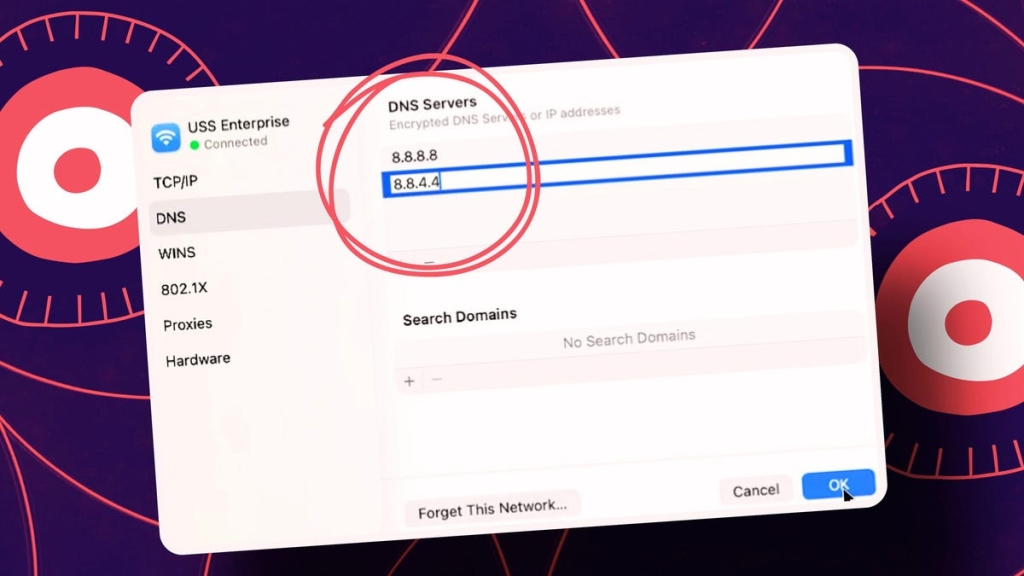
- Go to the DNS tab, click the + button, and add your preferred DNS addresses.
- Click OK to save your settings.
Top DNS Providers to Try
Ready to make the switch? Here are some of the best DNS providers available:
- Google Public DNS: Known for its speed and reliability. Addresses:
8.8.8.8and8.8.4.4. - Cloudflare DNS: Promises privacy and speed. Addresses:
1.1.1.1and1.0.0.1. - OpenDNS: Offers family-friendly filtering and security. Addresses:
208.67.222.222and208.67.220.220. - Comodo SecureDNS: Focuses on blocking malware and phishing. Addresses:
8.26.56.26and8.20.247.20.
Pro Tip: Change DNS on Your Router
For a whole-home solution, change the DNS settings directly on your router. This ensures all devices connected to your network benefit from the improved speed and security.
Tags & Viral Phrases:
- Boost internet speed
- DNS settings
- Faster browsing
- Enhanced security
- Privacy protection
- Block malicious sites
- Parental controls
- Cloudflare DNS
- Google Public DNS
- OpenDNS
- Comodo SecureDNS
- Router DNS settings
- Internet privacy
- Cybersecurity tips
- Tech hacks
- Gaming performance
- Streaming speed
- Online safety
- Digital privacy
- Network optimization
Changing your DNS settings is a simple yet powerful way to take control of your internet experience. Whether you’re looking for speed, security, or privacy, the right DNS provider can make all the difference. Try it today and feel the difference!
,

Leave a Reply
Want to join the discussion?Feel free to contribute!