
How to create a drop-down list in Excel in seconds – and save yourself tons of time
How to Create Drop-Down Lists in Excel and Google Sheets: A Complete Guide
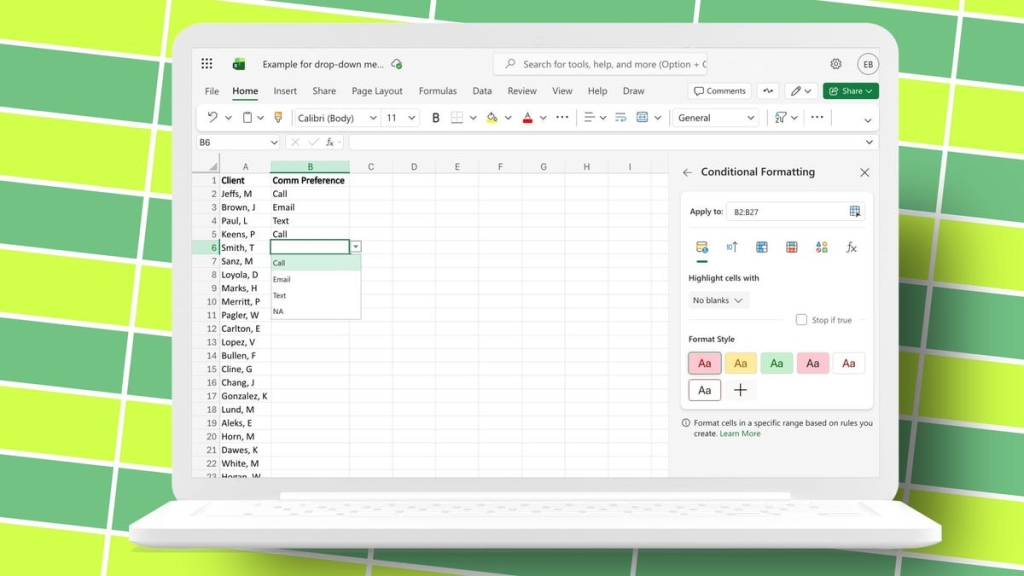
Drop-down lists are one of the most powerful yet simple tools in spreadsheet software. They help standardize data entry, reduce errors, and make your spreadsheets easier to use. Whether you’re building a budget tracker, a project tracker, or a simple form, drop-downs can make your life a lot easier. In this guide, we’ll walk you through everything you need to know to create, edit, and manage drop-down lists in both Microsoft Excel and Google Sheets.
Can I follow these steps for Google Sheets?
Yes, mostly. Google Sheets supports drop-down lists, but the steps are slightly different. Instead of going to Data > Data Validation, you’ll use Data > Data validation > Add Rules, then choose Dropdown or Dropdown from a range. The idea is the same, but the menu labels and options are a little different. See Google’s support guide for more help.
Can you edit a drop-down list after creating it?
Yes. Select the cells, return to Data, then Data Validation, and edit the values in the Source field.
Pro tip: For longer or frequently changing lists, place your options in a column on another sheet and reference that range in the Source field, such as =Sheet1!D1:D10.
Is there a limit to the number of items?
Excel does not set a practical item count limit, but the total character length of a typed list is capped at 32,767 characters.
Want to create a yes/no drop-down?
Follow the same steps above and enter Yes,No in the Source field.
- Select the cells for the drop-down.
- Go to Data, then Data Validation or Validation.
- Choose List under Allow.
- Enter Yes,No in the Source field.
- Click OK to save.
Is a formula required to create drop-downs?
No. Drop-down lists rely on Data Validation, not formulas.
Are drop-downs the same as filters?
No. Filters live in column headers and control which rows are visible. Drop-down lists live in individual cells and control which values can be entered.
Can you use Copilot to create drop-downs?
As of 2026, Copilot in Excel can explain how to create drop-down lists and help generate source data, but it can’t directly add Data Validation drop-downs through a prompt. You still need to use the Data Validation menu.
Also: How to remove Copilot from your Microsoft 365 plan
Copilot in Excel is a paid feature and requires a Microsoft 365 plan.
Why Drop-Down Lists Matter
Drop-down lists are more than just a convenience—they’re a best practice for anyone who wants to keep their data clean and consistent. Imagine you’re tracking project statuses. Without drop-downs, someone might type “Completed,” “completed,” “Done,” or “done.” With a drop-down, you can ensure everyone picks from the same set of options, making your data reliable and easy to analyze.
Advanced Tips for Power Users
- Dynamic Lists: Use named ranges or tables to make your drop-down lists dynamic. This way, if you add new items to your source list, your drop-downs update automatically.
- Dependent Drop-Downs: Create cascading drop-downs where the options in one cell depend on the selection in another. For example, selecting a “Region” could change the available “Cities.”
- Data Validation Rules: Combine drop-downs with other data validation rules to create powerful, error-proof spreadsheets.
Troubleshooting Common Issues
- Drop-Down Not Working: Make sure the cells are not locked or protected. Also, check that the source range is valid.
- Options Not Showing: Ensure the source range is correct and that the list is not too long (remember the 32,767 character limit).
- Editing Problems: If you can’t edit the drop-down, make sure you have the right permissions and that the sheet is not protected.
Final Thoughts
Drop-down lists are a simple yet powerful feature that can transform the way you use Excel or Google Sheets. Whether you’re a beginner or a power user, mastering drop-downs will help you build better, more reliable spreadsheets. So go ahead—try it out and see how much easier data entry can be!
Tags: Excel, Google Sheets, drop-down lists, data validation, spreadsheet tips, Excel tutorial, Google Sheets tutorial, data entry, productivity, Microsoft 365, Copilot
Viral Phrases: “Stop using Excel like a beginner,” “Master drop-downs in minutes,” “The secret to clean data,” “Excel hacks you need to know,” “Google Sheets pro tips,” “Data validation made easy,” “Boost your productivity with drop-downs,” “The ultimate guide to drop-down lists,” “Excel vs. Google Sheets: Which is better?” “Unlock the power of spreadsheets”
,


Leave a Reply
Want to join the discussion?Feel free to contribute!