
How to customize your iPhone home screen with iOS 26
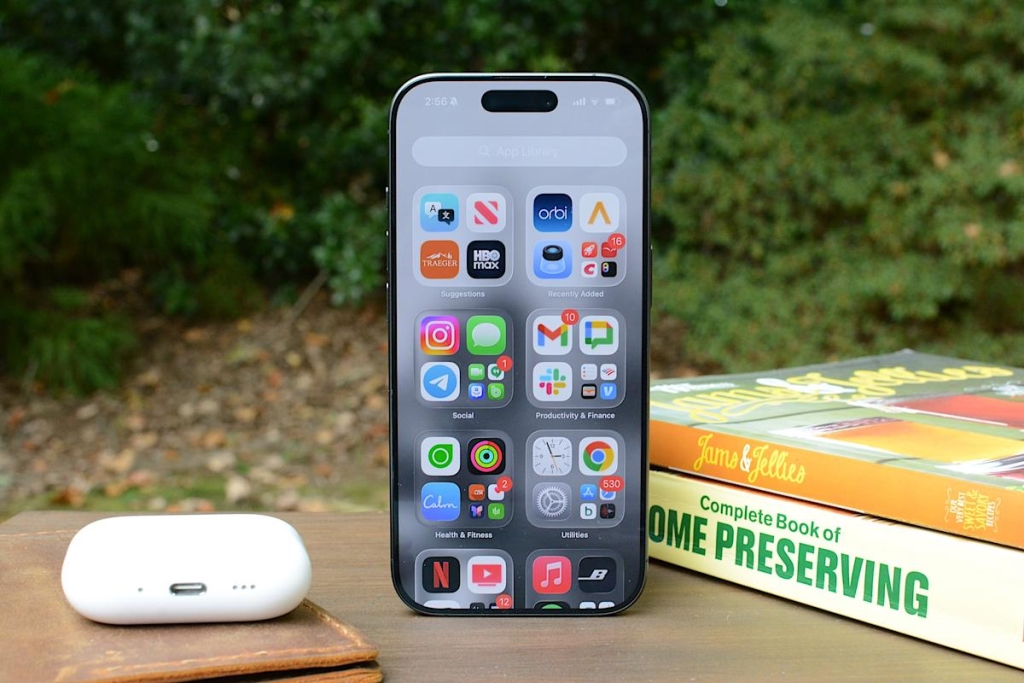
Apple’s iOS 26 Unleashes a Customization Revolution: Transform Your iPhone Home Screen Like Never Before
Apple has finally given iPhone users the customization freedom they’ve been craving for years. With iOS 26, your home screen transforms from a static grid of colorful icons into a dynamic canvas where you can resize icons, apply system-wide color tints, create translucent effects, and remove app labels entirely. This isn’t just a minor tweak—it’s a complete reimagining of how your iPhone can look and feel.
The Game-Changing Customize Menu
The heart of iOS 26’s customization lies in the new Customize menu. Simply touch and hold any empty space on your home screen until the apps start jiggling, tap Edit in the top left corner, and select Customize. A sleek panel slides up from the bottom, giving you instant access to transformative options that apply across all your home screen pages simultaneously.
Size Matters: Go Big or Go Home
One of the most dramatic changes in iOS 26 is the ability to switch to Large App Icons mode. Tap the icon showing two app squares of different sizes, and watch your entire home screen transform. App labels disappear completely, and icons expand to fill more of the grid, creating a cleaner, more minimalist aesthetic that’s easier to tap—especially on larger iPhone models.
The tradeoff? Fewer icons fit on each screen, and the spacing between rows becomes more pronounced. But for many users, the visual impact is worth it. Want to revert? Just tap the same button again to return to standard icons with labels.
Appearance Options That Will Blow Your Mind
iOS 26 introduces four stunning icon appearance styles that fundamentally change how your apps look:
Default Mode keeps everything looking exactly as developers intended—no system-wide color or transparency applied. Perfect for purists who want their apps to look exactly as designed.
Dark Mode applies a sophisticated darker background to supported app icons and widgets. Apple’s native apps fully embrace this mode, and some third-party apps follow suit. Enable wallpaper dimming for reduced power consumption on OLED displays—a subtle but meaningful battery-saving feature.
Clear Mode is where things get really interesting. This option enables translucency across all apps on your home screen, removing all color while retaining app labels. The frosted-glass effect creates a layered, sophisticated look that changes dynamically based on your background image. Pair it with Light, Dark, or Auto styles for endless variations.
Tinted Mode lets you apply a single color scheme across all supported app icons and widgets. After selecting Tinted, color and saturation sliders appear at the bottom of the screen. Adjust these to create anything from subtle pastel themes to bold monochrome statements. Want to match your wallpaper exactly? Use the eyedropper tool to sample any color from your screen—precision customization at your fingertips.
Arrangement Freedom Within Structure
While iOS 26 doesn’t offer completely freeform icon placement (that’s still off-limits), the visual changes make layout choices more impactful than ever. Apps can be rearranged by entering jiggle mode and dragging icons to new positions within the fixed grid. The expanded spacing with large icons creates opportunities for creative arrangements—cluster apps toward the bottom, align them to one side, or arrange them to frame your wallpaper beautifully.
Changes apply globally across all home screen pages, so reorganizing one page affects your entire iPhone experience. The gap between the dock and the first row of apps becomes more pronounced with large icons, though it remains un-fillable—a small limitation in an otherwise expansive update.
What iOS 26 Still Can’t Do (But We’re Hoping For)
Despite the massive leap forward, some limitations persist. iOS 26 doesn’t support per-app icon color selection, custom icon packs without shortcuts, or truly freeform placement outside the grid. Icon appearance settings apply globally, not per page or per app. Widgets, lock screen customization, and focus mode filters add additional personalization layers, but they operate separately from the home screen Edit menu.
The Bottom Line: Customization Without Compromise
iOS 26 represents Apple’s most significant home screen customization update to date. By combining icon resizing, appearance modes, and thoughtful app arrangement, iPhone users can now create layouts that feel cleaner, more personal, and easier to use—all without resorting to complicated workarounds or third-party apps.
This update proves Apple is listening to user demand for personalization while maintaining the polished, cohesive experience that iPhone users expect. Whether you prefer bold, colorful themes or minimalist, translucent designs, iOS 26 gives you the tools to make your iPhone truly yours.
Tags: iOS 26, iPhone customization, home screen redesign, Apple updates, translucent icons, large app icons, tinted mode, Dark Mode iOS, Clear Mode, app label removal, iPhone personalization, Liquid Glass design, iOS customization guide
Viral Phrases: “Transform your iPhone home screen,” “iOS 26 customization revolution,” “Apple finally listens to users,” “Make your iPhone truly yours,” “The customization Apple fans have been waiting for,” “iOS 26 changes everything,” “iPhone never looked so good,” “Customize like a pro with iOS 26,” “Apple’s biggest customization update ever,” “Your iPhone, your way with iOS 26”
,

Leave a Reply
Want to join the discussion?Feel free to contribute!