
How to Easily Transfer Data from iPhone to Android
Making the Switch: A Seamless Guide to Moving from iPhone to Android
Switching from an iPhone to an Android device can feel like moving to a whole new digital universe. Whether you’re eyeing the sleek Google Pixel 7 or the innovative Samsung Galaxy Z Flip 4, the transition can seem daunting. But fear not! With the right tools and a bit of guidance, you can make the switch smoothly and efficiently. Here’s everything you need to know to migrate your data like a pro.
The Magic Adapter: Your Key to a Hassle-Free Transfer
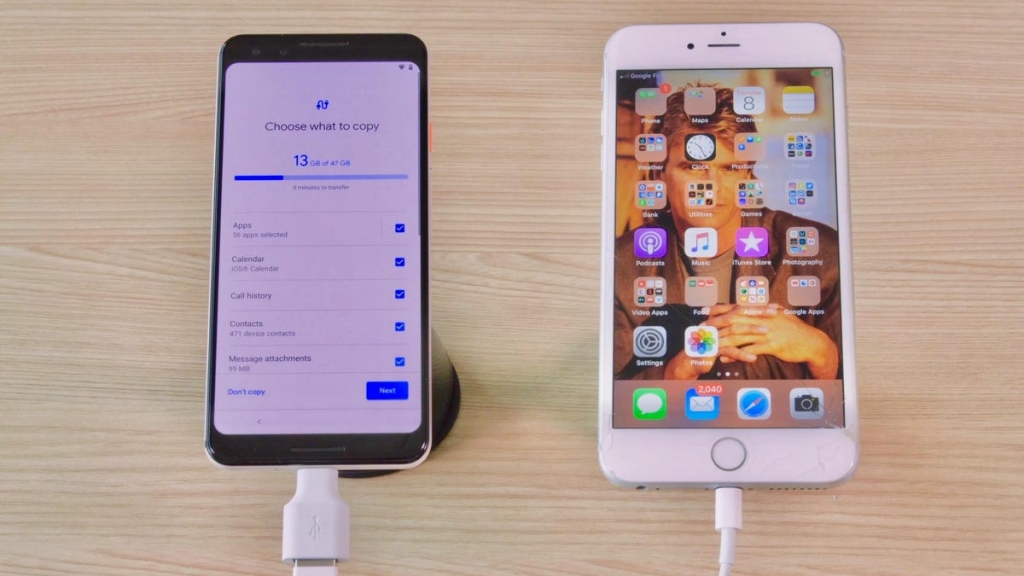
The secret to an effortless transition lies in a tiny, often overlooked tool: the USB adapter. Both Google and Samsung include this nifty gadget in the box, and it’s a game-changer. Think of it as hiring professional movers to pack, transport, and unpack your digital life in your new Android home. This adapter features a USB-A connector on one end and a USB-C connector on the other, allowing you to connect your new Android phone directly to your old iPhone. If you’re using a newer iPhone model like the iPhone 11, you can also use a USB-C to Lightning cable.
What Can You Transfer?
With the adapter, you can move a wide range of data, including:
- Photos and Videos: Preserve your cherished memories.
- Files and Documents: Keep your important files at your fingertips.
- Music: Transfer your favorite playlists and albums.
- Wallpaper: Maintain your personalized aesthetic.
- Apps: Automatically download Android versions of free iOS apps you previously used.
- Messages: While iMessage won’t work on Android, you can transfer your message history and threads.
Switching to a Google Pixel
If you’re making the leap to a Google Pixel, follow these steps for a smooth transition:
- Charge Both Phones: Ensure both devices have sufficient battery life.
- Disable iMessage: Go to Settings > Messages > iMessage and toggle it off on your iPhone.
- Insert SIM Card: If your Pixel came with a SIM card, install it and turn on the phone.
- Start the Transfer: Tap Start, connect to Wi-Fi, and select Copy your data.
- Connect the Phones: Use the Quick Switch Adapter (QSA) or a USB-C to Lightning cable to connect your iPhone to the Pixel.
- Trust the Connection: On your iPhone, tap Trust when prompted.
- Sign In: Log into your Google Account on the Pixel.
- Select Data: Choose what you want to transfer (photos, music, messages, etc.) and tap Copy.
- Wait for the Transfer: Depending on the amount of data, this could take a few minutes to a couple of hours. You can continue setting up your phone during this time.
Switching to a Samsung Galaxy
Samsung’s process is equally straightforward:
- Charge Both Phones: Ensure both devices are fully charged.
- Disable iMessage: Turn off iMessage on your iPhone.
- Open Smart Switch: Launch the Smart Switch app on your Samsung phone. You may need to download it first.
- Choose Transfer Method: Select Receive and choose between Wi-Fi or cable transfer.
- Connect the Phones: Use the adapter or a USB-C to Lightning cable to connect your iPhone to the Galaxy.
- Trust the Connection: On your iPhone, tap Trust.
- Scan and Select Data: The Galaxy will scan your iPhone for data, then let you choose what to transfer.
- Start the Transfer: Tap the transfer arrow and wait for the process to complete.
Final Steps
Once the transfer is complete, take a moment to verify that all your data has been successfully migrated. Check your photos, messages, and apps to ensure everything is in place. If you’re not finding your photos and videos in the Gallery app, check the Google Photos app.
Viral Tags and Phrases
- Effortless Migration: Transfer your data like a pro.
- Seamless Switch: Move from iPhone to Android without a hitch.
- Digital Movers: The adapter that does all the heavy lifting.
- Preserve Your Memories: Keep your photos, videos, and messages safe.
- New Digital Universe: Explore the world of Android with ease.
- Professional Setup: Let the adapter handle the unpacking.
- Quick and Easy: Transfer in minutes, not hours.
- Google Life: Enjoy your new Android experience.
- Samsung Galaxy: Discover the power of Samsung’s ecosystem.
- No More Hassle: Simplify your switch with the magic adapter.
Switching from iPhone to Android doesn’t have to be a headache. With the right tools and a clear plan, you can make the transition smoothly and start enjoying your new device in no time. Happy switching!
,
Leave a Reply
Want to join the discussion?Feel free to contribute!