
How to manage notifications on Mac
Constant Notification Overload? macOS Tahoe 26 Gives You the Power to Take Back Control
In an era where our devices constantly vie for our attention, the barrage of notifications has become a modern nuisance that many of us have simply learned to tolerate. Whether it’s the ping of a new email, the buzz of a social media mention, or the chime of a completed system update, these digital interruptions have transformed from helpful reminders into productivity-killing distractions. But Apple’s latest operating system, macOS Tahoe 26, is finally giving Mac users the tools they need to reclaim their focus and customize their digital experience.
The Notification Problem: More Than Just an Annoyance
Let’s face it—notification fatigue is real. According to recent studies, the average professional receives over 100 notifications per day across all their devices. On Macs specifically, these interruptions can derail deep work sessions, break concentration during creative processes, and create a constant background anxiety about what might be waiting in your notification center.
The issue isn’t just about volume; it’s about timing and relevance. A notification about a software update during a critical video call? A reminder about tomorrow’s meeting when you’re trying to wrap up today’s deliverables? These poorly timed interruptions can cost more than just seconds—they can cost you your train of thought, your creative flow, and ultimately, your productivity.
macOS Tahoe 26: A Breath of Fresh Air for Notification Management
Apple has clearly listened to user feedback, because macOS Tahoe 26 introduces a suite of notification management features that strike the perfect balance between staying informed and maintaining focus. The system isn’t just about turning things off—it’s about intelligent customization that adapts to your workflow and preferences.
The New Notification Center: Smarter, Cleaner, More Intuitive
The first thing you’ll notice in macOS Tahoe 26 is the completely redesigned Notification Center. Gone are the days of scrolling through an endless list of alerts. Instead, Tahoe 26 introduces smart grouping, priority-based sorting, and a “focus-aware” system that learns from your habits to surface what matters most.
The interface now features a subtle gradient design that’s easy on the eyes, with notifications organized by urgency and relevance. Low-priority alerts from apps you rarely use are automatically condensed, while messages from your most important contacts and critical work applications remain front and center.
Granular Control: The Devil Is in the Details
Where macOS Tahoe 26 truly shines is in its granular control options. Apple has moved beyond the simple “on/off” toggle that characterized previous versions and introduced a nuanced system that lets you customize notifications down to the minute level.
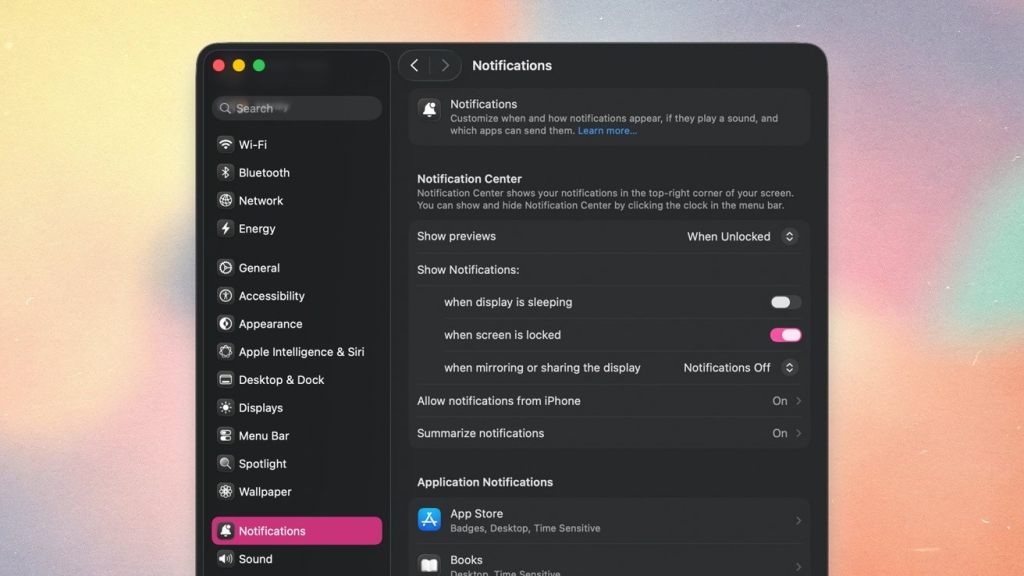
Notification Previews: Now you can choose exactly when and where notification content appears. Want to see message previews only when your Mac is unlocked and you’re actively using it? Done. Prefer to hide sensitive information when you’re presenting or sharing your screen? That’s covered too. The new “context-aware previews” feature uses your calendar and current activity to determine what’s appropriate to display.
Time-Based Filtering: One of the most innovative features in Tahoe 26 is the ability to set different notification rules based on the time of day. Your Slack notifications might be crucial during work hours but completely irrelevant during your evening wind-down time. The system allows you to create custom schedules that automatically adjust notification behavior throughout your day.
App-Specific Intelligence: Not all notifications are created equal, and macOS Tahoe 26 recognizes this. The new “App Intelligence” feature learns which notifications you typically interact with and which ones you dismiss immediately. Over time, it automatically adjusts the prominence and frequency of alerts from different applications, ensuring that your most important tools remain visible while less critical apps stay quiet.
Lock Screen and Display Behavior: Privacy Meets Convenience
The lock screen notification settings in macOS Tahoe 26 deserve special mention. Apple has introduced a “progressive disclosure” system that shows just enough information to be useful without compromising your privacy. A new message might show “1 new message from [Contact Name]” on the lock screen, but the actual content only appears once you’ve authenticated with Face ID or your password.
The “Do Not Disturb” mode has also received a significant upgrade. Instead of a simple on/off switch, you now have options for “Essential Only,” “Priority Contacts,” and “Custom Rules.” The system can even detect when you’re in a meeting (by checking your calendar and current screen activity) and automatically enable appropriate notification settings.
iPhone Mirroring: Seamless Integration, Smarter Notifications
For users who toggle between Mac and iPhone throughout the day, the enhanced iPhone mirroring features in macOS Tahoe 26 are a game-changer. Notifications now sync intelligently between devices, meaning you won’t get the same alert on both your phone and computer unless you explicitly want to.
The “handoff intelligence” feature understands your context—if you’re actively typing on your Mac, notifications will preferentially appear there rather than on your iPhone. Conversely, if your Mac is asleep or you’re away from your desk, your iPhone takes the lead. This seamless integration eliminates the frustration of managing notifications across multiple Apple devices.
How to Actually Make These Changes (Because Knowledge Without Action Is Useless)
Here’s the practical part that most tech articles gloss over. To access these powerful notification controls in macOS Tahoe 26:
- Click the Apple menu in the top-left corner and select “System Settings”
- Navigate to “Notifications” (it’s now more prominently featured than in previous versions)
- You’ll see a list of all your installed applications with toggle switches next to each
- Click on any app to reveal its specific notification preferences
For each application, you can customize:
- Whether notifications are allowed at all
- The alert style (banners vs. alerts)
- Badge app icon
- Show in Notification Center
- Play sound
- Time-sensitive notifications (a new category for truly urgent alerts)
The “Focus Modes” section, located just above the app list, is where the real magic happens. Here you can create custom focus modes for different activities—Work, Personal, Gaming, Creative Time—each with its own notification rules.
The Bigger Picture: Why This Matters More Than You Think
The introduction of these sophisticated notification controls in macOS Tahoe 26 isn’t just a nice feature upgrade—it represents a fundamental shift in how we interact with our technology. As our digital lives become increasingly complex, the ability to curate our information intake becomes not just convenient but essential for mental health and productivity.
Research has consistently shown that constant interruptions increase stress levels, reduce cognitive performance, and extend the time needed to complete tasks. By giving users the tools to create a more intentional digital environment, Apple is acknowledging that technology should serve us, not the other way around.
Real-World Impact: From Theory to Practice
Early beta testers of macOS Tahoe 26 report significant improvements in their daily workflow. Software developers mention being able to maintain “the zone” for longer periods without the fear of missing critical communications. Creative professionals appreciate being able to silence distracting notifications during intensive design or editing sessions while still receiving urgent client messages.
The system’s learning capabilities mean that these benefits actually improve over time. As macOS Tahoe 26 learns your patterns and preferences, the notification management becomes increasingly personalized and effective.
Tags: macOS Tahoe 26, notification management, Apple Mac, digital wellness, productivity hacks, focus modes, notification overload, system settings, iPhone mirroring, lock screen privacy, time-based filtering, app intelligence, notification previews, Do Not Disturb upgrade, progressive disclosure, handoff intelligence, granular control, notification fatigue, deep work, creative flow, context-aware notifications, smart grouping, priority-based sorting, essential only mode, custom focus rules, beta testing feedback, cognitive performance, mental health technology
Viral Sentences: Reclaim your focus with macOS Tahoe 26’s revolutionary notification controls. Say goodbye to notification overload forever. Apple finally gives you the power to silence the digital noise. The end of notification fatigue is here. Transform your Mac experience with intelligent notification management. Take back control of your attention span. Your Mac just got smarter about when to interrupt you. The notification revolution starts now with macOS Tahoe 26. Stop letting your devices control your day. Master your digital environment with Apple’s latest innovation.
,

Leave a Reply
Want to join the discussion?Feel free to contribute!