
How to Set Up an Apple Watch for Your Kids (2026)
The Ultimate Guide to Setting Up an Apple Watch for Your Kid: A Parent’s Survival Manual
The Apple Watch has evolved far beyond a mere accessory for tech enthusiasts—it’s now a powerful tool for keeping your children safe, connected, and responsible in our increasingly digital world. If you’re considering setting up an Apple Watch for your kid, you’re about to embark on an adventure that blends cutting-edge technology with parental peace of mind.
The Setup Saga: When Unpairing Doesn’t Go as Planned
Picture this: You’re ready to hand down your old Apple Watch to your child, but when you attempt to unpair it from your iPhone, something goes wrong. The device stubbornly refuses to erase all content and settings, leaving you in a technological limbo. Don’t panic—this is more common than you might think.
If you find yourself in this predicament, there’s a straightforward workaround. Navigate to Settings on the watch, then tap General > Reset > Erase All Content and Settings. This manual reset will wipe the slate clean, preparing the device for its new young owner. It’s a minor hiccup in the grand scheme of things, but knowing this trick can save you from hours of frustration.
The Magical Pairing Process
Once your watch is ready for its new life, the real magic begins. Have your child put on the watch (assuming it’s charged—a crucial detail often overlooked in the excitement). The watch will display a message: Bring iPhone Near Apple Watch. This is where the enchantment of Apple’s ecosystem truly shines.
Open the Watch app on your iPhone, and you’ll be presented with the option to Set Up for a Family Member. The process involves aiming your iPhone’s camera at a slowly moving animation on the watch face—a bit like capturing a Pokémon, but with far more practical implications. If this doesn’t work for some reason, you can always select Pair Manually and follow the alternative instructions.
Customization: Tailoring the Experience for Your Child
Apple’s tutorial from this point is commendably straightforward, but there are several crucial decisions to make along the way. First, you’ll need to set a passcode that your child can easily remember but isn’t so simple that it compromises security. This is a delicate balance that requires some parental intuition.
Next, you’ll select your child from your family list and decide whether to continue cellular service. This is a significant choice—with cellular enabled, your child can stay connected even when away from Wi-Fi, but it also means managing another line on your cellular plan.
The setup process then guides you through enabling essential features like Ask to Buy (a godsend for preventing unauthorized app purchases), Messages for communication, and Emergency SOS for safety. Each of these features represents a carefully considered aspect of Apple’s approach to child-friendly technology.
Contact Management: Who Can Your Child Communicate With?
One of the most powerful features of the Family Setup is the ability to limit your child’s contacts. This isn’t just about preventing unwanted communication—it’s about creating a safe digital environment tailored to your family’s needs.
To set this up, first ensure that Contacts is toggled on in Settings > iCloud on your iPhone. Then, navigate to Settings > Screen Time > Family Member > Communication Limits. You’ll need to request your child’s permission to manage their contacts—a nice touch that respects their autonomy while maintaining parental oversight.
Once approved, you can add and rename contacts from your contact list. This means “Dad” can become “Grandpa,” “Tim” can become “Uncle Timmy,” and so on. It’s a small detail that makes the device feel more personal and accessible to your child.
Schooltime: The Digital Guardian of Focus
Perhaps the most ingenious feature of the Apple Watch for kids is Schooltime. Think of it as a remote-controlled version of an adult’s Work Focus, but specifically designed with the school environment in mind. When activated, Schooltime blocks apps and complications, creating a distraction-free environment while still allowing emergency calls to come through.
Setting up Schooltime is straightforward, with the setup tutorial walking you through the process. However, if you skip it during initial setup, you can manage it later by going to All Watches > Your Child’s Watch > Schooltime > Edit Schedule.
You can schedule Schooltime to activate during school hours and deactivate during after-school care, or you can create more granular schedules with breaks for lunch or specific classes. The flexibility is impressive, allowing you to tailor the experience to your child’s specific routine.
One clever feature: your child can turn the digital crown to exit Schooltime, but that’s not necessarily a flaw. You can check their Schooltime reports on your iPhone, providing insight into how they’re using their watch and whether they’re respecting the boundaries you’ve set.
The Command Center: Managing Your Child’s Watch
Once everything is set up, you’ll want to know how to manage your child’s watch going forward. This is done through Watch > All Watches > Family Watches > Your Kid’s Apple Watch. This is your command center for installing updates, managing settings, and generally keeping tabs on how the device is being used.
For a comprehensive list of settings you can adjust, Apple provides detailed documentation. You can check health details, set up a Medical ID, or even edit their smart replies. The level of control is impressive, allowing you to fine-tune the experience as your child grows and their needs change.
The Fun Part: Customization and Personalization
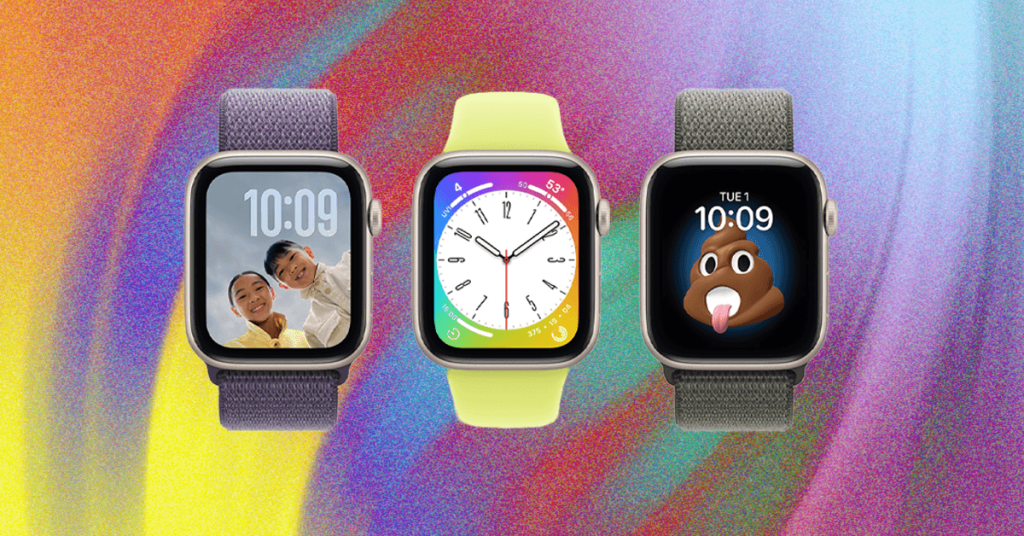
Now that the serious setup is complete, it’s time for the fun part—customization. Just as with an adult Apple Watch, the first thing you’ll probably want to do is switch the watch face. Hold down the screen and wait for the face to shrink, then swipe to switch through the available options.
This is also an excellent opportunity to purchase a kid-specific watch band. A comfortable, appropriately sized band can make all the difference in whether your child actually wants to wear the watch regularly.
Real-World Benefits: Peace of Mind and Connection
The practical benefits of setting up an Apple Watch for your child become apparent almost immediately. For many parents, the primary motivation is the ability to see their child’s location through Find My. This feature alone can provide immeasurable peace of mind, especially in crowded places or during school trips.
The communication aspect is equally valuable. Your child can contact you via phone or the Messages app, which they will undoubtedly do with surprising frequency. While this might seem overwhelming at first, it’s actually a wonderful way to maintain connection throughout the day—whether they’re sharing excitement about a good grade or asking for reassurance during a challenging moment.
The Bigger Picture: Digital Literacy and Responsibility
Setting up an Apple Watch for your child isn’t just about safety and convenience—it’s also an opportunity to teach digital literacy and responsibility. By gradually introducing technology in a controlled environment, you’re helping your child develop healthy relationships with digital devices that will serve them well throughout their lives.
The Family Setup features allow you to create boundaries that evolve with your child. What starts as strict controls can gradually loosen as your child demonstrates responsibility, creating a natural progression toward digital independence.
The Verdict: Worth the Effort
While the setup process might seem daunting at first, the benefits of an Apple Watch for your child are substantial. From safety features like Emergency SOS to communication tools and educational benefits through controlled app access, the device serves multiple purposes in a child’s life.
The key is approaching the setup thoughtfully, considering your family’s specific needs and your child’s maturity level. With proper configuration and ongoing management, an Apple Watch can be a valuable tool in your parenting arsenal—providing safety, connection, and a gentle introduction to the digital world.
Tags & Viral Phrases:
- Apple Watch Family Setup
- Parental Control Revolution
- Kid-Friendly Smartwatch
- Digital Parenting Made Easy
- Schooltime Focus Mode
- Emergency SOS for Kids
- Contact Management for Children
- Apple Ecosystem Family Features
- Peace of Mind Technology
- Digital Literacy for Kids
- Smartwatch for Children
- Parental Peace of Mind
- Connected Kids Safely
- Apple Watch for Safety
- Family Digital Boundaries
- Kid’s First Smart Device
- Controlled Technology Introduction
- Modern Parenting Tech
- Location Tracking for Kids
- Communication Limits for Children
- Educational Smartwatch Features
- Responsible Digital Citizenship
- Child-Friendly Apple Features
- Tech-Savvy Parenting
- Digital Safety for Kids
- Apple Watch Customization for Children
- Family Sharing Made Simple
- Kid’s Smartwatch Setup Guide
- Parental Control Innovation
- Safe Digital Environment for Kids
,

Leave a Reply
Want to join the discussion?Feel free to contribute!