
How to set up your calling card on an Android phone and customize it
Android Phones Now Let You Customize Your Calling Card for a More Personal Touch
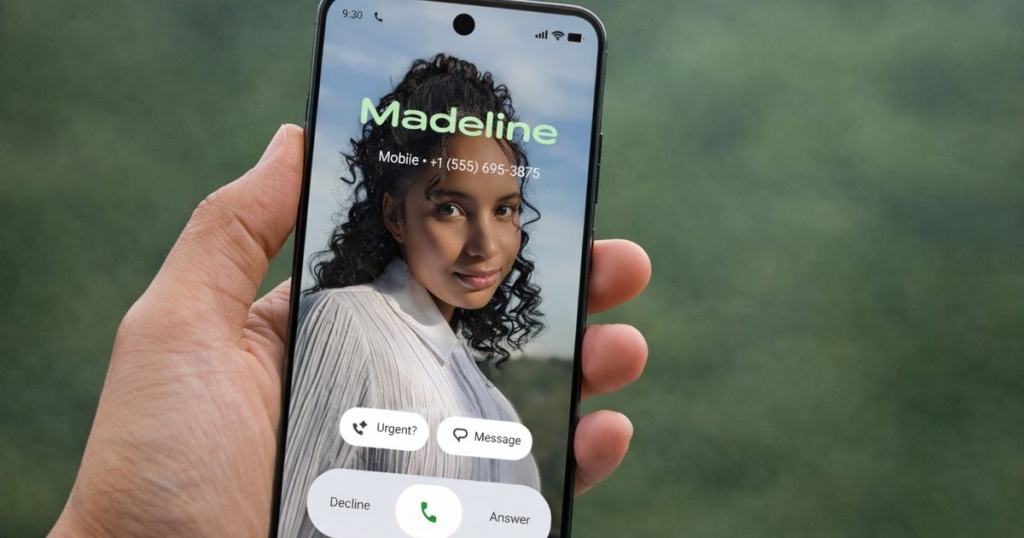
Android users can now personalize their caller ID with a new Calling Card feature in the Google Phone app, making incoming and outgoing calls more visually engaging. Instead of the traditional small contact photo, this update allows you to create a full-screen visual card that displays your photo, name, and custom styling during calls.
The feature, which rolled out with version 182 of the Phone app, gives users more control over how they appear to contacts. You can choose a photo from your gallery, Google Photos, or snap a new one, then adjust its position and zoom level for the perfect fit. On top of that, you can select from different font styles and colors for your name, adding a personal branding element to every call.
Once created, the calling card appears during incoming calls, outgoing calls, and even when your phone is locked—making it easier to identify who’s calling at a glance. It’s a subtle but effective way to make your phone feel more “you” while improving call recognition.
How to Set Up Your Calling Card
Here’s how to get started with the new feature:
1. Open the Phone app on your Android device.
2. If you see an “Introducing Calling Card” banner, tap “Get started.” If not, tap the Menu icon, go to Settings, and select Calling Card.
3. Tap “Add” and choose the contact you want to create a card for.
4. Select a photo from your Gallery, Google Photos, or take a new one.
5. Customize the image by moving it, zooming in or out, and adding effects if desired.
6. Tap “Next” once the photo looks right.
7. Choose your preferred font style and color for the contact name.
8. Tap “Done” to save your calling card.
After saving, the customized screen will automatically appear whenever that contact calls you or when you call them.
How to Update Your Calling Card
You’re not locked into your first design—updating your calling card is just as easy:
1. Open the Phone app and select the contact.
2. Tap “Edit” > “Change” > “Change Calling Card.”
3. Choose a new photo or adjust the existing one.
4. Update the photo position, font style, color, or add new effects.
5. Save your changes.
The update brings a fresh layer of personalization to Android’s calling experience, making it easier to recognize contacts and adding a touch of flair to every interaction. Google is also working on new privacy-focused features for contacts in Android 17, aimed at keeping your information more secure during calls and interactions.
Tags & Viral Phrases:
– Android Calling Card feature
– Customize your caller ID
– Google Phone app update
– Personalize your Android calls
– Full-screen caller photo
– Android 182 update
– Calling Card customization
– Make your calls stand out
– Android personalization
– Google Phone calling cards
– Caller ID makeover
– Android 17 privacy tools
– Visual caller ID
– Android phone customization
– Calling Card effects and fonts
– Android call screen personalization,


Leave a Reply
Want to join the discussion?Feel free to contribute!