
How to Set Up Your Own NAS Server for Backups and Content Streaming
The Ultimate Guide to Building Your Own NAS Server: Why You Need One and How to Set It Up
I’ve been toying with the idea of setting up my own network-attached storage (NAS) server for a long while, but I figured it would be a hassle. Lured by the idea of automatic backups and centralized content sharing that are detached from big tech’s increasingly untrustworthy servers, and further motivated by the creep of ads and ever-rising prices for streaming services, I finally did it. It turned out to be easy. As you get your digital life in order, you should do it, too.
Why Would I Want a NAS Server?
While it’s not for everyone, there are a few good reasons you might consider setting up your own server for personal file storage, even in an era where cloud backup services are convenient and inexpensive.
A NAS server is like your own private cloud, enabling you to store files and backups at home instead of on a third-party cloud server that could be located halfway around the world. If you don’t expose your NAS to the internet, you can keep everything completely private. If you do want to share with other folks, you can configure user accounts with different levels of access. I also discuss how to keep your NAS secure at the end of this guide.
For Backups
As a writer, I’ve got a ton of files on my computer that need to be backed up. I have product photography, interview transcripts, half-finished drafts, and many other files that it would be a serious pain to lose. Naturally, I have the usual array of house and work documents, family photos and videos, and all that other stuff, too. Until now, I’ve been manually saving files on USB flash drives and backing up with a cloud service.
With a NAS server, I can ditch the flash drives and have an automated local backup running in various locations. It’s not a good idea to only have one backup or only have backups in a single location, so I’ll continue to double up with a cloud storage service. But this is still a big improvement over my previous routine.
To Share Content
As a family of four with a mix of different devices, it’s really handy to have a central repository for sharing photos, videos, vacation plans, creative projects, and important documents. Since this stuff is usually spread across a variety of cloud services and personal devices, a NAS server with an organized file structure is a major leap for us and one that genuinely makes life a bit easier.
I was an early adopter of streaming services like Netflix and Spotify, but as the content streaming scene has grown increasingly fractured, ad-polluted, and ridiculously expensive, it has steadily lost its appeal. I’m old enough to have a pretty large physical media collection, and I’ve been meaning to digitize it forever. Setting up my NAS server was the push I needed, and we now have a central repository of some of my favorite TV shows, movies, and albums.
It’s not a massively fun process, but if you’re planning to do the same, it’s pretty easy to rip Blu-rays with MakeMKV and compress with HandBrake. Set up Jellyfin as your streaming app, and it automatically pulls in art and information to give you a Netflix-style interface. I’ve installed Jellyfin on all our TVs, phones, and tablets, so we can stream stuff locally with ease, and I’m really happy with how well it works. Many people prefer Plex.
Other Potential Uses
There are several other potential uses for a NAS server. Here are a few things on my list:
- Home assistant for local smart home control and automations
- Security camera local recording and monitoring
- Minecraft server for the kids
Most of the ways I’m using my NAS server allow me to cut back on subscriptions, which helps to offset the cost. In the long-term, running a lot of this stuff locally will be a money-saver, but it can also help you maintain control and privacy.
Setting Up Your NAS Server
Now that you’re convinced (or at least curious), let’s talk about how to actually set up your NAS server. The process is surprisingly straightforward, even for those who aren’t particularly tech-savvy.
Choosing Your Hardware
The first decision you’ll need to make is what kind of hardware you want to use for your NAS. There are a few different approaches:
-
Dedicated NAS devices: Companies like Synology, QNAP, and Western Digital offer purpose-built NAS devices that come with everything you need. These are typically the easiest to set up and maintain, but they can be more expensive.
-
DIY NAS with a mini PC or old computer: If you have an old computer lying around or want to buy a small form-factor PC, you can install NAS software on it. This gives you more flexibility and can be more cost-effective.
-
Raspberry Pi NAS: For a low-cost, low-power option, you can build a NAS using a Raspberry Pi. This is great for basic file storage and sharing but may not be powerful enough for more demanding tasks like 4K media streaming.
Installing NAS Software
Once you have your hardware, you’ll need to install NAS software. Some popular options include:
- TrueNAS: A powerful, open-source NAS operating system based on FreeBSD
- Unraid: A paid NAS OS that’s popular among media enthusiasts
- OpenMediaVault: A free, open-source NAS solution based on Debian Linux
- Windows Storage Spaces: If you’re using a Windows PC, you can use built-in storage pooling features
The setup process varies depending on which software you choose, but most provide step-by-step wizards to guide you through the initial configuration.
Configuring Storage and Shares
After installing your NAS software, you’ll need to set up storage and create shared folders. This typically involves:
- Creating storage pools or volumes
- Setting up RAID for data protection (if desired)
- Creating shared folders with appropriate permissions
- Setting up user accounts and access controls
Most NAS software makes this process relatively intuitive, with graphical interfaces that walk you through each step.
Setting Up Services
One of the beauties of a NAS is its versatility. You can set up various services depending on your needs:
- File sharing: SMB/CIFS for Windows, AFP for Mac, NFS for Linux
- Media streaming: DLNA/UPnP for media devices, or apps like Plex/Jellyfin
- Backup services: Time Machine for Macs, rsync for Linux, or Windows backup
- Docker containers: For running additional applications and services
Securing Your NAS
Security is crucial when setting up a NAS server. Here are some key steps to keep your data safe:
- Change default passwords: Always use strong, unique passwords for admin accounts
- Keep software updated: Regularly update your NAS software and all installed applications
- Enable firewall: Configure your firewall to only allow necessary connections
- Use encryption: Enable encryption for sensitive data and consider encrypting your drives
- Regular backups: Even with a NAS, it’s wise to have offsite backups
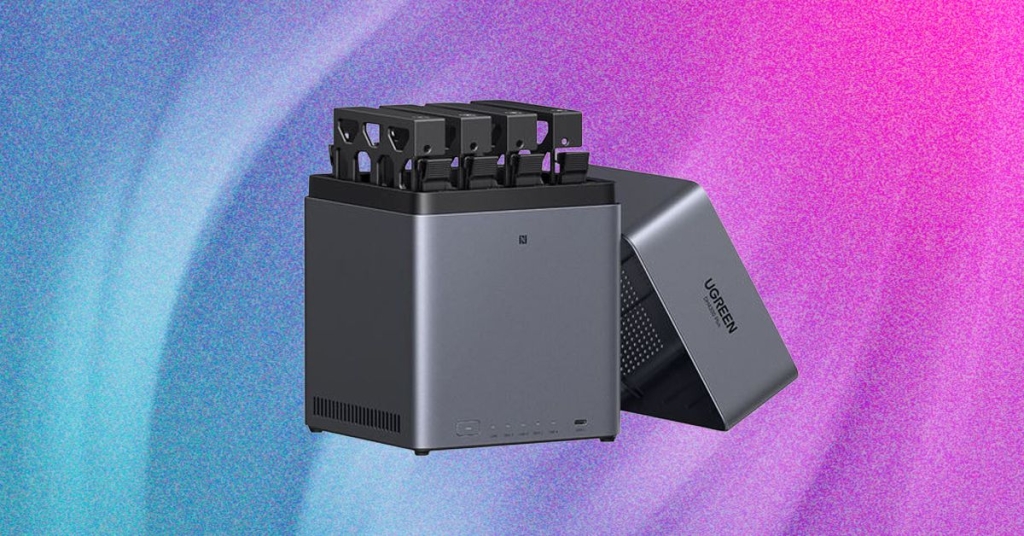
My Experience: Setting Up a UGREEN NAS
For my own setup, I chose a UGREEN NAS device, which offered a good balance of performance, features, and price. The setup process was surprisingly straightforward:
- I unpacked the device and connected it to my network via Ethernet
- I installed the included hard drives (I opted for two 4TB drives in RAID 1 for redundancy)
- I connected to the web interface and walked through the initial setup wizard
- I installed the Jellyfin media server and configured shared folders for different types of content
- I set up user accounts for family members with appropriate access levels
The entire process took about an hour, and I was impressed by how intuitive the interface was. Within a day, I had my entire media collection digitized and accessible from any device in my home.
Is a NAS Server Right for You?
Building a NAS server isn’t for everyone. It requires an upfront investment of time and money, and there’s definitely a learning curve. However, if you value privacy, want to reduce your reliance on subscription services, or simply want more control over your digital life, a NAS can be incredibly rewarding.
For me, the benefits have been substantial: I’ve eliminated the need for multiple cloud storage subscriptions, created a centralized media library, and established a robust backup system that I control. The peace of mind alone has been worth the effort.
As you consider whether a NAS server is right for you, think about your specific needs. Are you drowning in digital clutter? Frustrated with rising streaming costs? Concerned about data privacy? If you answered yes to any of these questions, it might be time to take the plunge into the world of network-attached storage.
Remember, the technology world is increasingly moving toward subscription models and cloud dependency. Taking control of your own data by setting up a NAS server is a powerful way to push back against this trend and create a digital environment that truly serves your needs.
Tags: #NAS #NetworkAttachedStorage #DIYTech #HomeServer #DataPrivacy #MediaServer #Backups #TechTutorial #DigitalDeclutter #CordCutting #SelfHosted #TechLifeHacks #HomeNetworking #PrivacyMatters #StreamingAlternatives #TechSetup #DigitalFreedom #HomeLab #TechDIY #DataControl
Viral phrases: “Take back control of your data”, “Ditch the subscriptions”, “Your own private cloud”, “The ultimate tech life hack”, “Privacy in the age of big tech”, “Build your digital fortress”, “Stop paying for what you can host yourself”, “The Netflix killer you can build at home”, “Tech independence is just a NAS away”, “From cloud chaos to local control”, “The smart home upgrade no one talks about”, “Your media, your way, your server”, “The subscription apocalypse solution”, “DIY tech that actually makes life easier”, “The privacy upgrade hiding in plain sight”
,


Leave a Reply
Want to join the discussion?Feel free to contribute!