
How to Turn Off Galaxy AI: A Step-by-Step Guide for Your New Samsung Phone
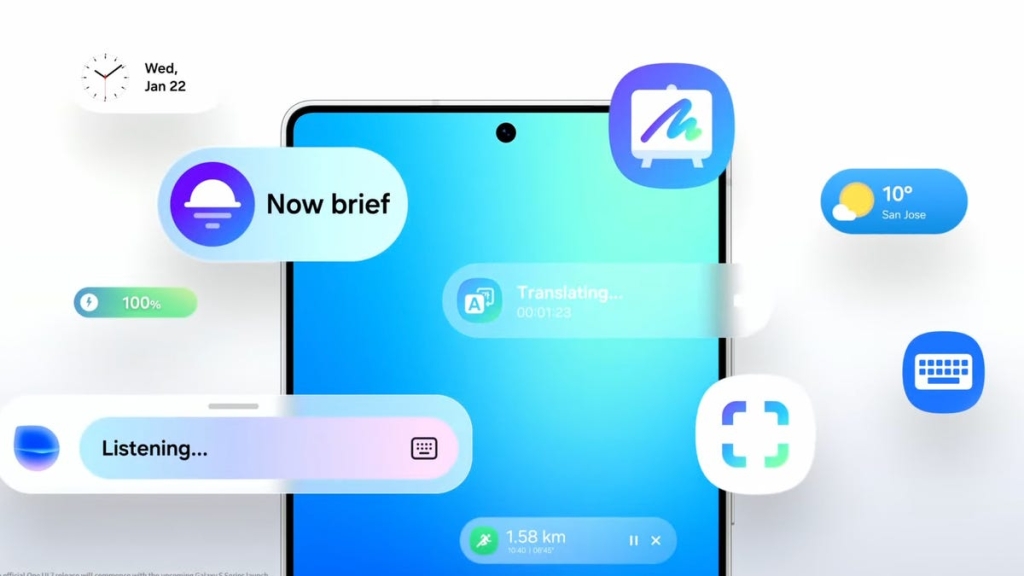
Samsung Galaxy AI: How to Turn Off Artificial Intelligence Features on Your New Phone
If you’ve recently unboxed a shiny new Samsung Galaxy device, you’re likely experiencing the thrill of exploring cutting-edge technology—but also the potential overwhelm of navigating its many features. Among the most talked-about additions is Galaxy AI, Samsung’s suite of artificial intelligence-powered tools designed to make your smartphone smarter, faster, and more intuitive. While some users are excited to dive into these capabilities, others may find themselves wishing for a simpler, less AI-driven experience. The good news? Samsung has made it easy to customize or disable these features entirely.
Why You Might Want to Turn Off Galaxy AI
Artificial intelligence on smartphones can be a double-edged sword. On one hand, features like AI-powered photo editing, real-time translation, and smart suggestions can feel like magic. On the other hand, not everyone is comfortable with the idea of their device constantly analyzing their behavior, processing data in the cloud, or making decisions on their behalf. Privacy concerns, battery life considerations, and a desire for simplicity are all valid reasons to dial back the AI.
Samsung understands this, which is why it offers granular control over its AI features. Whether you want to disable specific tools or turn off AI entirely, the process is straightforward and user-friendly.
How to Disable Galaxy AI Features
Step 1: Access Galaxy AI Settings
- Open the Settings app on your Samsung Galaxy device.
- Scroll down and tap on Galaxy AI. This menu is your central hub for managing all AI-related features.
Step 2: Customize Individual AI Features
Once inside the Galaxy AI menu, you’ll see a list of AI-powered services and tools. These might include:
- AI-powered photo editing tools (e.g., Generative Edit)
- Live Translate for real-time language translation
- Chat Assist for AI-driven messaging suggestions
- Note Assist for organizing and summarizing notes
- Browsing Assist for summarizing web pages
To disable any of these features:
- Tap on the specific service you want to turn off.
- Toggle the switch to the Off position.
Step 3: Limit AI to On-Device Processing
If you’re concerned about privacy but still want to use some AI features, Samsung offers an option to keep data processing on your device only. This means your information won’t be sent to the cloud, reducing potential privacy risks. However, this setting may limit the functionality of certain features that require internet connectivity.
To enable this:
- Scroll to the bottom of the Galaxy AI menu.
- Toggle on Process data only on device.
How to Replace Bixby with Google Assistant
Another AI-powered feature that some users may want to disable is Bixby, Samsung’s digital assistant. While Bixby can be useful, many users prefer Google Assistant for its seamless integration with other Google services. Here’s how to make the switch:
Step 1: Ensure Google Assistant is Installed
If you don’t already have Google Assistant on your device, download the Google app from the Play Store.
Step 2: Set Google Assistant as Your Default
- Open Settings.
- Tap on Apps.
- Select Default apps.
- Tap on Digital assistant app.
- Choose Google from the list of options.
Now, when you activate your voice assistant, you’ll be greeted by Google Assistant instead of Bixby.
The Verdict: Is Turning Off Galaxy AI Worth It?
The decision to disable Galaxy AI ultimately depends on your personal preferences and priorities. If you value simplicity, privacy, or battery life, turning off certain AI features can make your device feel more streamlined and less intrusive. On the other hand, if you’re excited about the possibilities of AI, you might want to keep some features enabled while disabling others that feel unnecessary.
Samsung’s flexible approach to AI customization ensures that you can tailor your device to suit your needs. Whether you’re a tech enthusiast or someone who just wants a phone that works without fuss, the choice is yours.
Viral Tags & Phrases:
- Samsung Galaxy AI
- Turn off artificial intelligence
- Galaxy AI features
- Disable Bixby
- Google Assistant vs Bixby
- Privacy-focused smartphone settings
- AI-powered photo editing
- Real-time translation
- Smart suggestions
- On-device data processing
- Tech tips for Samsung users
- Smartphone customization
- AI burnout
- Digital assistant showdown
- Tech hacks for Galaxy devices
- Simplify your smartphone
- AI vs privacy
- Galaxy AI toggle
- Samsung settings guide
- Voice assistant preferences
By following these steps, you can take control of your Samsung Galaxy device and decide exactly how much (or how little) AI you want in your life. Whether you’re embracing the future of technology or taking a step back, Samsung has you covered.
,


Leave a Reply
Want to join the discussion?Feel free to contribute!