
How to turn on repair mode on your Android phone – and why it’s critical to do so
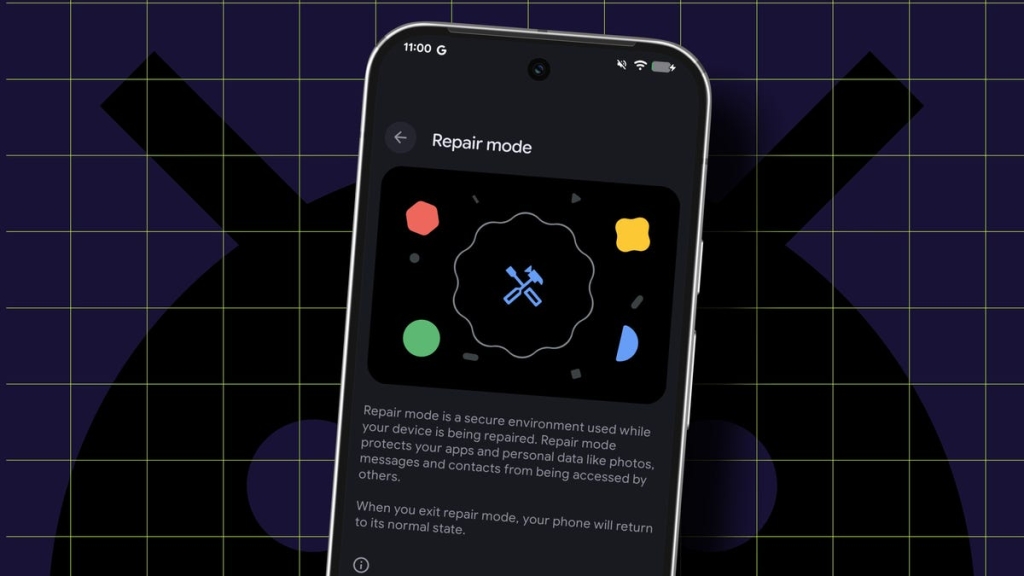
Android Repair Mode: The Secret Weapon for Phone Fixes Without Data Risk
In a digital age where our smartphones contain the keys to our entire lives, handing your device over for repair can feel like giving away the crown jewels. But what if there was a way to let technicians fix your phone without exposing your personal data? Enter Android Repair Mode—a game-changing feature that’s about to revolutionize how we handle phone repairs.
The Wake-Up Call That Changed Everything
Picture this: It’s a typical Saturday morning. You’re sipping coffee, checking emails, when suddenly—disaster strikes. Your Android phone, fresh from a security update, suddenly can’t recognize your SIM card. No calls, no texts, no mobile data. Panic sets in. But then, like a tech superhero arriving just in time, Android Repair Mode swoops in to save the day.
This isn’t just another tech feature—it’s a lifeline for anyone who’s ever faced the anxiety of phone repairs.
What Exactly Is Android Repair Mode?
Think of Repair Mode as your phone’s secret identity—a special operating environment that keeps your personal data locked away while still allowing technicians full access to fix whatever’s broken. It’s like having a secure vault within your phone that only you can open.
Here’s the magic: When activated, Repair Mode creates a completely separate, temporary profile on a new partition of your device. Your apps, photos, messages, and sensitive information remain completely inaccessible. Yet, the technician can still test cellular connectivity, check hardware functionality, and diagnose issues as if they were using a brand-new phone.
The Security Revolution You Didn’t Know You Needed
Let’s be honest—the traditional approach to phone repairs has been broken for years. You either:
- Risk it all: Hand over your phone with all your data exposed
- Start from scratch: Perform a factory reset, losing all your settings and data
- The nuclear option: Refuse repairs altogether and live with the broken device
Repair Mode eliminates this terrible choice. It’s the security equivalent of having your cake and eating it too.
The Technical Magic Behind the Curtain
Repair Mode isn’t just a simple setting—it’s sophisticated technology at work. When activated, your Android device:
- Creates an isolated user profile on a separate system partition
- Locks down all personal data behind your PIN or password
- Maintains full hardware functionality for diagnostics
- Prevents access to your carrier network unless you choose to enable it
- Automatically wipes the temporary profile when you exit Repair Mode
It’s like having a self-destructing decoy phone that appears when needed and vanishes without a trace.
Who Gets to Play With This Cool Feature?
Currently, Repair Mode is available on Pixel and Samsung devices running Android 14 or later. However, there’s a catch—you need at least 2GB of available storage space. Think of it as the minimum requirement to create this secure repair environment.
When Should You Unleash Repair Mode?
The primary use case is obvious: when your phone needs professional repair. But the applications go far beyond the repair shop:
For Professional Repairs:
- Drop-off repairs at authorized service centers
- Mail-in repairs to manufacturer facilities
- Third-party repair shops you don’t fully trust
- Warranty service visits
For Personal Use:
- Lending your phone to a friend for an extended period
- Allowing a child to use your device without accessing your data
- Testing new software or beta versions safely
- Creating a clean environment for troubleshooting
How to Activate This Digital Fortress
The process varies slightly depending on your device manufacturer:
For Pixel Users:
- Navigate to Settings > System > Repair Mode
- Tap “Enter repair mode”
- Enter your PIN or password when prompted
- Hand over your phone with confidence
For Samsung Users:
- Go to Settings > Battery and device care > Maintenance Mode
- Enable Maintenance Mode
- Authenticate with your security credentials
- Your phone is now in secure repair mode
Exiting is just as simple—pull down the notification shade and tap “Exit.” You’ll need your PIN or password again, ensuring that only you can return to your personal data.
The Hidden Benefits You Didn’t Expect
Beyond the obvious security advantages, Repair Mode offers some surprising perks:
Time Savings: No more factory resets and lengthy setups after repairs
Peace of Mind: Sleep easy knowing your data is protected
Professional Respect: Technicians appreciate working with a device that’s ready for diagnosis
Troubleshooting Aid: Sometimes issues only appear in normal mode, making Repair Mode invaluable for diagnosis
Real-World Success Story
Remember that SIM card disaster mentioned earlier? That wasn’t just a hypothetical scenario—it was a real crisis that Repair Mode solved. When standard troubleshooting failed, Repair Mode revealed that the SIM card was actually functional, pointing to a software issue rather than hardware failure. This kind of diagnostic capability could save you from unnecessary repairs or replacements.
The Future Is Secure
As our phones become increasingly central to our lives, features like Repair Mode aren’t just convenient—they’re essential. They represent a shift in how we think about device security, moving from reactive measures to proactive protection.
The next time your phone needs repair, don’t just hand it over blindly. Activate Repair Mode first. Your future self—and your data—will thank you.
Tags: Android Repair Mode, phone security, data protection, smartphone repair, Pixel features, Samsung Maintenance Mode, Android 14, tech security, device repair, digital privacy, smartphone troubleshooting, secure repair, Android tips, mobile security, tech innovation
Viral Phrases: “Your phone’s secret identity,” “The security revolution you didn’t know you needed,” “Like having a self-destructing decoy phone,” “The crown jewels of your digital life,” “Game-changing feature that’s about to revolutionize phone repairs,” “The digital fortress your phone deserves,” “Security equivalent of having your cake and eating it too”
,


Leave a Reply
Want to join the discussion?Feel free to contribute!