
How to use Google’s free VPN on your Pixel phone (2026 guide)
Google’s Free Pixel VPN Just Got a Major Upgrade — Here’s Why You Should Be Using It
In the ever-evolving world of smartphone technology, Google’s Pixel lineup has consistently stood out—not just for its cutting-edge hardware, but for its exclusive software features that make everyday life smoother, safer, and more intuitive. From the iconic Now Playing feature that identifies songs on the fly to the newer Pixel Screenshots tool that organizes your digital life, Pixel phones are packed with hidden gems. But one feature that’s been quietly available for years—and just got a significant upgrade—is Pixel VPN, Google’s free, built-in virtual private network service.
If you’re a Pixel user, you might not even realize you have access to a fully functional VPN at no extra cost. And if you’re not already using it, you’re missing out on a powerful tool for online privacy and security. Here’s everything you need to know about Pixel VPN, why it’s worth enabling, and how to make the most of its latest enhancements.
What is Pixel VPN, and Why Should You Care?
A VPN, or Virtual Private Network, is a service that encrypts your internet connection and routes it through a secure server, masking your IP address and protecting your online activity from prying eyes. While many premium VPN services charge a monthly fee, Google offers Pixel VPN for free to eligible Pixel devices. That’s right—no subscription, no hidden costs, just a seamless way to safeguard your digital footprint.
Pixel VPN works just like any paid VPN service, providing the same level of encryption and privacy protection. It’s particularly useful when connecting to public Wi-Fi networks, which are often vulnerable to hackers. With Pixel VPN, you can browse, shop, and stream with peace of mind, knowing your data is secure.
Which Pixel Devices Support Pixel VPN?
Before you dive in, it’s important to confirm that your Pixel device is compatible with Pixel VPN. The feature is available on most modern Pixel phones, tablets, and even the Pixel Fold. Here’s the full list of supported devices:
- Pixel 7, Pixel 7 Pro, Pixel 7a
- Pixel Tablet
- Pixel Fold
- Pixel 8, Pixel 8 Pro, Pixel 8a
- Pixel 9, Pixel 9 Pro, Pixel 9 Pro XL, Pixel 9 Pro Fold, Pixel 9a
- Pixel 10, Pixel 10 Pro, Pixel 10 Pro XL, Pixel 10 Pro Fold, Pixel 10a
Notably, the Pixel 6, Pixel 6 Pro, and Pixel 6a are excluded from this list, despite still receiving software updates. Additionally, Pixel VPN is available in select countries, including the US, UK, Canada, Japan, and many others. You can check the full list of supported regions on Google’s support page.
How to Enable and Use Pixel VPN
Activating Pixel VPN is a breeze, but finding it in your settings might take a little digging. Here’s a step-by-step guide to get you started:
- Open the Settings app on your Pixel device.
- Tap Network & internet.
- Select VPN.
- Tap VPN by Google.
- Scroll down or tap More.
- Tap Use VPN at the bottom of the screen.
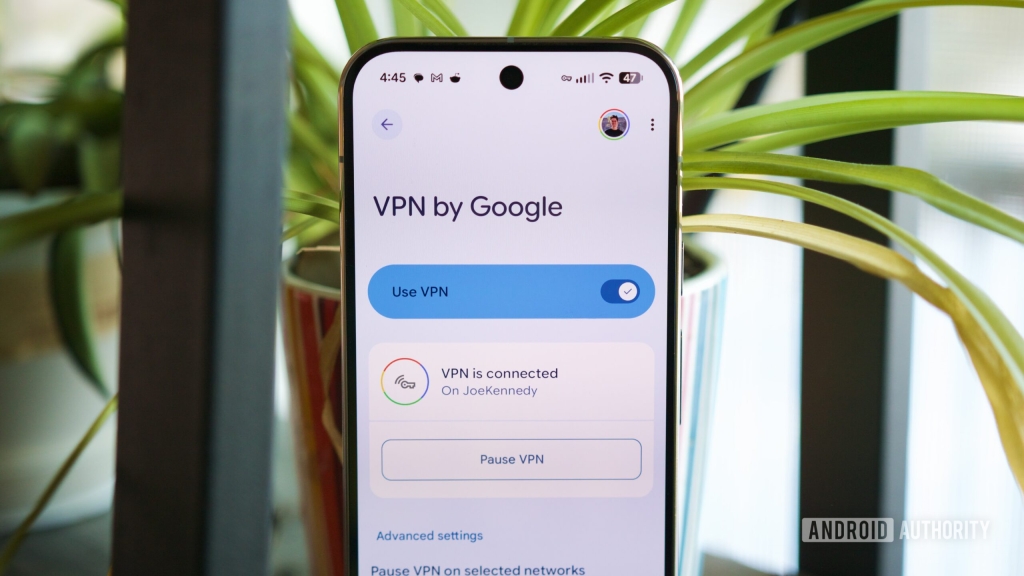
Once enabled, the VPN will take a few seconds to connect. You’ll know it’s active when the screen changes from “VPN is connecting” to “VPN is connected.”
Customization Options for Pixel VPN
Pixel VPN offers several customization options to tailor the experience to your needs. Here’s what you can do:
- Pause VPN on selected networks: By default, Pixel VPN won’t activate on mobile networks. If you want it to work on mobile data, tap Pause VPN on selected networks and remove the Mobile network option.
- Exclude specific Wi-Fi networks: You can configure the VPN to pause or disconnect when connected to certain Wi-Fi networks. Go to the settings, tap Get started, and select the networks you want to exclude.
- Exclude selected apps: If you want certain apps to bypass the VPN, tap Exclude selected apps and choose the apps you want to exclude.
- Notifications: By default, you’ll receive notifications about the VPN’s status. You can toggle this setting on or off in the notifications section.
The Latest Upgrade: Enhanced Quick Settings Tile
In February 2026, Google rolled out a significant upgrade to Pixel VPN, making it even more user-friendly. The Quick Settings tile now displays real-time connection information, so you can see the VPN’s status at a glance. Instead of just saying “VPN by Google,” the tile now shows one of four statuses:
- Connected: The VPN is active and protecting your connection.
- Paused: The VPN is temporarily disabled.
- Connecting: The VPN is in the process of establishing a connection.
- Can’t connect: There’s an issue preventing the VPN from connecting.
This upgrade makes it easier than ever to monitor and manage your VPN, ensuring you’re always in control of your online security.
Why You Should Start Using Pixel VPN Today
With cyber threats on the rise and privacy concerns at an all-time high, having a reliable VPN is no longer a luxury—it’s a necessity. Pixel VPN offers a free, easy-to-use solution that’s seamlessly integrated into your device. Whether you’re browsing on public Wi-Fi, accessing sensitive information, or simply want to keep your online activity private, Pixel VPN has you covered.
And with Google’s latest enhancements, using Pixel VPN is more convenient than ever. So why wait? Enable Pixel VPN today and take control of your digital security.
Tags and Viral Phrases
- Pixel VPN
- Free VPN for Pixel
- Google’s hidden gem
- Online privacy made easy
- Secure your connection for free
- Pixel-exclusive features
- Cyber security tips
- Protect your data on public Wi-Fi
- Google’s latest upgrade
- Quick Settings enhancement
- Must-have Pixel feature
- Digital security for everyone
- No subscription needed
- Seamless integration
- Stay safe online
- Pixel power user
- Tech upgrade you need
- Privacy at your fingertips
- Game-changer for Pixel users
- Encrypt your internet connection
By leveraging Pixel VPN, you’re not just enhancing your online security—you’re also making the most of the powerful features that make Pixel devices stand out. Don’t let this hidden gem go to waste. Enable Pixel VPN today and experience the peace of mind that comes with knowing your digital life is protected.
,


Leave a Reply
Want to join the discussion?Feel free to contribute!