
I changed 6 settings on my Roku TV to instantly give it a performance boost
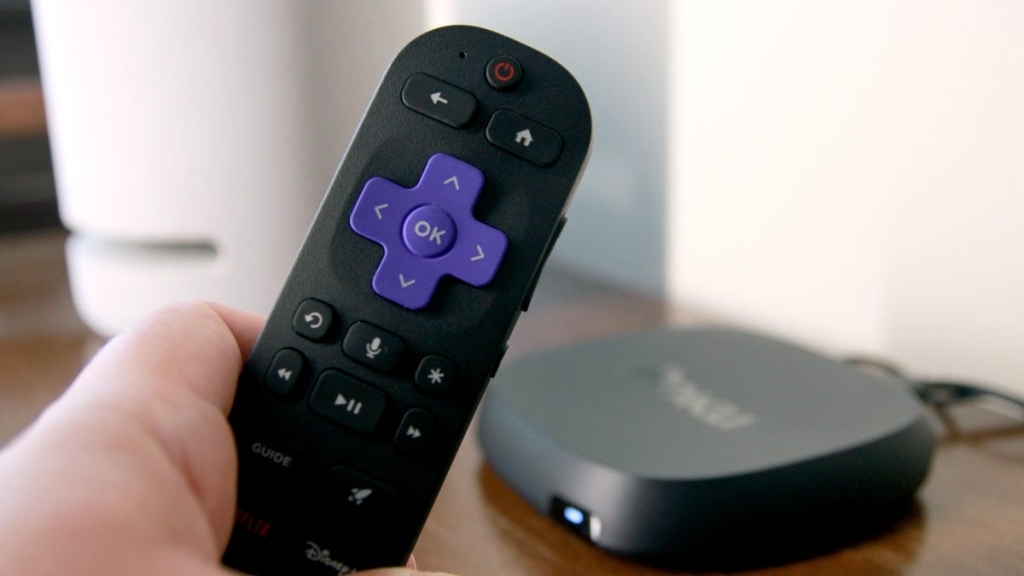
Roku Buffering? Here’s How to Fix It Fast and Get Back to Binge-Watching
If you’ve ever been deep into a gripping scene only to have it ruined by a spinning loading icon, you know the frustration. Buffering, freezing, and sluggish performance can turn your Roku streaming experience from “Netflix and chill” to “Netflix and wait.”
The good news? You don’t need to toss your device out the window. Like smartphones and laptops, Roku TVs and streaming sticks store temporary data that can slow things down over time. A quick cache clear, restart, or network reset can often bring your device back to life.
Here are the top fixes—from the simplest to the most thorough—to get your Roku running smoothly again.
1. Unplug It (Yes, Really)
It sounds almost too basic, but unplugging your Roku for a few minutes is often the quickest fix. This power cycle clears temporary glitches and can resolve minor performance hiccups.
- Unplug the power cord.
- Wait 2-3 minutes.
- Plug it back in and let it reboot.
2. Restart via Settings
A soft restart is more thorough than unplugging and won’t erase your settings.
- From the Home screen, go to Settings → System → Power.
- Select System Restart → Restart.
- Your Roku will reboot in about 30 seconds.
3. Secret Restart Shortcut (Using Your Remote)
This hidden trick forces a cache flush and system reboot in one go.
- On the Home menu, make sure Home is highlighted.
- Press Home 5 times.
- Press Up once.
- Press Rewind twice.
- Press Fast Forward twice.
- Wait for the restart.
4. Uninstall and Reinstall Problematic Apps
If one app is causing trouble, removing and reinstalling it can help.
- Highlight the app on the Home screen (don’t open it).
- Press the * button on your remote.
- Select Remove Channel.
- Reinstall the app from the Channel Store.
Note: This will erase app data and require you to log in again.
5. Reset Your Network Connection
Sometimes the issue isn’t the Roku—it’s the Wi-Fi handshake.
- Go to Settings → System → Advanced System Settings.
- Select Network Connection Reset → Reset Connection.
- After reboot, go to Settings → Network → Set Up Connection → Wireless.
- Reconnect to your Wi-Fi and enter your password.
6. Factory Reset (Last Resort)
If nothing else works, a factory reset will restore your Roku to its original state.
⚠️ Warning: This erases all settings, apps, and login credentials.
- Go to Settings → System → Advanced System Settings.
- Select Factory Reset.
- Enter the on-screen code and confirm.
- Wait for the reset to complete.
Pro Tips to Prevent Future Buffering
- Keep your Roku software updated.
- Limit background apps running in the background.
- Use a wired Ethernet connection if possible for faster, more stable speeds.
- Clear cache periodically using the remote shortcut.
Tags & Viral Phrases
RokuFix #BufferingSucks #StreamingHacks #TechTips #RokuTricks #StopTheSpin #BingeBetter #HomeTheater #StreamingLife #FixItFast #TechSavvy #NoMoreLoading #StreamingSmooth #RokuLife #StreamingProblems #EasyFix #TechHelp #StreamingSolutions #RokuTips #StreamingFix
,

Leave a Reply
Want to join the discussion?Feel free to contribute!