
I turned a Raspberry Pi 5 into a real SSD-powered PC for less than $200
Raspberry Pi 5: How to Build a Supercharged Compact PC for Under $200
The Raspberry Pi 5 is a game-changer in the world of affordable computing. With performance several times faster than its predecessors, this tiny board can handle tasks that once required a full-sized PC, all while consuming minimal power. Plus, the internet is brimming with tutorials and projects to keep you busy for years.
In this comprehensive guide, I’ll walk you through building a Raspberry Pi 5 powerhouse, leveraging its new PCI Express capability to connect an SSD for maximum performance. For under $200, you’ll have a capable computer that punches well above its weight class.
What You’ll Need
To follow this guide, gather these components:
- Raspberry Pi 5 (8GB recommended for optimal performance, though 2GB or 4GB versions work too)
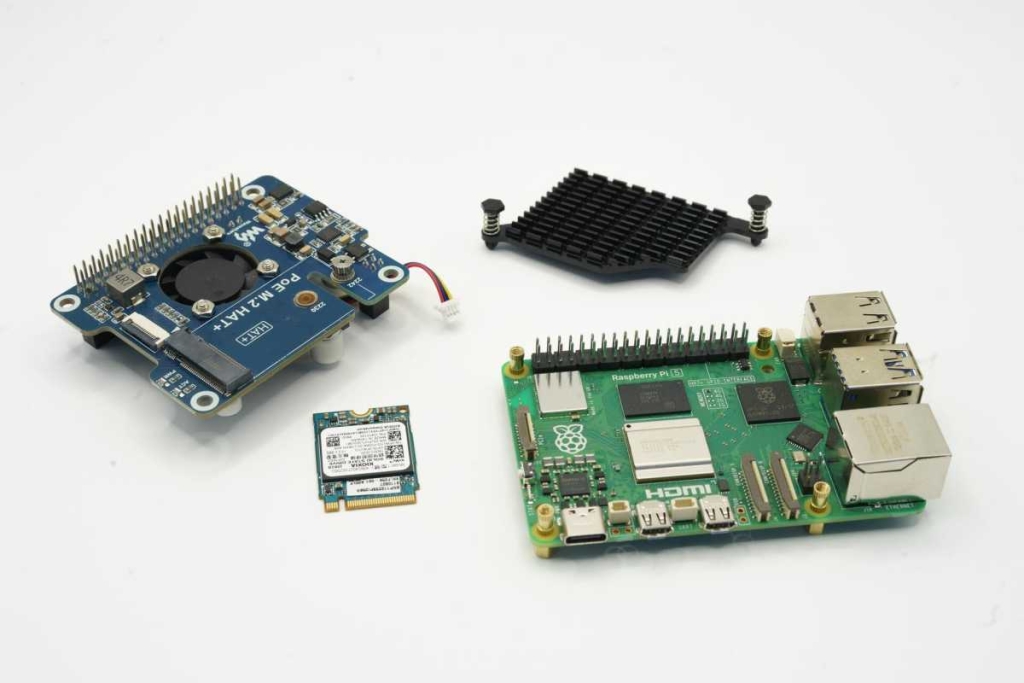
- M.2 HAT (I used the Waveshare POE M.2 HAT, but alternatives exist)
- Cooling solution (often included with the HAT)
- NVMe SSD in M.2 format
- MicroSD card (8GB minimum) or USB adapter for M.2 SSD installation
- Micro HDMI to HDMI cable
You’ll also need a power source—either a USB-C PD charger or the official Raspberry Pi power supply. If you plan to use USB accessories without external power, opt for a 25W+ charger; otherwise, 15W suffices.
Additional essentials include a mouse, keyboard, and monitor, unless you’re comfortable with SSH-only setup. A case is optional but recommended for protection and aesthetics.
Installing the Operating System
You have two installation paths. If you have a USB adapter for M.2 SSDs, you can install directly to the SSD. Otherwise, use a MicroSD card and clone to the SSD later.
Start by downloading and installing Raspberry Pi Imager. Select the Raspberry Pi 5 as your device, choose Raspberry Pi OS (64-bit), and pick your target drive (SSD or MicroSD). Double-check your selection to avoid accidentally erasing the wrong drive.
Click Next, then Edit Settings to configure timezone, Wi-Fi credentials, and optionally enable SSH with your public key. This saves you from re-entering settings during future installations.
Confirm your choices, and the Imager will handle the rest.
Assembling Your Raspberry Pi 5
Begin by attaching the four brass standoffs where the HAT will mount. These usually come with small screws that go on the underside of the board.
Next, apply the included thermal pads to the appropriate chips and mount the cooler according to its instructions. The cooler typically secures with spring-loaded pins into designated holes.
Attach your SSD to the HAT, then carefully align and install the HAT, ensuring all pins match up. If your HAT includes a fan, connect it to the labeled FAN connector near the USB ports.
The final hardware step involves connecting the small ribbon cable between the HAT and the Raspberry Pi’s PCI Express connector. Gently release the retention clip, insert the ribbon (white arrows indicate correct orientation), and secure it.
If you have a case, mount your completed assembly now.
First Boot and Configuration
Connect your display, input devices, and power. The Raspberry Pi 5 boots immediately upon power connection—no power switch needed.
If everything’s connected correctly, you’ll see the Raspberry Pi OS welcome screen. Set up your account if you haven’t already, then let the system update before reaching the desktop.
For SSD optimization, open Terminal and enter:
sudo nano /boot/firmware/config.txt
Add these lines at the bottom:
Change PCIe speed to gen 3
dtparam=pciex1
dtparam=pciex1_gen=3
Press Ctrl-O, Enter, Ctrl-X to save. Then enter:
sudo rpi-eeprom-config –edit
Change the line containing BOOT_ORDER to:
BOOT_ORDER=0xf416
Save again with Ctrl-O, Enter, Ctrl-X. This ensures the system boots from SSD when available.
If you installed on MicroSD, clone to your SSD now with:
git clone https://github.com/geerlingguy/rpi-clone.git
cd rpi-clone
sudo cp rpi-clone rpi-clone-setup /usr/local/sbin
sudo rpi-clone nvme0n1
Agree to erase the target when prompted, then wait for the copy to complete.
Shut down, remove the MicroSD, and reboot. Your system should now be significantly faster thanks to SSD storage.
Exciting Accessories to Expand Your Raspberry Pi 5
The M.2 HAT isn’t your only option. Consider these accessories:
- Power-over-Ethernet (PoE): Power via network cable instead of USB-C—perfect for server setups
- Displays: From tiny info screens to large touch displays
- Sensors: Transform your Pi into an air quality monitor or weather station
- Cameras: Including AI-accelerated models for object recognition
- Sound cards: Add RCA, 3.5mm, or optical audio outputs for music servers
- Amplifiers: Connect analog speakers directly to your Pi
5 Smart Ways to Use Your Raspberry Pi 5
- Retro Gaming Console: Emulate classic consoles from the 80s and 90s using Batocera
- Home Automation Server: Run Home Assistant to control all your smart home devices
- AirPlay Receiver: Stream music from iPhone/iPad to any speakers
- Router: Use OpenWrt for custom router software
- Experimental Computer: Learn Linux, Python, and hardware control without risking your main PC
Tags: Raspberry Pi 5, DIY computer, compact PC, affordable computing, single-board computer, home server, retro gaming, home automation, DIY projects, tech tutorial, budget PC build, Linux learning, Python coding, hardware projects, SSD upgrade, M.2 HAT, Waveshare, POE, NVMe, computer assembly, tech guide
Viral Phrases:
- “Transform a $50 board into a $500 PC”
- “The computer that fits in your pocket”
- “Linux without the learning curve”
- “Gaming without the console”
- “Server setup in under an hour”
- “The DIY computer revolution”
- “Tech tinkering made simple”
- “From zero to hero in home automation”
- “The $200 powerhouse PC”
- “Your gateway to hardware hacking”
,


Leave a Reply
Want to join the discussion?Feel free to contribute!