
iOS 26.4 adds a new setting to further tone down the Liquid Glass shimmer
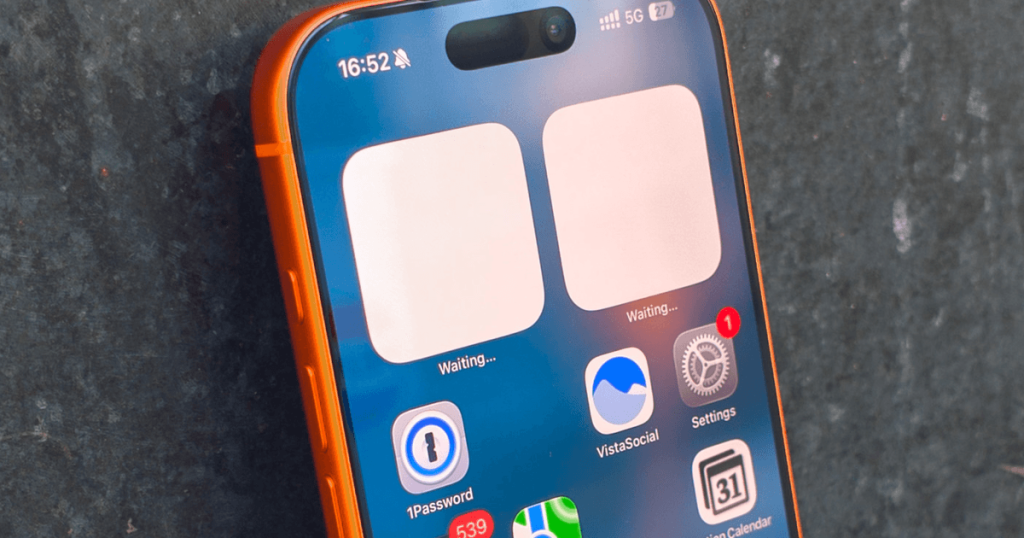
Apple Addresses iOS 26 Liquid Glass Glitches with New Accessibility Feature
The rollout of iOS 26’s Liquid Glass design overhaul has been one of the most controversial updates in recent Apple history. While the glassy, translucent interface was intended to bring a sleek, modern aesthetic to iPhones and iPads, it quickly became apparent that the ambitious redesign came with significant usability trade-offs—particularly for users on older hardware.
The update has been plagued by inconsistencies, readability issues, and visual distractions that have frustrated millions. Among the most persistent complaints: the liquid glow effect that rendered text and UI elements nearly unreadable on devices with SDR (Standard Dynamic Range) displays, such as the iPad mini, iPhone SE, iPhone 11, and earlier models. The problem was especially pronounced when users tapped or interacted with buttons, keyboards, or highlighted text—triggering intense flashes and glowing highlights that made navigation a visual headache.
However, Apple appears to be listening. After releasing iOS 26.1 with an option to switch from the default “Clear” Liquid Glass look to a more subdued “Tinted” appearance, the company has now introduced an even more targeted fix in iOS 26.4 developer beta 4.
The latest beta includes a new accessibility toggle called “Reduce Bright Effects”, which minimizes the intense highlighting and flashing that occurs when interacting with on-screen elements. This includes the notorious keyboard glow, button highlights, and text selection flashes that have been particularly jarring on older, non-OLED screens.
According to early testers, the effect is immediately noticeable and provides much-needed relief for users who found the visual feedback overwhelming. One X (formerly Twitter) user demonstrated the stark difference, showing how the new setting dramatically reduces the glare and distraction without sacrificing functionality.
How to Enable the Fix
To access the new feature, users must be running iOS 26.4 developer beta 4. Here’s how to activate it:
- Open the Settings app on your iPhone.
- Navigate to Accessibility → Display & Text Size.
- Toggle on “Reduce Bright Effects”.
This setting is specifically designed for those who experience discomfort or difficulty reading due to the Liquid Glass effects. It’s a welcome addition for anyone using an older iPhone or iPad who felt left behind by the flashy new design language.
A Step in the Right Direction
While the Liquid Glass redesign was ambitious, its rocky rollout highlighted the challenges of pushing visual innovation without fully accounting for hardware limitations. By introducing granular controls like the “Reduce Bright Effects” toggle, Apple is taking a more user-centric approach—allowing individuals to tailor their experience based on their device capabilities and personal preferences.
For those not enrolled in the developer beta program, the feature is expected to arrive with the public beta in the coming weeks, followed by a stable release shortly after. Given the widespread feedback, it’s likely this will become a permanent fixture in the Accessibility menu moving forward.
As iOS continues to evolve, it’s clear that balancing cutting-edge design with accessibility and usability remains a top priority—especially as Apple’s installed base includes millions of older devices still in active use.
Tags & Viral Phrases:
- iOS 26 Liquid Glass disaster
- Apple finally fixes the glow effect
- Reduce Bright Effects toggle revealed
- iOS 26.4 beta 4 accessibility win
- iPhone readability nightmare solved
- Apple listens to user feedback
- SDR screen users rejoice
- Liquid Glass too bright? Here’s the fix
- iOS 26 most troublesome update ever
- Apple’s accessibility comeback
- No more flashing UI distractions
- iOS 26.1 tinted mode was just the start
- Developer beta users get early relief
- Apple iPad mini iPhone SE fix incoming
- iOS 26 visual overload finally tamed
,
Leave a Reply
Want to join the discussion?Feel free to contribute!