
iPhone Lockdown Mode protects your data, even from the FBI – here’s how to use it
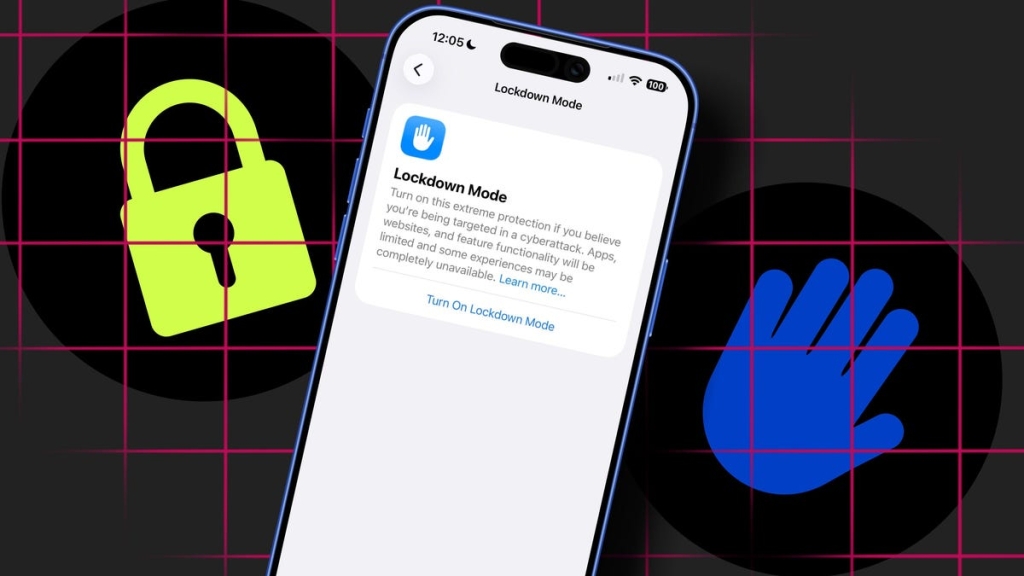
How to Instantly Lock Down Your iPhone from Attackers — Even the FBI Can’t Crack It
In an age where digital privacy is under constant threat, Apple’s Lockdown Mode emerges as a powerful shield for those facing serious, targeted attacks. Recently, this feature made headlines when the FBI reportedly seized a journalist’s iPhone but was unable to access its contents — all thanks to Lockdown Mode being enabled.
What is Lockdown Mode?
Introduced with iOS 16 about four years ago, Lockdown Mode is Apple’s most extreme security feature. It’s designed for high-risk users like journalists, activists, politicians, and anyone who believes they’re being targeted by sophisticated cyberattacks.
When activated, Lockdown Mode aggressively shuts down features that could be exploited by attackers or forensic tools. It blocks most message attachments, restricts web technologies, limits FaceTime calls, disables SharePlay and Game Center, removes shared photo albums, strips location data from shared images, blocks accessory connections to locked devices, prevents connection to insecure Wi-Fi networks, and stops configuration profiles from being installed.
The tradeoff? Your iPhone becomes significantly less convenient — but exponentially more secure.
Why It Matters
The recent FBI incident highlights Lockdown Mode’s effectiveness. Court records reportedly show that despite having physical possession of the device, agents couldn’t extract data because Lockdown Mode was active. This demonstrates that Lockdown Mode isn’t just theoretical — it’s proven to block even sophisticated forensic tools.
For anyone concerned about digital privacy — whether you’re heading to a protest, working in a sensitive role, or simply want maximum protection — knowing how to enable this feature could be crucial.
How to Enable Lockdown Mode
Step 1: Prepare Your Device
Before enabling Lockdown Mode, update your iPhone to the latest version of iOS and back up your data. While the feature is reversible, having a recent backup ensures you won’t lose important information if you need to restore your device.
Step 2: Find the Setting
Apple buries Lockdown Mode deep in your iPhone’s Privacy and Security menu. The fastest way to find it is using Spotlight Search — just swipe down from the middle of your Home screen and type “Lockdown Mode.”
Alternatively, you can navigate manually:
- Open Settings
- Tap Privacy and Security
- Scroll to the bottom and tap Lockdown Mode
Step 3: Enable the Feature
When you tap “Turn On,” Apple immediately shows you a comprehensive list of what will be restricted:
- Messages: Most attachments blocked, some features unavailable
- FaceTime: Incoming calls from unknown contacts blocked, SharePlay disabled
- Web browsing: Some technologies and features restricted
- Photos: Location data excluded from shared photos, Shared Albums removed
- Device connections: Wired connections blocked when locked
- Wireless connectivity: Auto-join for insecure Wi-Fi disabled, 2G/3G blocked
- Apple services: Invitations from unknown contacts blocked
- Profiles: Configuration profiles cannot be installed
After reviewing these restrictions, tap “Turn on Lockdown Mode,” authenticate with your passcode, and restart your device.
Step 4: Complete the Setup
After your iPhone restarts, Lockdown Mode is active. Safari will display a confirmation banner, and some apps may notify you about limited functionality. If you have other Apple devices like a Mac, you’ll be prompted to enable Lockdown Mode there as well for complete protection.
Managing Exceptions
In rare cases where you absolutely need to access a trusted website or app while Lockdown Mode is enabled, the feature allows limited exceptions:
- For websites: Open Safari, load the site, tap the page menu, and turn off Lockdown Mode for that specific site
- For apps: Only apps you’ve opened since enabling Lockdown Mode can be excluded, but Apple strongly advises against this as it reduces protection
You can manage these exceptions in Settings under Privacy and Security > Lockdown Mode > Configure Web Browsing.
How to Disable Lockdown Mode
Lockdown Mode is completely reversible:
- Go to Settings
- Tap Privacy and Security
- Tap Lockdown Mode
- Turn it off and restart your device
The entire process takes just a few minutes, making it practical to enable when needed and disable when you’re in a safer environment.
Security Implications
One crucial aspect of Lockdown Mode is that it requires your passcode or biometric authentication to enable or disable it. This means that even if someone gains physical access to your unlocked phone, they cannot simply turn off the protection.
The feature is specifically designed to protect against remote, targeted cyberattacks like spyware, and it also blocks many forensic techniques that rely on wired connections to locked devices. While Lockdown Mode won’t help if someone already has full access to your unlocked phone, it makes both remote compromise and locked-device data extraction extremely difficult.
Who Should Use This Feature?
Apple explicitly states that Lockdown Mode is for people who face a real risk of targeted cyberattacks. Most users will never need it. However, it’s worth knowing about for:
- Journalists working on sensitive stories
- Activists in countries with repressive governments
- Politicians dealing with sensitive information
- Protesters concerned about device seizure
- Anyone who believes they’re being specifically targeted
For everyday privacy concerns, standard iOS security features like Face ID, strong passcodes, and regular software updates are usually sufficient.
Key Takeaways
- Lockdown Mode is Apple’s most extreme security feature, introduced in iOS 16
- It blocks numerous features to prevent targeted attacks and forensic access
- The FBI recently failed to access a journalist’s iPhone because Lockdown Mode was enabled
- It’s reversible but requires a device restart to activate or deactivate
- Most users will never need it, but it’s crucial for high-risk individuals
- The feature requires authentication to enable/disable, preventing unauthorized changes
Whether you’re a journalist protecting sources, an activist defending your rights, or simply someone who values maximum digital privacy, Lockdown Mode represents one of the most powerful security tools available on any smartphone today.
Tags: iPhone security, Lockdown Mode, digital privacy, FBI hacking, iOS security, smartphone protection, encrypted iPhone, cybersecurity tips, protest safety, journalist security, Apple privacy features, targeted attacks, forensic tools, device lockdown, maximum security
Viral phrases: “Even the FBI can’t crack it,” “ultimate iPhone security,” “digital fortress,” “privacy shield,” “hack-proof iPhone,” “law enforcement blocked,” “extreme protection,” “targeted attack defense,” “forensic tool blocker,” “high-risk security”
Keywords: Lockdown Mode, iOS 16, iPhone security, digital privacy, FBI, encryption, cybersecurity, forensic tools, targeted attacks, protest safety, journalist protection, Apple security, device lockdown, passcode protection, biometric authentication, spyware defense, maximum privacy, extreme security, high-risk users, digital fortress
,


Leave a Reply
Want to join the discussion?Feel free to contribute!