
Mac clipboard history: How to find and use it in macOS 26 Tahoe
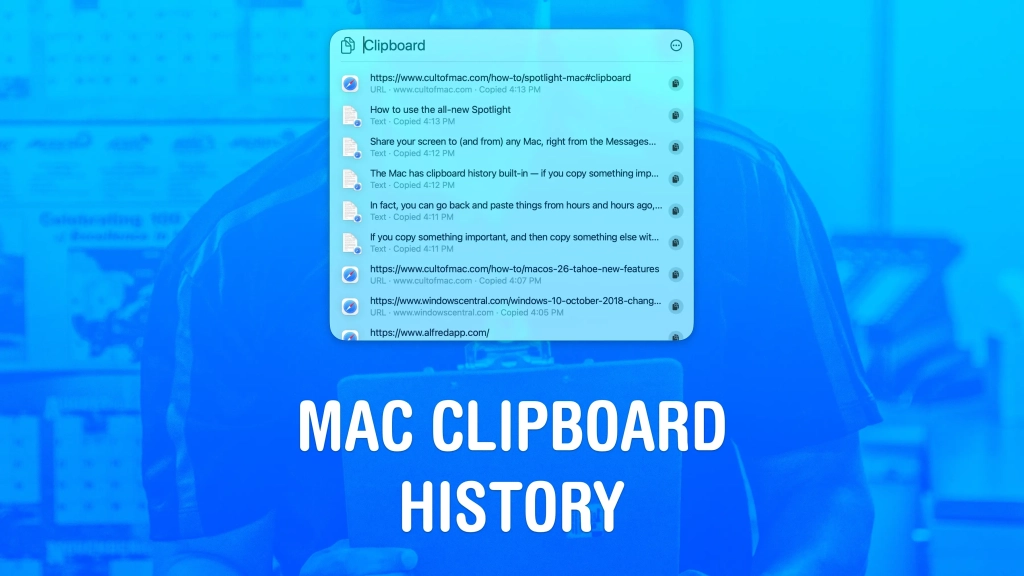
Mac Users Rejoice: Apple Finally Catches Up With Built-In Clipboard History in macOS Tahoe
The wait is over. After years of watching Windows users smugly paste from their clipboard history, Mac fans finally have a reason to smile. Apple has integrated a powerful clipboard manager directly into macOS 26 Tahoe, and it’s about to revolutionize how you work.
The Game-Changing Feature That’s Been Missing for Decades
For years, Mac users have suffered through the infuriating clipboard limitation: copy something, then copy something else, and poof—your first item vanishes forever. It was like Apple was stuck in the 1990s while Windows had been offering clipboard history since 2018.
But macOS 26 Tahoe changes everything. Now your Mac remembers everything you’ve copied for hours, maybe even days, and lets you paste items in rapid-fire succession without the annoying back-and-forth dance.
How to Unlock This Hidden Productivity Powerhouse
Here’s the magic keyboard shortcut: Hit Command-Space, then Command-4 in one fluid motion. Or click the Spotlight icon in your menu bar and tap the Clipboard icon.
The first time you open it, macOS will ask if you want to enable clipboard history. Say yes, and from that moment forward, your Mac starts keeping a detailed log of everything you copy.
Paste Like a Pro: The Features That Will Blow Your Mind
Once you’re in clipboard history, you can:
- Scroll through your entire copy history using your mouse or arrow keys
- Hit Return or click any item to paste it instantly
- Paste without formatting automatically—no more wrestling with that complicated Shift-Option-Command-V shortcut
- Copy items to the top of your clipboard without immediately pasting them, perfect for organizing your paste queue
Customize Your Clipboard Experience
Head to System Settings → Spotlight and scroll to the bottom to find clipboard history options:
- Set history duration from 30 minutes (maximum privacy) to 7 days (maximum convenience)
- Manually clear your clipboard history anytime
- Turn it off entirely if you’re worried about sensitive information being stored
The Privacy Tradeoff You Need to Know About
Apple is refreshingly honest about the privacy implications: “Personal and sensitive information may appear in search results.” That link you copied earlier? It’s searchable. That password you copied (please don’t do this)? It’s in there too.
Still Want More Power? Third-Party Options Await
If Apple’s built-in solution isn’t enough for you power users, apps like Maccy and Alfred offer even more features. Maccy uses Shift-Command-C and lets you paste your nine most recent items with Command-1 through Command-9.
The Bottom Line
macOS 26 Tahoe’s clipboard history isn’t just a nice-to-have feature—it’s a fundamental productivity upgrade that should have been there years ago. Whether you’re a student copying research, a developer juggling code snippets, or just someone who hates losing important information, this feature will change how you use your Mac forever.
macOS 26 Tahoe, clipboard history, Mac productivity, copy paste, Apple features, Spotlight, keyboard shortcuts, Mac tips, productivity hacks, clipboard manager, Windows vs Mac, macOS update, tech news
Game-changer, finally here, about time, Mac users rejoice, productivity boost, hidden feature, power user, clipboard history, copy paste revolutionized, Apple catches up, macOS 26, Spotlight magic, keyboard shortcut, privacy concerns, sensitive information, tech upgrade, must-have feature, workflow improvement, copy without fear, paste like a pro, Mac evolution, Windows had it first, Apple delivers, clipboard manager built-in, eight-hour history, seven-day option, 30-minute privacy, Command-Space magic, productivity powerhouse, copy queue, paste without formatting, sensitive data warning, third-party alternatives, Maccy app, Alfred features, developer productivity, student research, code snippets, information management, workflow efficiency, Mac innovation, Apple ecosystem, macOS features, tech evolution, productivity tools, keyboard mastery, copy history, paste history, clipboard log, Spotlight search, menu bar access, System Settings, privacy settings, data security, information storage, copy protection, paste protection, workflow optimization, Mac customization, Apple improvements, user experience, productivity revolution, time-saving feature, frustration eliminated, copy anxiety solved, paste confidence, information retrieval, clipboard management, Mac capabilities, Apple advancements, technology progress, user satisfaction, feature request fulfilled, long-awaited feature, Mac community, Apple ecosystem growth, productivity enhancement, workflow streamlining, information accessibility, copy convenience, paste convenience, Mac efficiency, Apple efficiency, technology efficiency, user efficiency, productivity efficiency, workflow efficiency, information efficiency, copy efficiency, paste efficiency, Mac mastery, Apple mastery, technology mastery, user mastery, productivity mastery, workflow mastery, information mastery, copy mastery, paste mastery
,


Leave a Reply
Want to join the discussion?Feel free to contribute!