
New Phone app: How to use it in iOS 26 (or get the old one back)
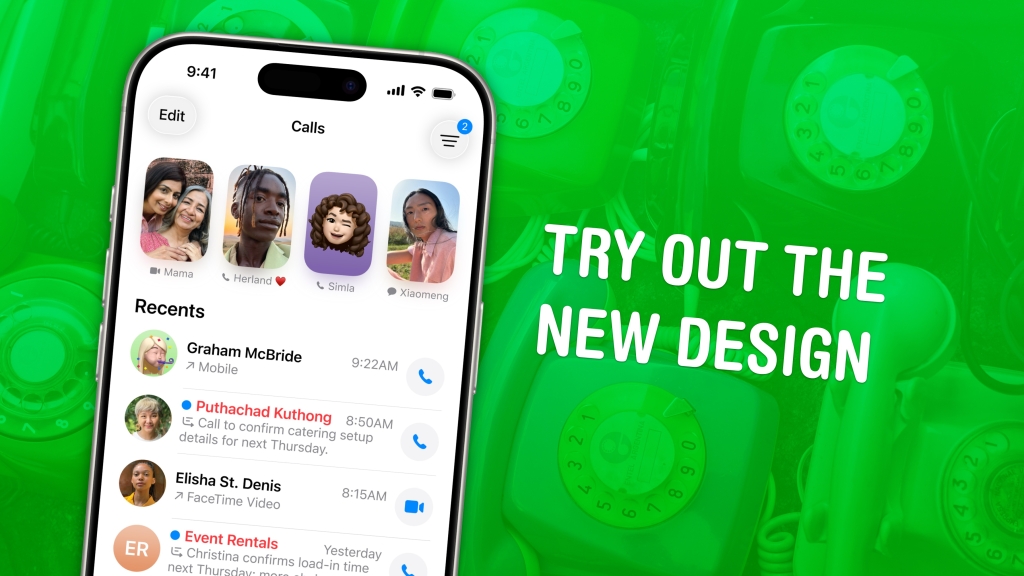
Apple’s Phone App Gets a Major Makeover After 18 Years
In a move that’s sending shockwaves through the tech world, Apple has completely redesigned the iPhone’s Phone app for the first time in nearly two decades. The iOS 26 update brings a sleek, modern interface that’s both beautiful and functional, but also offers the option to stick with the classic design you’ve known since 2007.
The Big Change: Unified Calls Interface
Apple has merged the Favorites, Recents, and Voicemail tabs into a single Calls screen that’s cleaner and more intuitive than ever. Your favorite contacts appear as large, beautiful cards at the top, while your call history and voicemails are grouped together below in one seamless list.
This isn’t just a cosmetic update—it’s a complete rethinking of how you interact with your phone calls. The new design leverages Apple’s stunning Liquid Glass aesthetic, creating a visual experience that’s both modern and unmistakably Apple.
How to Choose Your Design
When you first update to iOS 26, you’ll be prompted to choose between the new design or the classic layout. If you accidentally select the wrong option, switching is incredibly simple:
- Tap the Filter button in the upper right corner
- Select Classic to revert to the traditional five-tab layout (Favorites, Recents, Contacts, Keypad, Voicemail)
- Or choose Unified to embrace the new design
You can switch back and forth anytime you want, giving you complete control over your calling experience.
Mastering the New Calls Screen
The Unified Calls screen is where the magic happens. Here’s how to make the most of it:
Setting Up Your Favorites
- Tap Edit at the top of the Calls screen
- Select Edit Favorites to manage your speed dial contacts
- Tap the + button to add new favorites from your contacts
- Choose how you want to contact them: text, phone call, FaceTime, or email
- Use the − button to remove contacts and Done to save
Managing Unknown Callers
The new design automatically filters out spam and unknown callers, keeping your Recents list clean and clutter-free. To view these filtered calls:
- Tap Filter → Unknown Callers
- Mark important calls as Known or delete unwanted ones
- Use the two-finger swipe trick to select all and delete in bulk
- Adjust filtering settings in Settings → Phone → Call Filtering
Supercharged Search
The new design includes a permanent Search button at the bottom right, making it easier than ever to find contacts. Just type any contact detail to see filtered results instantly.
Why This Matters
This redesign represents Apple’s first major overhaul of the Phone app since the original iPhone launched in 2007. It’s a bold move that shows Apple isn’t afraid to reinvent even its most fundamental apps when the time is right.
The new design isn’t just about looks—it’s about creating a more efficient, enjoyable calling experience that keeps up with how we use our phones today. With built-in spam filtering, easier access to favorites, and a cleaner interface, the Phone app is finally getting the upgrade it deserves.
Whether you choose the sleek new Unified design or stick with the classic layout, iOS 26 gives you more control over your calling experience than ever before.
Tags: iOS 26, iPhone, Phone app, Apple redesign, Liquid Glass, call filtering, spam blocking, favorites, unified interface, tech news, Apple update
Viral phrases: “18 years in the making,” “Apple’s boldest redesign yet,” “finally fixing the Phone app,” “spam calls be gone,” “the future of calling,” “iOS 26 game-changer,” “Liquid Glass magic,” “your phone calls just got beautiful,” “the redesign you didn’t know you needed”
,


Leave a Reply
Want to join the discussion?Feel free to contribute!