
Nine Phone Settings to Change Before Attending a Protest
Title: Protest Tech Safety: Essential Privacy & Security Tips for Your Device
TL;DR: Before heading to a protest, secure your phone with these crucial privacy settings. Turn off biometric unlocking, limit location tracking, disable notifications, and consider advanced protection modes. Your digital safety matters as much as your physical presence.
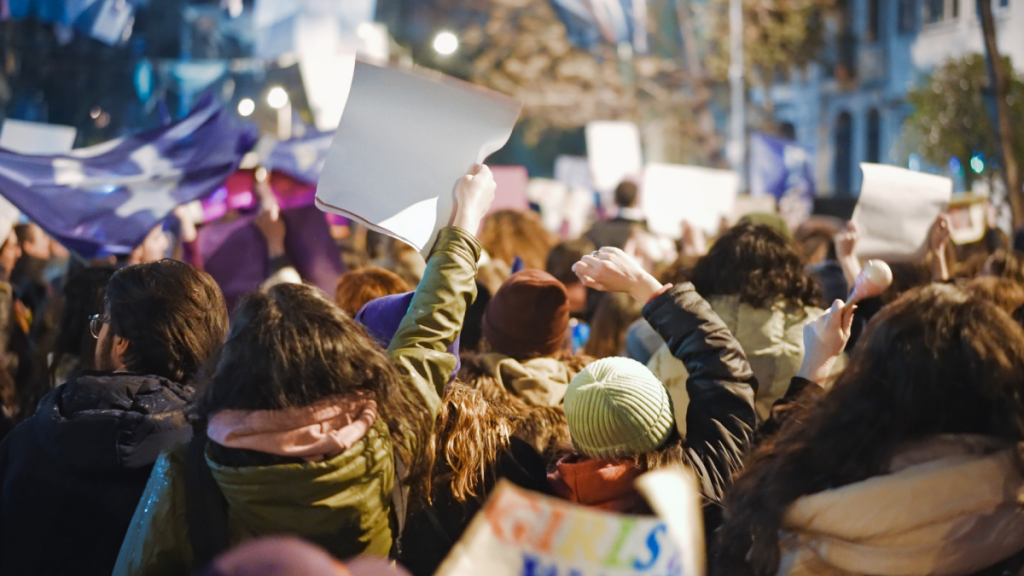
As protests continue to shape our world, your phone can be both a powerful tool for documentation and a potential liability for your privacy. Whether you’re a first-time protester or a seasoned activist, these tech security measures will help protect your digital footprint while you exercise your right to assemble.
Lock Down Your Device: The Basics
Start with the foundation: if you haven’t already, enable full disk encryption on your device. Both iOS and Android offer this by default when you set up a passcode, but double-check your settings. On Android, navigate to Settings > Security and verify that Encrypt Disk is enabled.
Biometric Authentication: The First Vulnerability
Here’s a critical security measure that many overlook: disable Face ID and fingerprint scanning. Law enforcement can legally compel you to unlock your device using biometrics, but they cannot force you to reveal a passcode. On iOS, go to Settings > Face ID & Passcode and toggle off iPhone Unlock. Consider setting up a custom alphanumeric passcode for maximum security. Android users should head to Settings > Security & Privacy > Device Unlock > Fingerprint to remove fingerprint authentication.
Location Tracking: Your Digital Trail
Your phone is essentially a tracking device, constantly broadcasting your location. The safest approach? Leave it at home. If that’s not possible, keep it powered off except when absolutely necessary. When you do need it on, enable Airplane Mode and disable Bluetooth, Wi-Fi, and location services. On iOS, this means going to Settings > Privacy & Security > Location Services and turning everything off. Android users should check Settings > Location and disable location services entirely.
Notifications and Screen Previews: Information Leaks
Those notification previews on your lock screen? They’re broadcasting sensitive information to anyone who glances at your phone. Temporarily disable them by going to Settings > Notifications on iOS or Settings > Apps & notifications > Notifications on Android. This simple step prevents anyone from seeing messages, emails, or other alerts without your passcode.
Screen Lock Timing: Every Second Counts
Reduce your screen lock time to the minimum—30 seconds on iOS (Settings > Display & Brightness > Auto-Lock) or the shortest available on Android. This ensures your device locks quickly when not in use, requiring authentication to reopen.
App Pinning and Guided Access: Controlled Usage
Both platforms offer features that lock your device to a single app. Android’s App Pinning and iOS’s Guided Access prevent anyone from navigating beyond the app you’ve selected. This is perfect if you need to quickly capture photos or video without giving access to your entire device. On Android, find this under Security > Advanced > App pinning. On iOS, it’s located at Settings > Accessibility > Guided Access.
SIM Card Security: Two-Factor Authentication Protection
Your SIM card can be used to intercept two-factor authentication codes sent via SMS. Protect it with a SIM PIN. On iOS, go to Settings > Cellular, select your SIM, and tap SIM PIN. Android users will find this under Settings > Security > More security settings (path varies by device).
App Management: Minimize Your Digital Footprint
Consider which apps truly need to be accessible during a protest. Sign out of social media accounts, delete apps containing sensitive data, or use your device’s built-in app locking features. iOS allows you to require Face ID or passcode for specific apps—just long-press the app icon and select Require Face ID/Require Passcode. Android’s Private Space feature creates a separate, password-protected area for sensitive apps.
Advanced Protection: When You Need Maximum Security
For high-risk situations, both platforms offer extreme security modes. iOS’s Lockdown Mode and Android’s Advanced Protection significantly restrict device functionality to prevent sophisticated attacks. These are designed for journalists, activists, and others who might be targeted, but they can provide extra peace of mind during protests. Enable Lockdown Mode via Settings > Privacy & Security > Lockdown Mode on iOS, or Advanced Protection under Settings > Security & Privacy > Advanced Protection on Android.
Post-Protest Privacy: Protecting Others Too
Your responsibility doesn’t end when the protest does. If you’re sharing photos or videos, use blurring tools to obscure faces and identifying features. Remove metadata by taking screenshots of images or sending copies through Signal, which automatically strips location and other identifying data. Signal also includes a built-in photo blurring tool.
Remember: Your digital security is an ongoing process. These measures significantly reduce your risk, but no system is completely foolproof. Stay informed, stay safe, and protect both your privacy and the privacy of those around you.
Tags: #ProtestSecurity #DigitalPrivacy #TechSafety #ActivismTech #PhoneSecurity #ProtestTips #PrivacyMatters #DigitalRights #SecurityFirst #TechForChange
Viral Phrases: “Your phone is watching you—lock it down before protests” | “Biometric unlock? More like biometric vulnerability” | “Location tracking off = digital invisibility cloak” | “SIM PIN: The unsung hero of protest security” | “Blur faces, save futures” | “Tech security isn’t paranoia—it’s preparation” | “Your digital footprint can be your downfall” | “Protest smart, not just hard” | “Privacy settings are the new protest gear” | “Lockdown Mode: When normal security just isn’t enough”
,

Leave a Reply
Want to join the discussion?Feel free to contribute!