
Rudra is a new keyboard-driven launcher for GNOME Shell
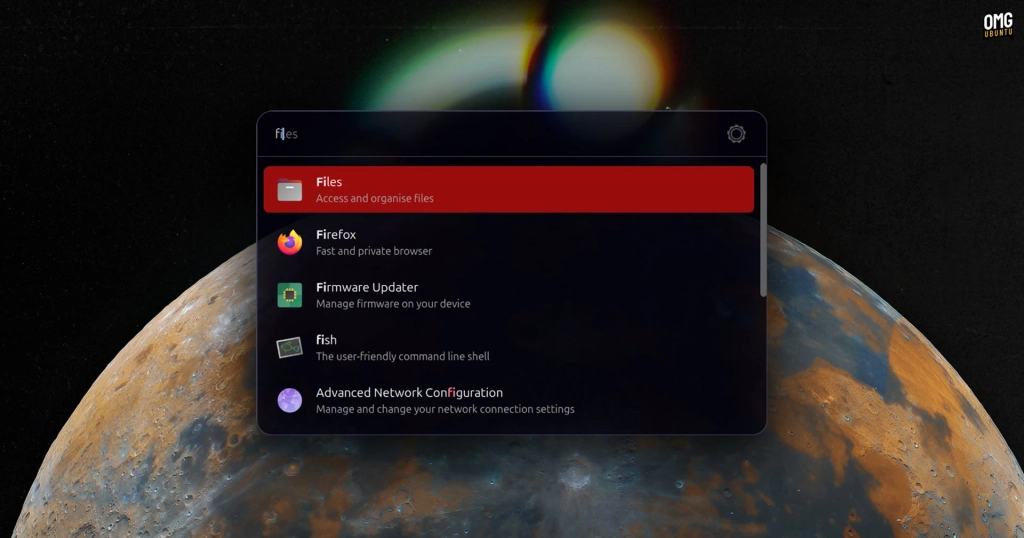
Rudra: The Sleek New GNOME Shell Launcher That’s About to Replace Your Old Habits
If you’ve ever felt that GNOME Shell’s built-in launcher is just a bit too much—too big, too bold, too in-your-face—then Rudra might just be the game-changing GNOME Shell extension you’ve been waiting for. Designed for power users who crave speed, efficiency, and a minimalist aesthetic, Rudra is a keyboard-driven launcher that’s here to streamline your workflow without stealing the spotlight.
What Makes Rudra Stand Out?
While the Linux world is no stranger to keyboard-based launchers like Albert, Ulauncher, and rofi, Rudra takes a fresh approach by embedding itself directly into GNOME Shell as an extension. No standalone app, no extra bloat—just a lightning-fast, compact launcher that feels like it was always meant to be there.
Developed by Nark Agni, Rudra draws inspiration from macOS staples like Alfred and Raycast, but it’s far more focused and lightweight. Think of it as the Spotlight of the Linux world, but with a distinctly GNOME twist.
How Does It Work?
Activating Rudra is as simple as pressing Ctrl + Shift + Space (though you can customize this shortcut). Once triggered, a sleek, dark-themed launcher pops up, ready to handle your every command. Here’s what you can do with it:
- Search and launch apps with lightning speed—just type, arrow down, and hit Enter.
- Find system settings panels like Display, Network, or Sound in seconds.
- Search for files in your home folder by tapping the period key and typing.
- Search Google or YouTube by typing
gorytfollowed by your query. - Run commands directly from the launcher by typing
>followed by your command.
Rudra’s autocomplete feature is a standout, offering smart suggestions as you type. Hit Tab or the right arrow key to complete inline suggestions instantly. It’s like having a personal assistant who knows exactly what you’re looking for.
Customization Galore
Rudra isn’t just about speed—it’s also about style. The extension is highly configurable, allowing you to tweak the font, colors, opacity, and border radius of the launcher UI. Want it to appear in a specific corner of your screen? No problem. Rudra lets you dial in the perfect location for your workflow.
Rudra vs. GNOME Shell’s Built-In Launcher
GNOME Shell already has a powerful, keyboard-friendly launcher, but it’s full-screen and can feel a bit overwhelming. Rudra, on the other hand, offers a more discreet, Spotlight-esque experience. If you’ve ever wished for a compact alternative that doesn’t obscure your entire desktop, Rudra is the answer.
It’s perfect for those moments when you need to quickly find an app, file, or setting without losing sight of your open windows. Plus, it’s extensible, so you can add new features as needed.
Installation and Compatibility
Rudra is free, open-source software, and the code is available on GitHub. You can install the latest version directly from the GNOME Extensions website. It’s compatible with GNOME 45 through 49, making it accessible to a wide range of users. Just make sure you have the libglib2.0-bin package installed before you get started.
Tags & Viral Phrases:
- 🚀 Game-Changing GNOME Shell Extension
- ⚡ Lightning-Fast Keyboard Launcher
- 🎨 Sleek, Customizable UI
- 🔍 Spotlight-Esque Search Experience
- 💻 Perfect for Power Users
- 🎯 Minimalist Design, Maximum Efficiency
- 🌟 Rudra: The Alfred of Linux
- 🔄 Replace Your Old Habits
- 🧠 Smart Autocomplete, Smarter Workflow
- 🛠️ Highly Configurable, Deeply Integrated
- 🌍 Open-Source, Free to Use
- 📦 Easy Installation, Instant Gratification
- 🔧 Tweak It to Your Heart’s Content
- 🚀 Level Up Your GNOME Experience
- 💡 The Future of Linux Launchers is Here
,


Leave a Reply
Want to join the discussion?Feel free to contribute!