
Save your history and recommendations
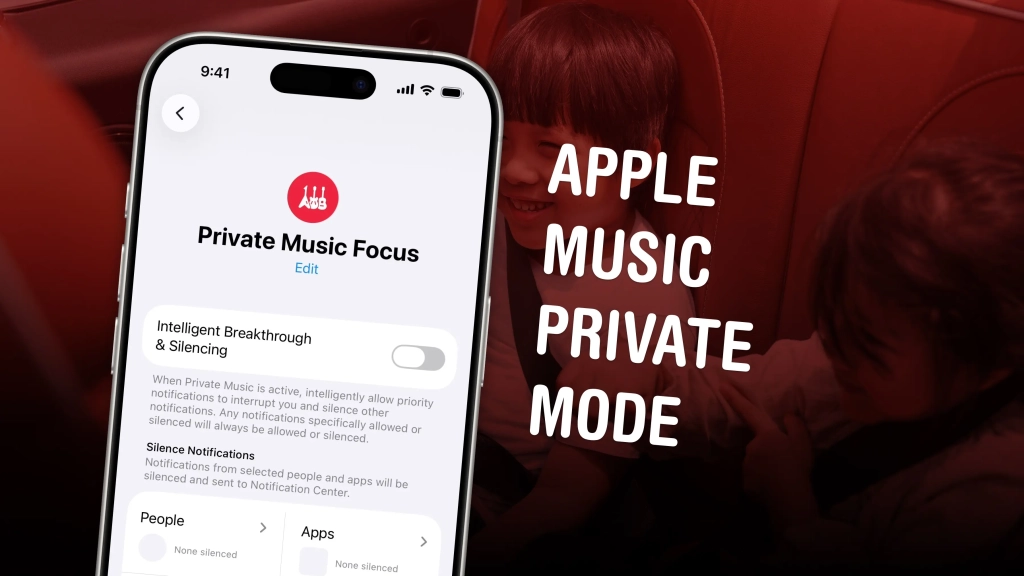
Apple Music Gets a Secret “Private Mode” You Didn’t Know Existed
If you’re tired of your kids’ or partner’s music polluting your Apple Music recommendations and history, there’s a hidden solution. While Apple Music doesn’t offer a built-in private mode, you can create your own using a clever Focus mode trick that’s been flying under the radar.
Turn on a special Focus mode, and Apple Music will ignore all the songs, artists, and albums that play next. It’s even possible to enable your private mode when you connect to a specific Bluetooth speaker, like a living room sound system, or when you enter a specific location, like work.
The Genius Hack: Using Focus Mode as Apple Music Private Mode
Here’s the game-changing workaround: Apple’s Focus feature can be customized to disable Apple Music’s listening history tracking. This means you can create a “Private Music” Focus that essentially acts as an incognito mode for your streaming service.
Why this matters: Your Apple Music Replay is probably all kinds of messed up if you have kids or share your account. The feature is supposed to tell you who your favorite artists are, along with your top songs and albums of the year. But if you’re often playing music for your children, or when your partner is in the car, it won’t exactly reflect your tastes.
It’s not just Apple Music Replay—your listening history also informs what songs are recommended to you over time. Just like private browsing mode in Safari, or incognito mode in Chrome, you can set up an Apple Music private listening mode.
How to Set Up Your Apple Music Private Mode
Step 1: Create a ‘Private Music’ Focus
First, go to Settings > Focus and tap Add (+) in the upper right. Tap Custom. Give it a name like “Private Music.” I recommend giving it a red color (like the Music app) and the icon of the guitar. Then, tap Customize Focus.
Tap Choose People, then set it to Silence Notifications From and remove everyone who shows up in the list. This is because you don’t actually want to silence any notifications; you just want to turn off your Apple Music listening history. After you tap Done (the blue checkmark) in the upper right, it should say “None Silenced.” Do the same thing for Choose Apps—remove all the apps from the list.
Finally, tap Options and disable Hide Notification Badges. You don’t want your badges to disappear when you’re listening to private music.
Step 2: Under Focus Filters, Turn Off Listening History
Now comes the setting that’ll pause your listening history. Scroll down to the Focus Filters section, tap Add Filter and choose Music from the list. Make sure “Use Listening History” is disabled, then tap Add.
It should say, “Use Listening History: Turn Off.”
Step 3: Turn On Your Apple Music Private Mode Focus
To enable your private music mode, swipe down from the top-right to bring up Control Center. (On an older iPhone with a Home button, swipe up from the bottom.) Tap Focus, then choose your Private Music focus from the list.
In theory, you should be able to ask Siri to enable a Focus mode. Although, using Apple’s own example of how it should be phrased, “Turn on the Private Music Focus,” doesn’t work for me. Your mileage may vary.
Advanced Features: Automatic Triggers
Set an Automatic Trigger by Device
You know what’s better than enabling a private music mode yourself? Having it turn on automatically when you connect to a specific Bluetooth device or CarPlay. This comes in handy if you play kids’ music over your living room speaker or if you listen to different music in your partner’s car.
To set this up, open the Shortcuts app, tap the Automation tab and tap New Automation. Scroll down and tap either Bluetooth or CarPlay. Set it to run both when it Is Connected and Is Disconnected. Also set it to Run Immediately.
Then, tap Create New Shortcut. Tap the Controls filter, then tap Set Focus. Change the settings to Toggle your Private Music Focus, then tap Done (the blue checkmark in the upper right).
That way, your phone will automatically turn the Private Music Focus on when you connect to that device, and turn it off when you disconnect.
Set an Automatic Trigger by Location
You can also set a trigger by location, like if you use your phone for music at work—and don’t want that on your listening history. Go back to Settings > Focus and select your Private Music Focus (or whatever you called it).
Tap Add Schedule toward the bottom, then tap Location. You can choose an existing address or enter one in manually. You can even choose how big of a range to make it on the map below.
The Privacy You’ve Been Missing
This clever workaround gives you the privacy controls that Apple Music should have had from the start. Whether you’re trying to keep your guilty pleasure playlists secret, prevent your kids’ music from ruining your recommendations, or just want some control over your listening data, this Focus mode trick delivers.
The best part? It’s completely free and built into iOS—no third-party apps required. Apple Music users have been asking for a private listening mode for years, and while Apple hasn’t delivered one officially, this Focus mode hack provides essentially the same functionality.
Tags & Viral Phrases
- Apple Music private mode
- How to listen to Apple Music privately
- Apple Music incognito mode
- Stop Apple Music from tracking my history
- Apple Music Focus mode hack
- Private listening Apple Music
- Apple Music listening history off
- How to disable Apple Music tracking
- Apple Music secret features
- iOS Focus mode tricks
- Apple Music recommendations fix
- Stop kids music ruining Apple Music
- Apple Music privacy settings
- Hidden Apple Music features
- Apple Music hack 2024
- How to use Apple Music without history
- Apple Music location-based triggers
- Bluetooth device Apple Music automation
- Apple Music CarPlay private mode
- iOS 17 Apple Music features
- Apple Music listening data control
- Turn off Apple Music tracking
- Apple Music secret mode
- How to make Apple Music private
- Apple Music history deletion
- iOS private music listening
- Apple Music partner sharing fix
- Apple Music guilty pleasure protection
- Stop Apple Music recommendations
- Apple Music data privacy
- iOS 16 Apple Music tricks
- Apple Music hidden settings
- How to use Apple Music anonymously
- Apple Music profile privacy
- iOS music privacy hack
- Apple Music incognito browsing
- Apple Music secret playlist protection
- iOS 15 Apple Music features
- Apple Music listening stats control
- How to hide Apple Music history
- Apple Music private session
- iOS music tracking disable
- Apple Music recommendation algorithm
- Apple Music data collection
- iOS 14 Apple Music privacy
- Apple Music history management
- iOS music app secrets
- Apple Music user experience
- Apple Music feature requests
- iOS 13 Apple Music tips
- Apple Music listening preferences
- iOS music library management
- Apple Music subscription features
- iOS device automation
- Apple Music user control
- iOS system preferences
- Apple Music streaming quality
- iOS accessibility features
- Apple Music family sharing
- iOS app customization
- Apple Music offline listening
- iOS battery optimization
- Apple Music audio quality
- iOS notification management
- Apple Music social features
- iOS performance tips
- Apple Music playlist organization
- iOS storage management
- Apple Music cross-platform
- iOS security features
- Apple Music discovery tools
- iOS user experience
- Apple Music bitrate settings
- iOS update features
- Apple Music equalizer settings
- iOS device compatibility
- Apple Music lyrics display
- iOS gesture controls
- Apple Music radio stations
- iOS background refresh
- Apple Music collaborative playlists
- iOS voice control
- Apple Music sound quality
- iOS app store
- Apple Music spatial audio
- iOS screen time
- Apple Music lyrics translation
- iOS file management
- Apple Music song credits
- iOS backup features
- Apple Music music videos
- iOS accessibility options
,

Leave a Reply
Want to join the discussion?Feel free to contribute!